Everything you need to run
Cyber Square at your school.

A complete guide to the platform — for teachers, school admins and students. Set up your school, run live classes, code in the cloud, and let AI do the busywork.

rocket_launch
Getting started
chevron_rightWelcome to Cyber Square chevron_rightChoose Your Role chevron_rightDon't Have an Account? chevron_rightApprovals chevron_rightLogin
grid_view
Platform basics
chevron_rightNavigating the platform chevron_rightYour dashboard
menu_book
Teaching
chevron_rightCourses & modules chevron_rightLive Class Room chevron_rightResources & sharing
fact_check
Assessment
chevron_rightExams & Lab Exam chevron_rightScorecards & reports
science
CS Lab
chevron_rightAI Cloud Lab chevron_rightPractice chevron_rightCreate & Share
auto_awesome
CS AI Tools
chevron_rightAI Tools Overview chevron_rightLesson Plan chevron_rightQuestion Paper +5 more
celebration
Digital Fest
chevron_rightDigital Fest competitions
apartment
School administration
chevron_rightSetting up your school chevron_rightStreams, divisions & batches chevron_rightManaging teachers & students
backpack
For students
chevron_rightJoining your class chevron_rightLearning & submitting
support_agent
Help & support
chevron_rightContact & support chevron_rightFrequently asked questions

Welcome to Cyber Square

Cyber Square is an innovative program dedicated to empowering students with future-ready skills in Coding, AI, Robotics and Digital Technologies through a comprehensive learning platform and curriculum.

lightbulb
The name Cyber Square reflects our philosophy of complete learning — Cyber & Square.

Whenever someone does anything related to AI and Robotics, they will use computers. Cyber refers to this.

A square has 4 sides. Learning a real skill works on four essential dimensions that work together to transform learners into creators. If any one is missing, the learning never truly closes into mastery.

The Four Pillars of Cyber Square

auto_stories
1
Conceptual Learning
Textbooks & AI Cloud Classroom
Students build foundational concepts of AI, Robotics, Computational Thinking, ICT and Digital Skills through structured textbooks, curriculum and aligned digital content.
terminal
2
Practical Learning
AI Cloud Lab
Students practise what they learn through hands-on coding in the AI Cloud Lab, directly from a browser without installation.
smart_toy
3
Experiential Learning
AI Robo Suite & STEM AIR Project Suite
Students apply their knowledge through real-world projects, AI, robotics and hands-on experiences.
emoji_events
4
Expression Avenues
Digital Fest
Students showcase their creations, participate in competitions and gain opportunities to express what they have built.

This manual is the single reference for everyone who uses the Cyber Square platform to practise learning and build strong conceptual understanding. Whether you are a teacher, student, or school admin, you'll find step-by-step guidance here.

What you can do with the platform?

menu_book
Teach the curriculum
A KG1–Grade 12 coding & AI ladder, from block coding to Python and databases.
cast_for_education
Run live classes
Present lessons to smartboards, tablets and student devices in real time.
science
Code in the cloud
CS Lab gives every student a browser-based coding environment — nothing to install.
auto_awesome
Let AI help
Generate lesson plans, assessments and feedback with the CS AI Tools.

Choose Your Role

Cyber Square supports different user roles, each with its own dashboard and capabilities. Before creating an account, identify the role or roles that apply to you and understand what you can access and do on the platform.

co_present
Teacher
Runs classes, manages students, shares resources, sets exams, and reviews student performance.
admin_panel_settings
School admin
Manages school setup, teachers and students, monitors and analyzes school performance.
school
Student
Watches lessons, completes activities, codes in CS Lab, takes exams, and tracks learning progress.
diversity_3
Parent & Trainer
Parents follow progress; Cyber Square trainers help your school onboard and grow.
lightbulb
Switching roles
If you hold more than one role (for example a teacher who is also a grade admin), you can switch context from your profile menu in the top-right of the app — no second login needed.

Use the role filter co_presentTeacher admin_panel_settingsSchool Admin schoolStudent to show only the sections and guidance relevant to your role. If you have more than one role, you can select multiple roles to view everything that applies to you.

Don't Have an Account?

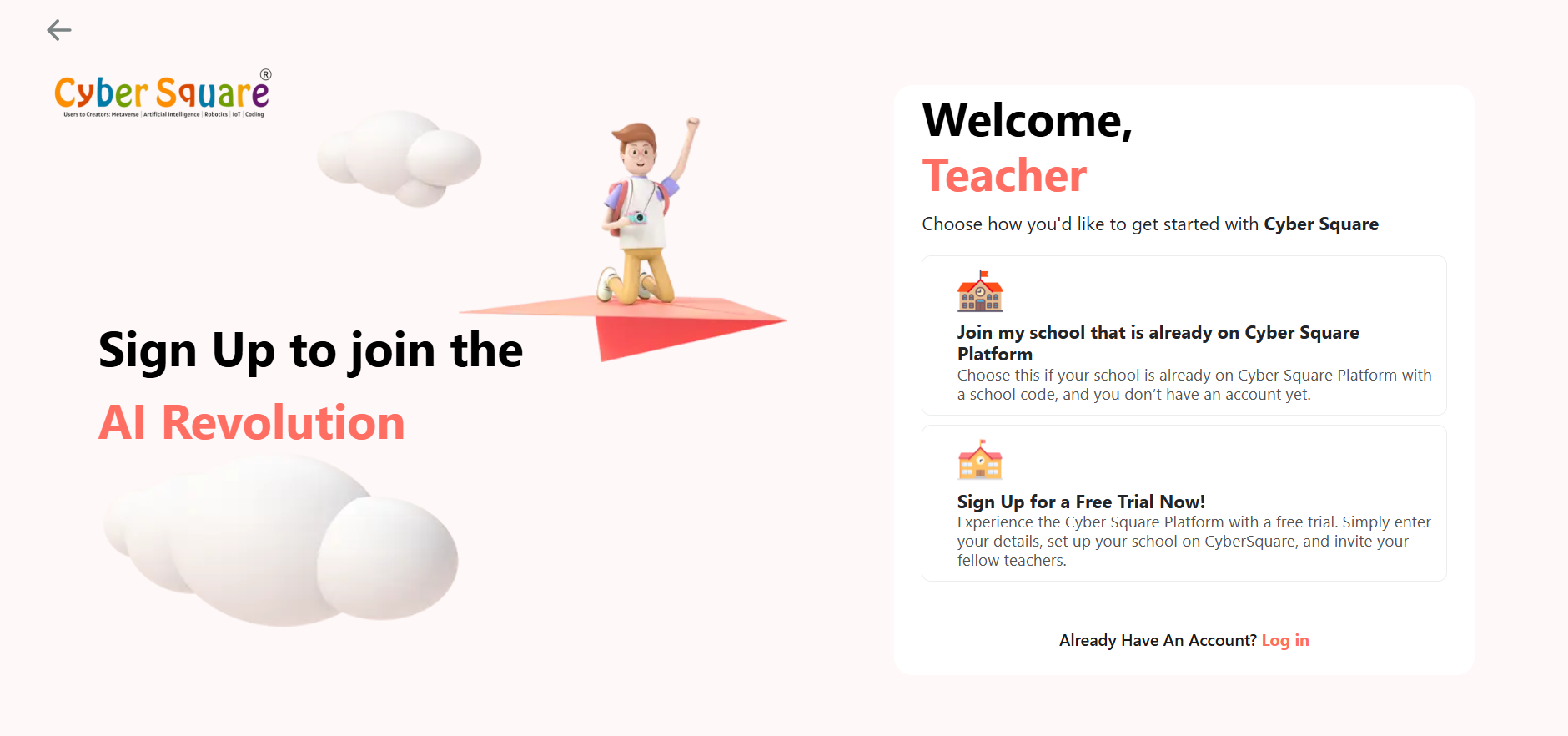
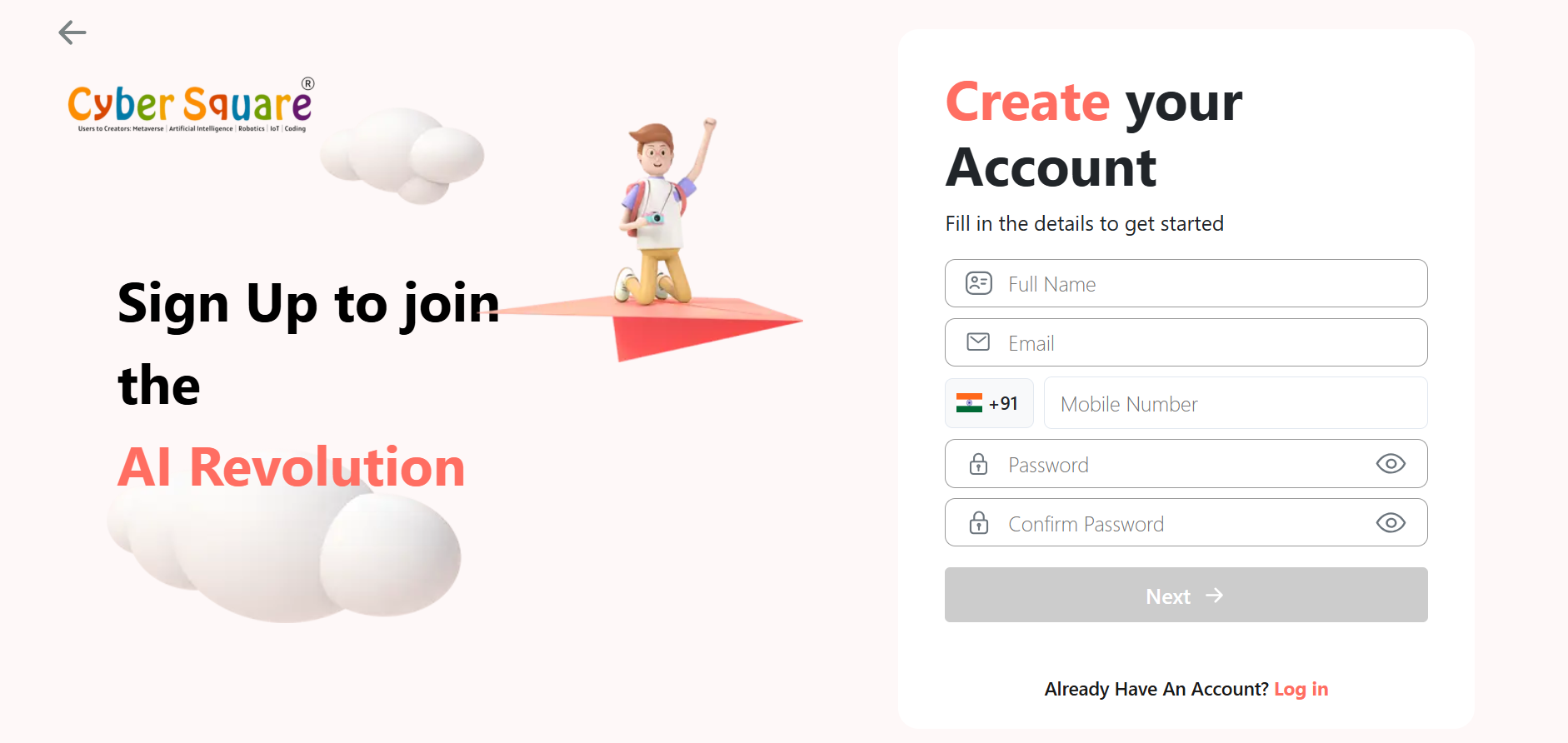
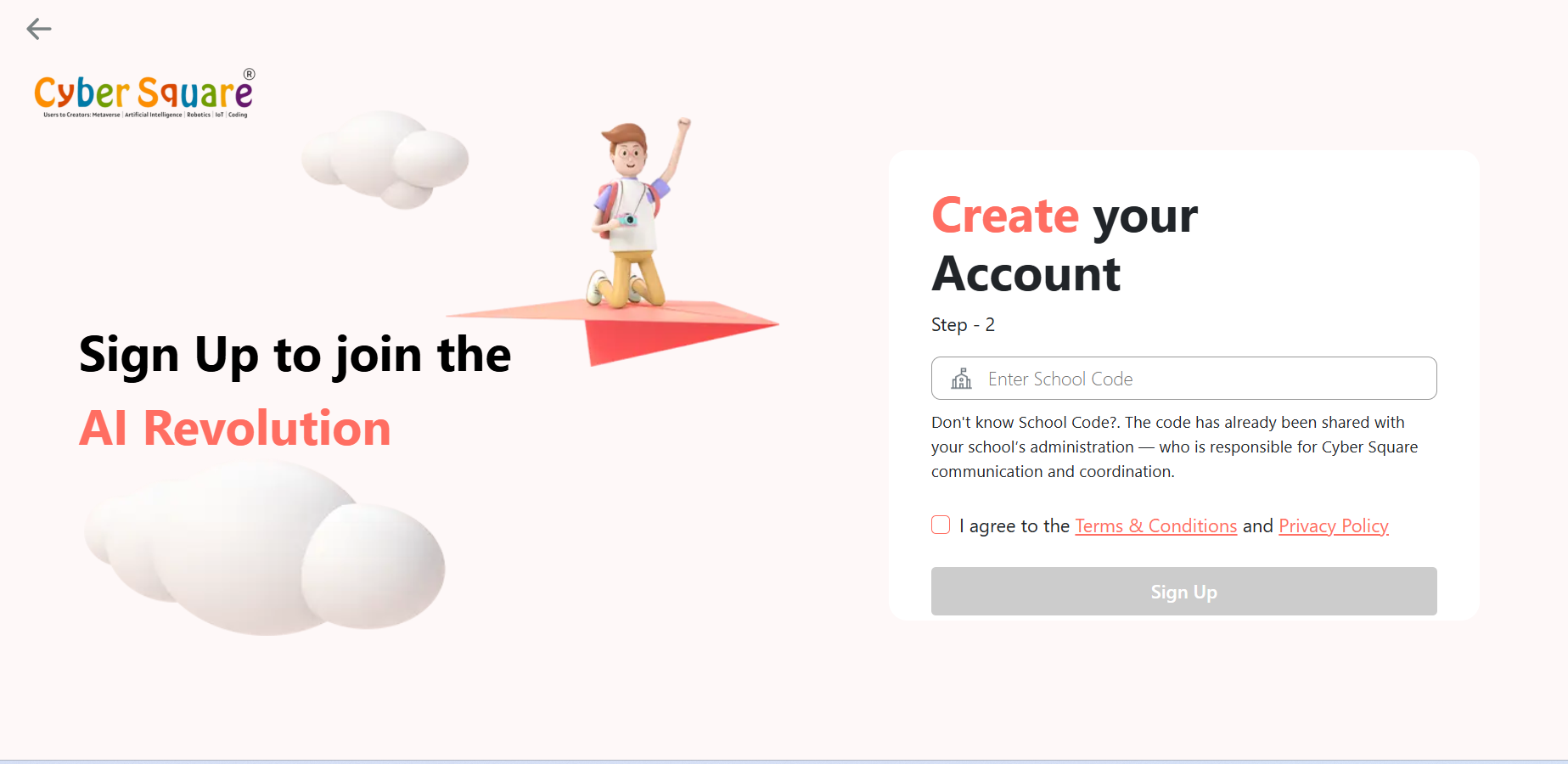
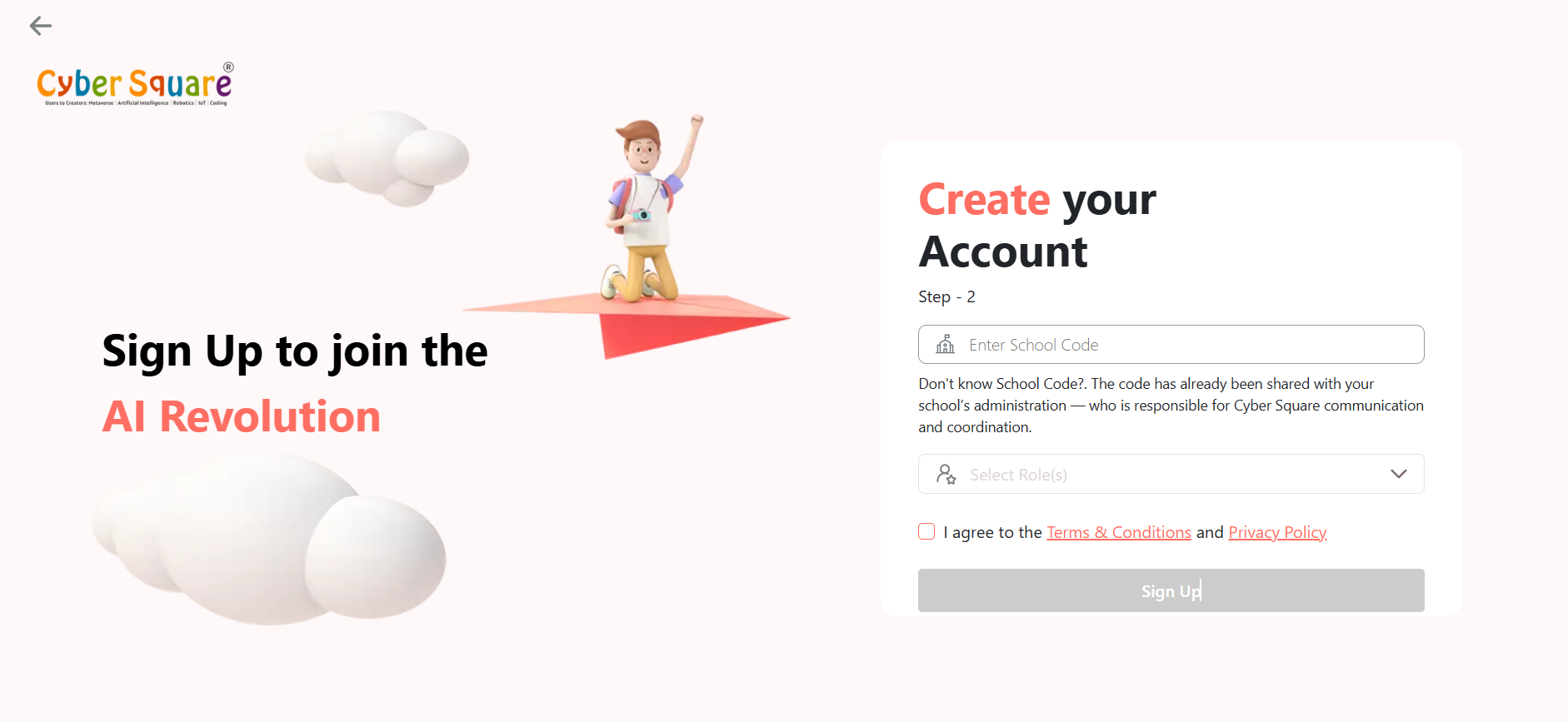
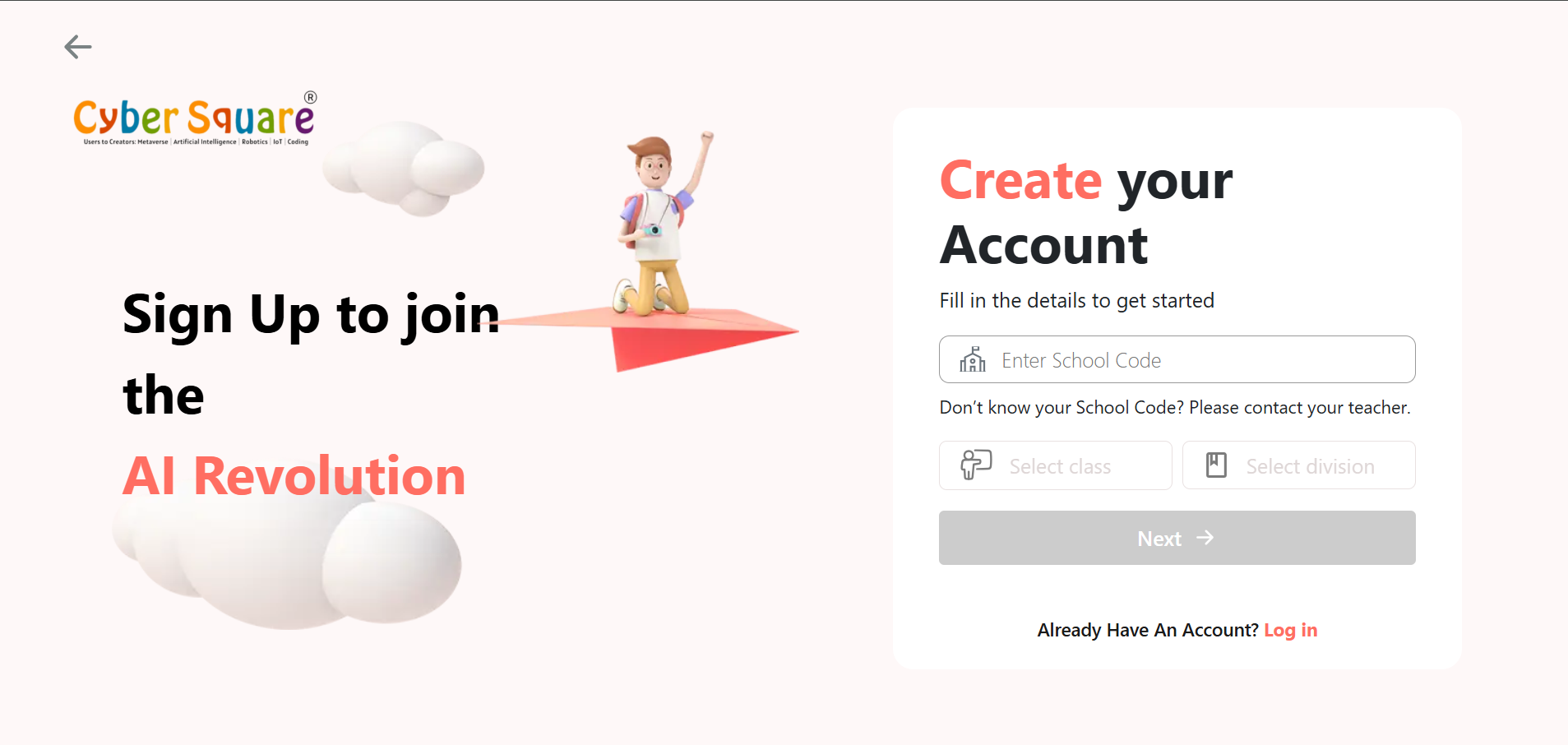
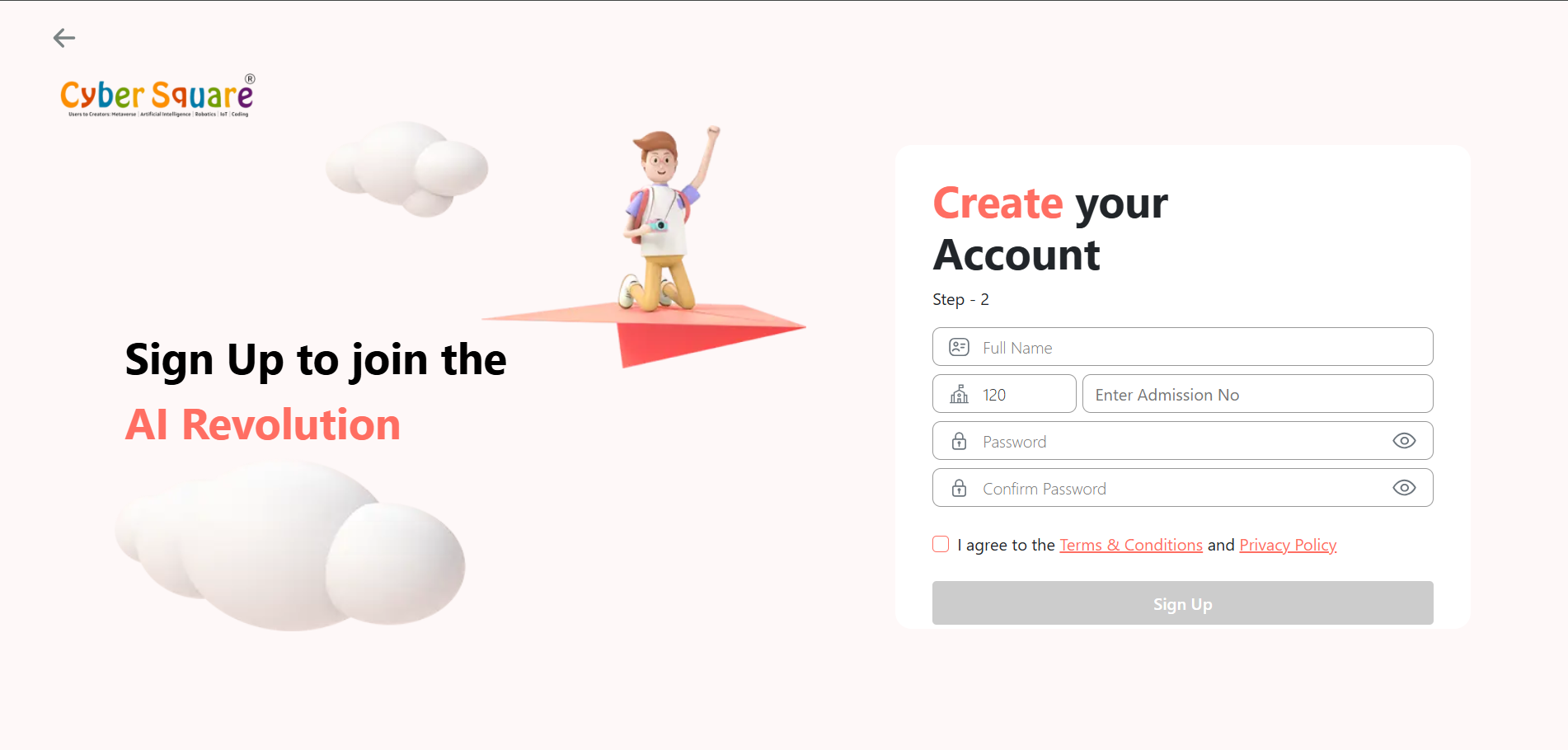
To create your Cyber Square account, you can either visit the Cyber Square website or go directly to the Cyber Square platform.

  1. 1
    Cyber Square website
    Visit cybersquare.org and click “Sign Up”.
  2. OR
  3. 2
    Cyber Square platform
    Visit cs.cybersquare.org, click “Don’t have an account?”, and then select “Sign Up with us”.
  4. OR
  5. 3
    Cyber Square Mobile App
    Download the Cyber Square mobile app from the Google Play Store or App Store. Open the app and tap “Sign Up” to create your account.
lightbulb
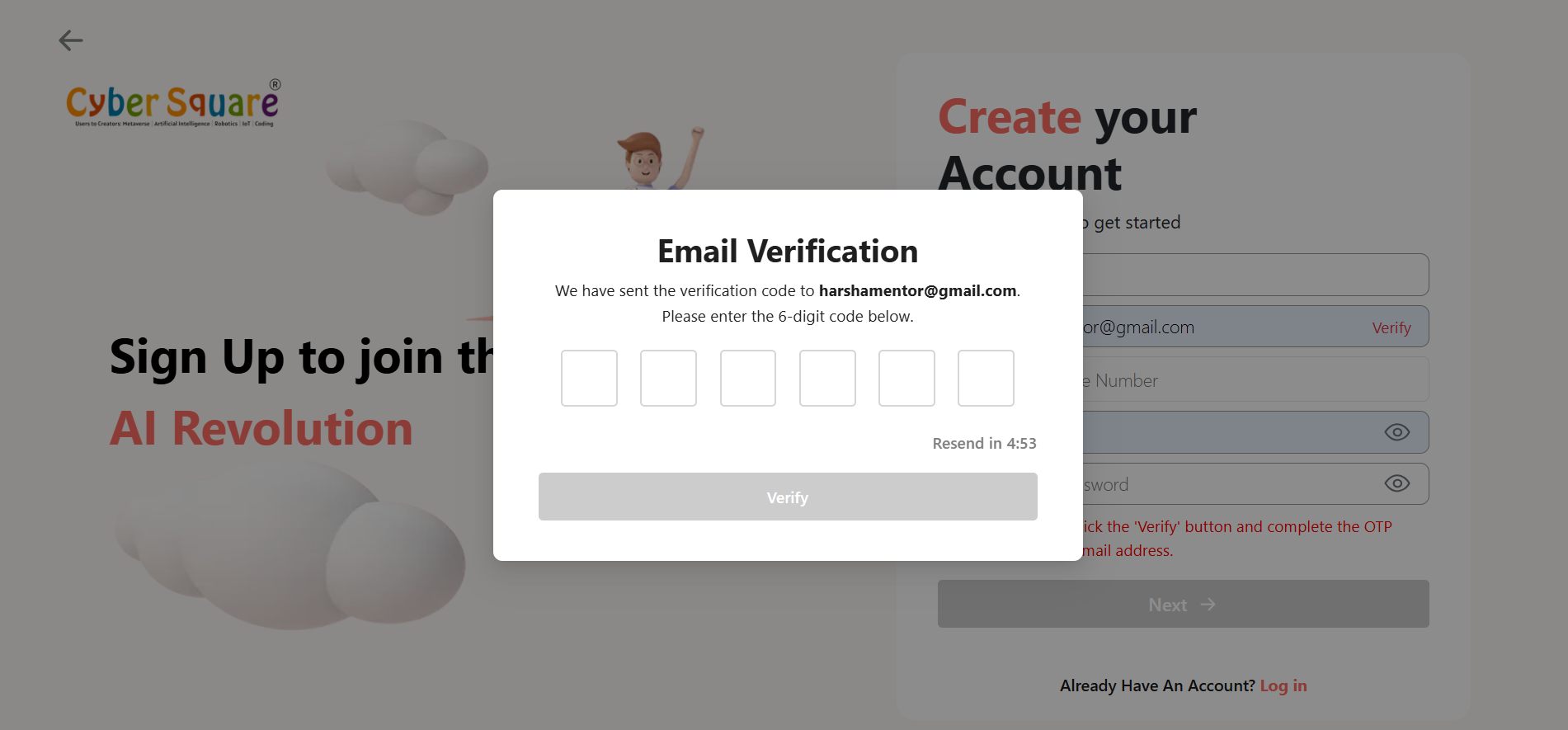
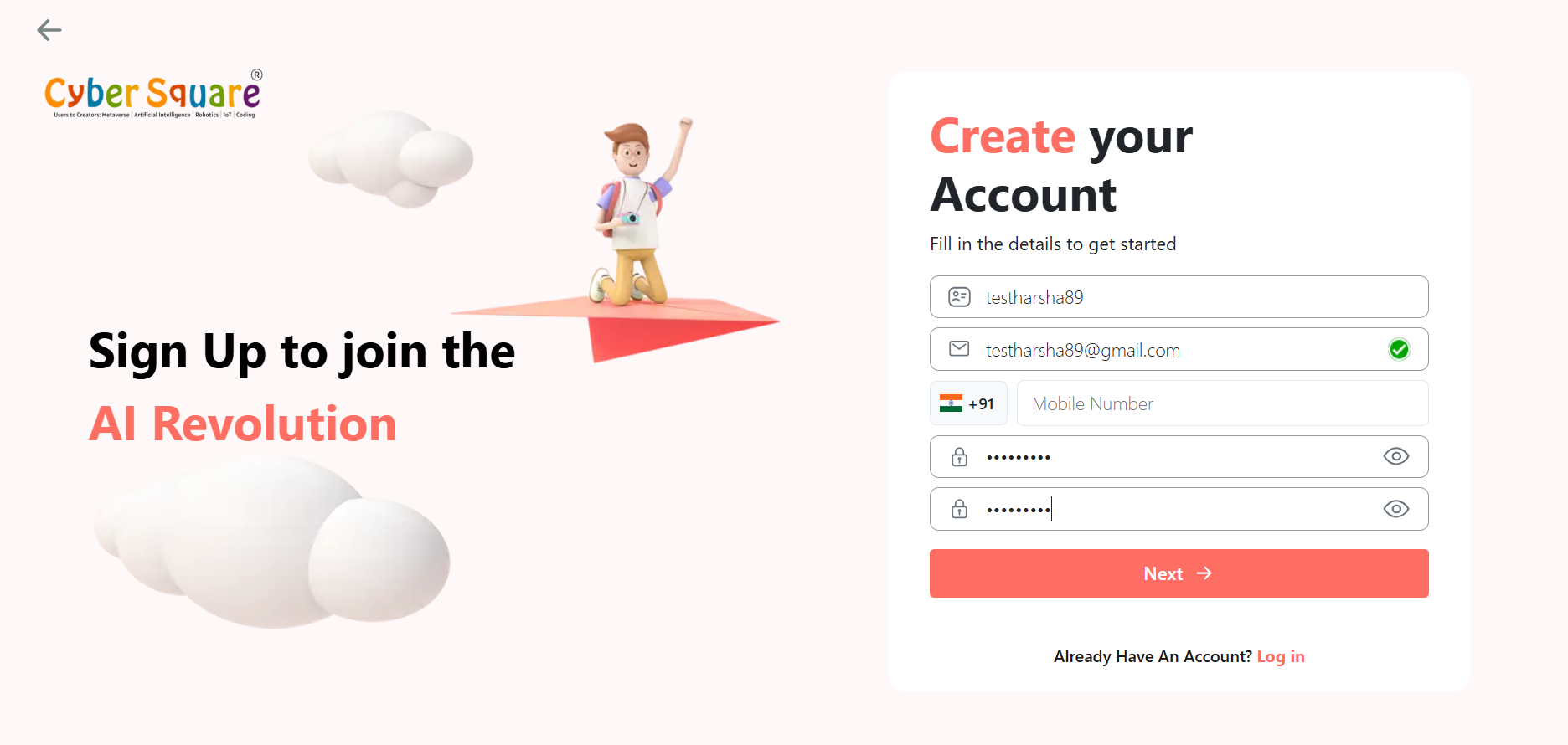
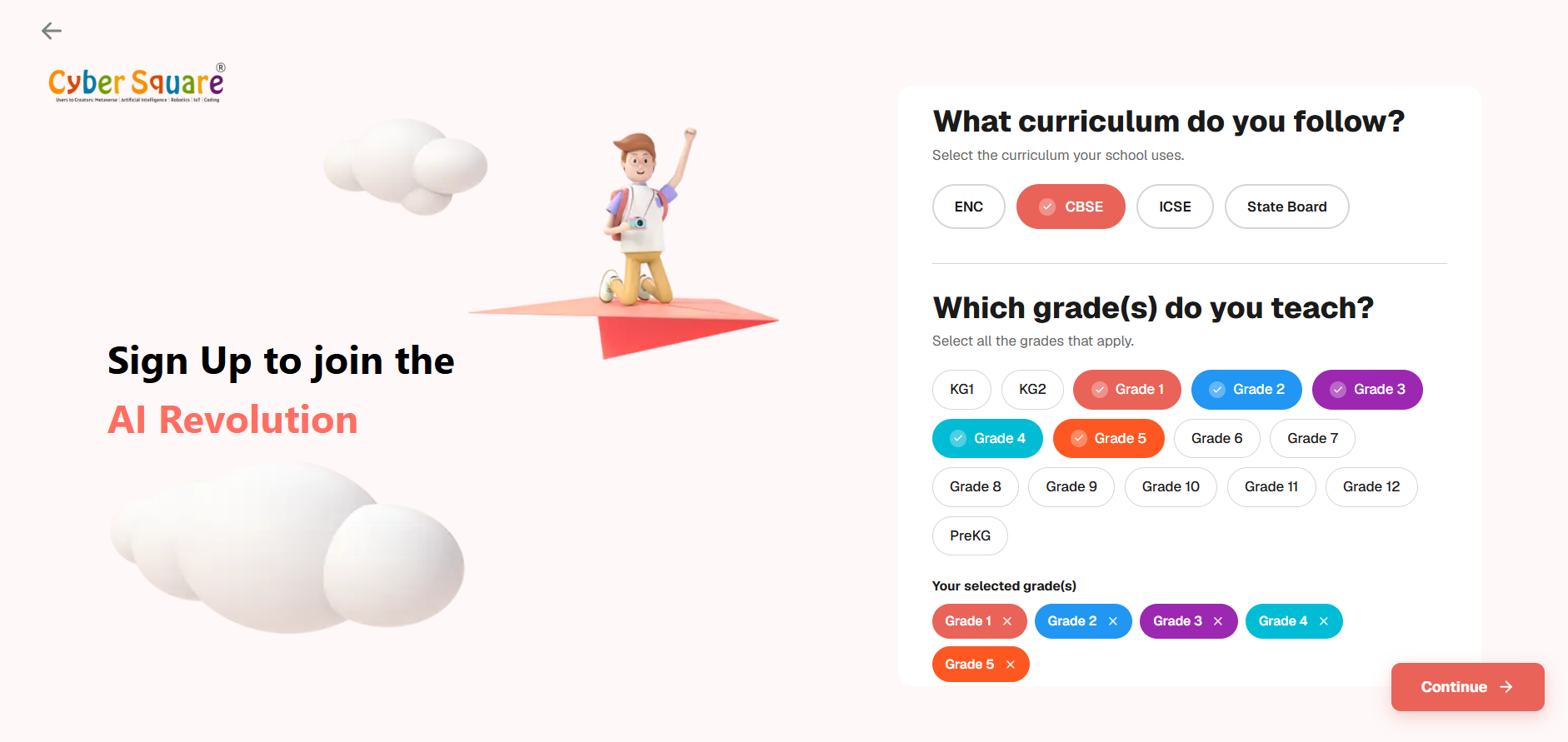
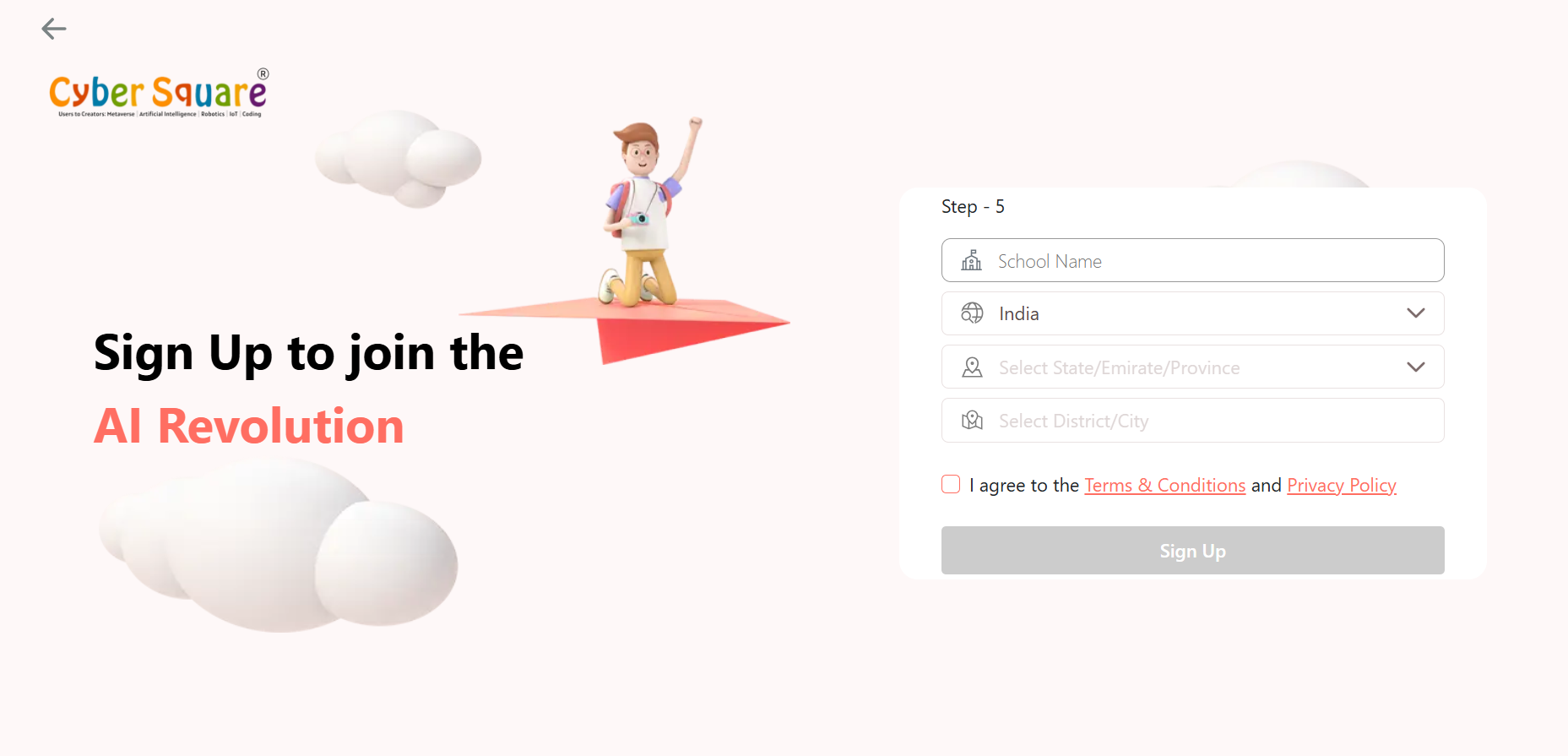
Follow the steps below to complete your signup.
Choose the walkthrough that matches your situation — joining a school that already uses Cyber Square, or starting a free trial on your own.

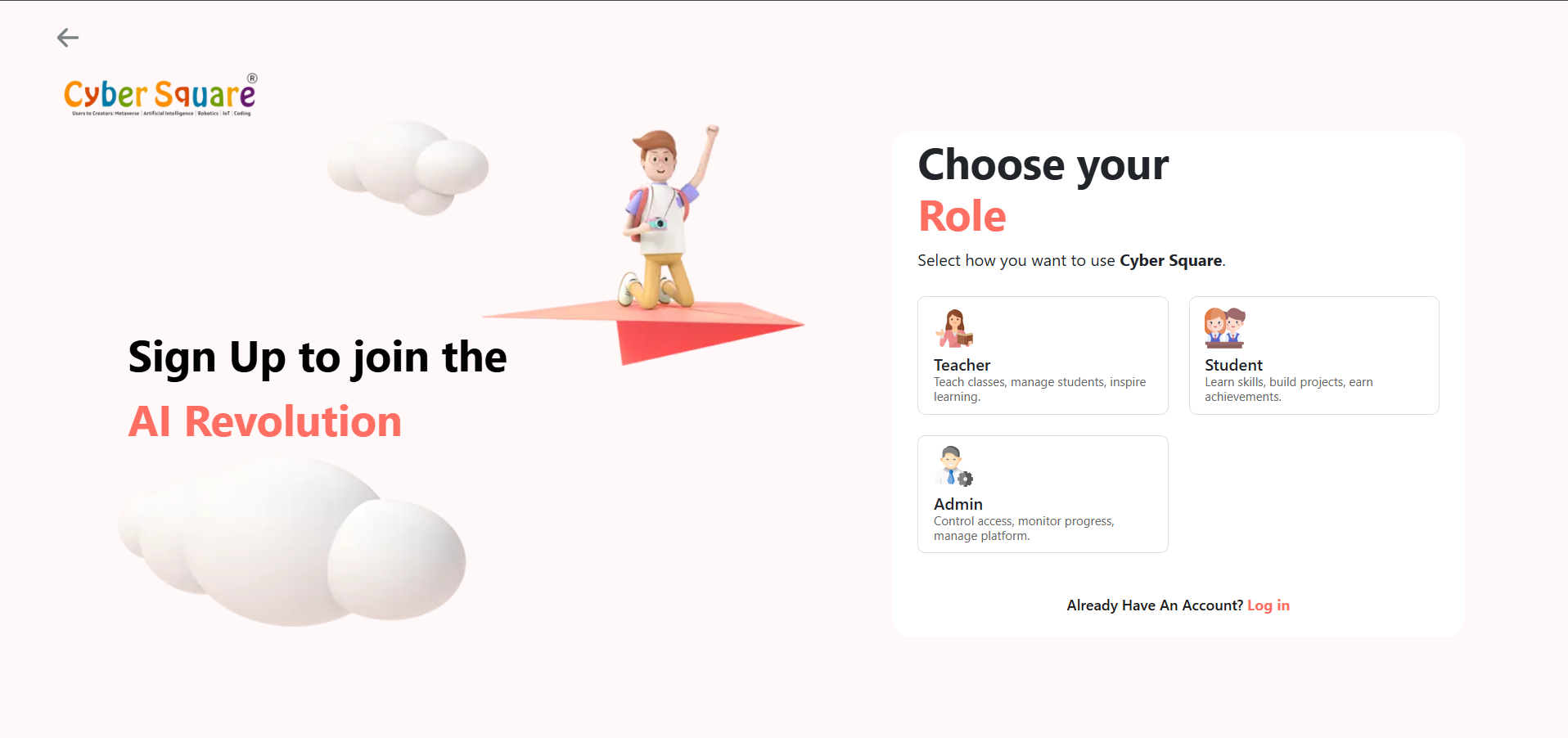
Sign Up / Join Your School

For teachers whose school already uses Cyber Square, or has started enrolling with Cyber Square.
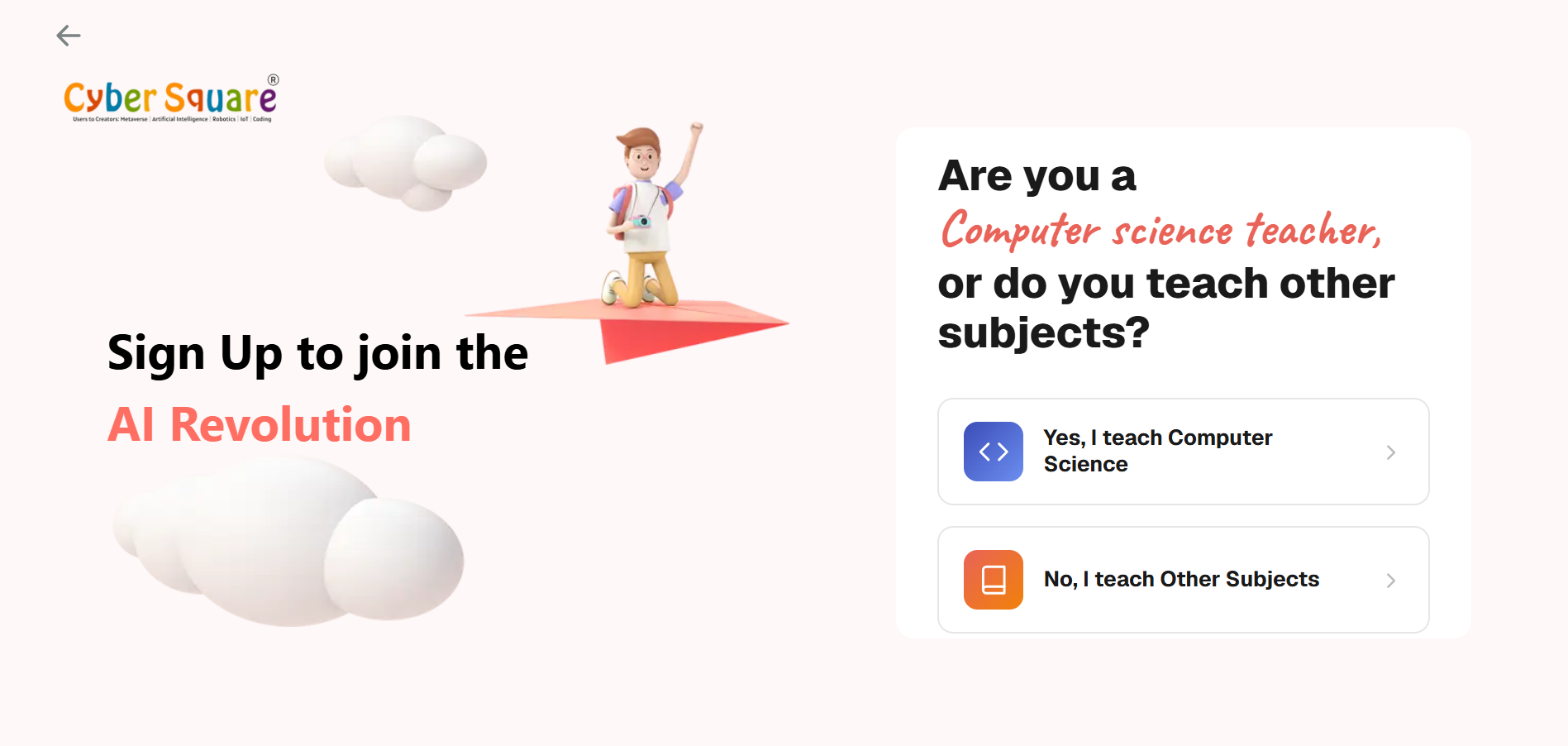
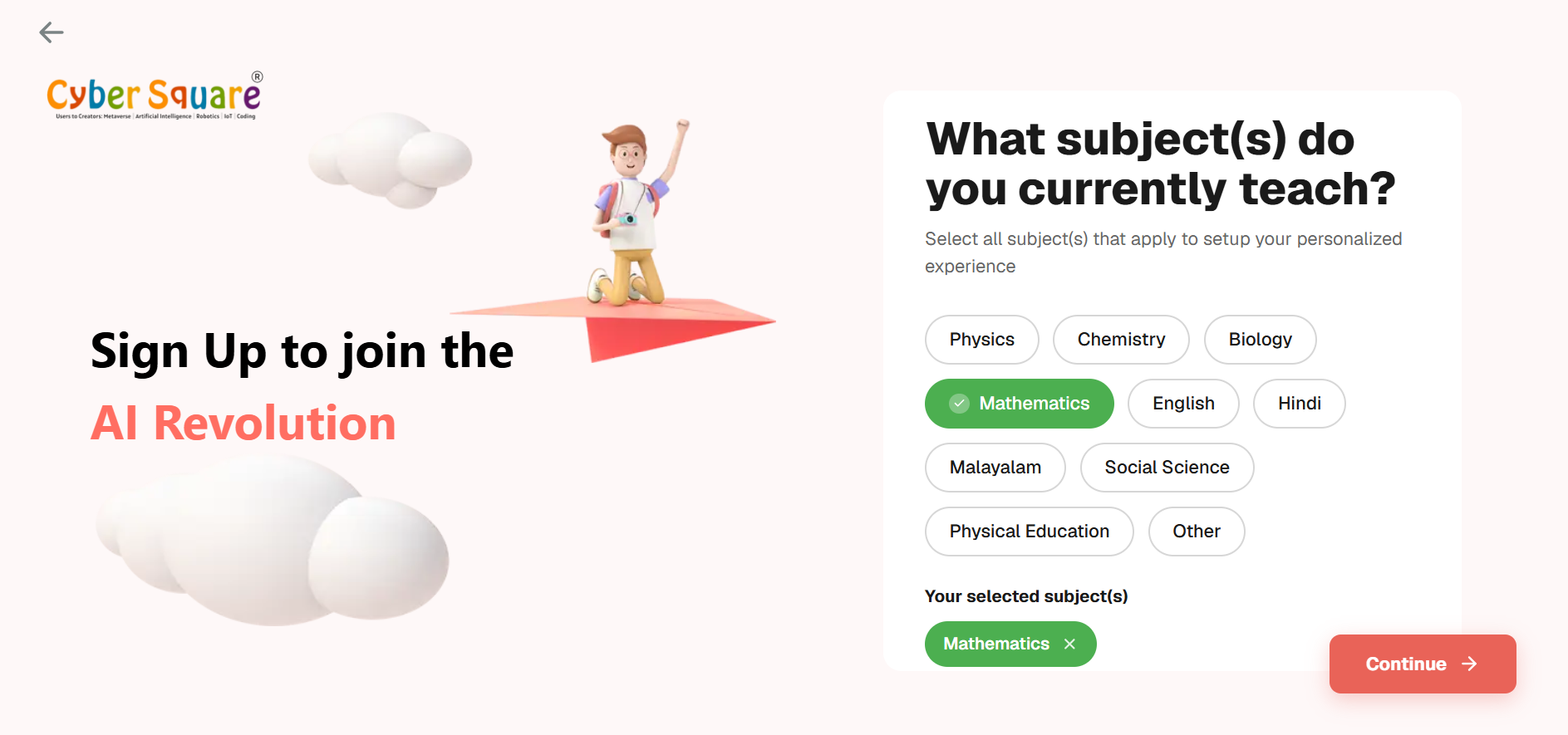
Start a Free Trial

For independent educators, or organizations not yet affiliated with Cyber Square, who want to try the platform.
info
No school code needed
A free trial account does not require a School Code or approval — once your email is verified, your account is ready to use.
The code has already been shared with your school's administration — who is responsible for Cyber Square communication and coordination.

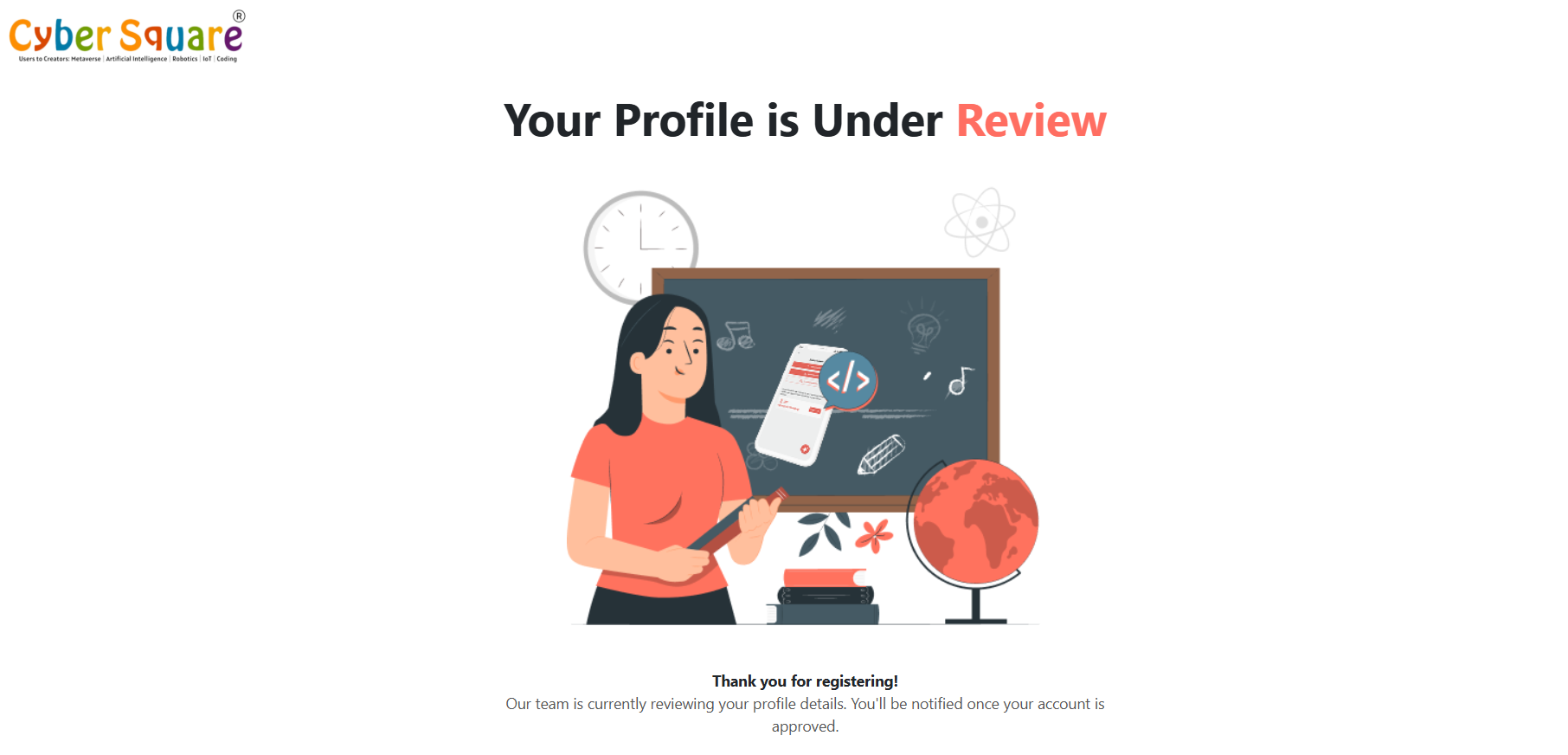
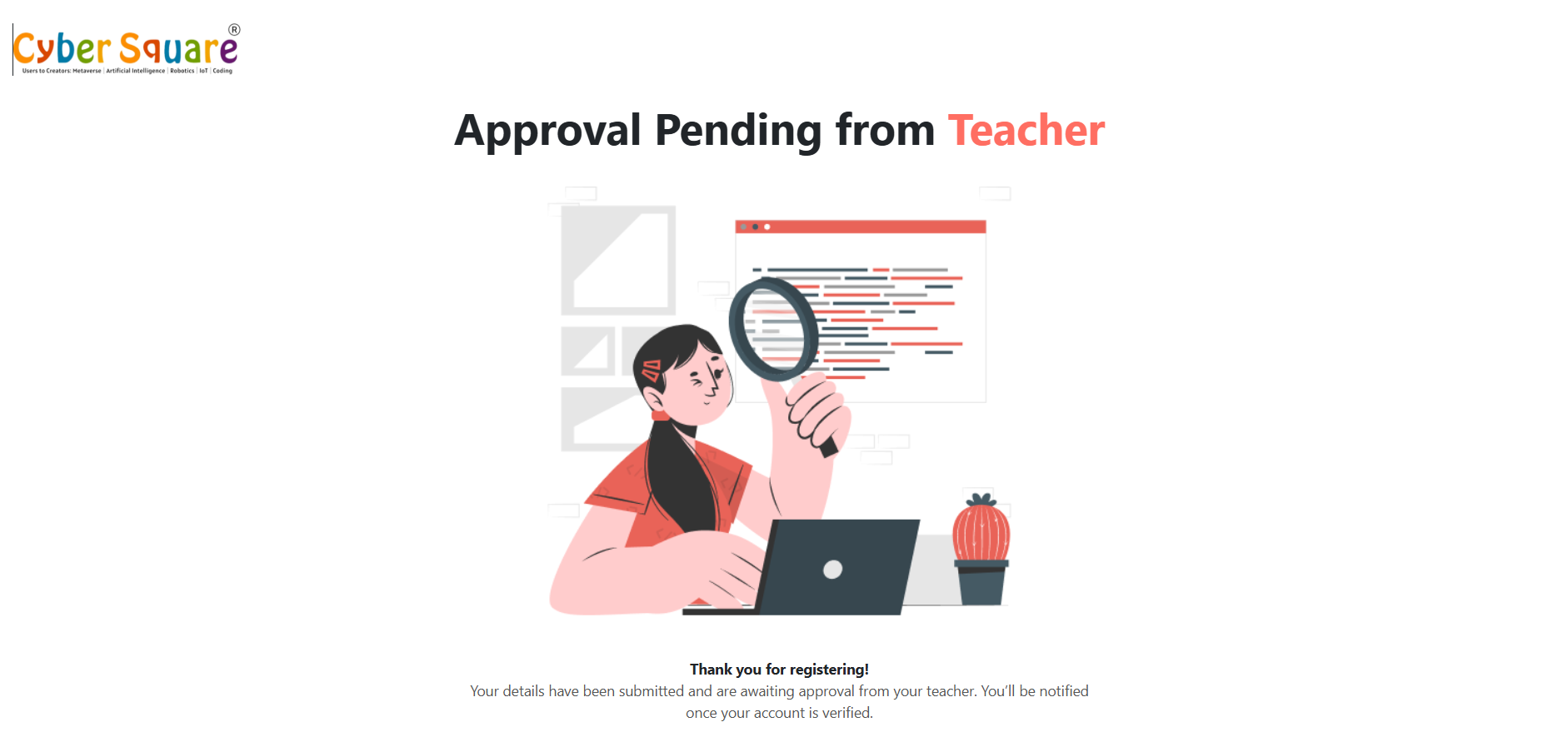
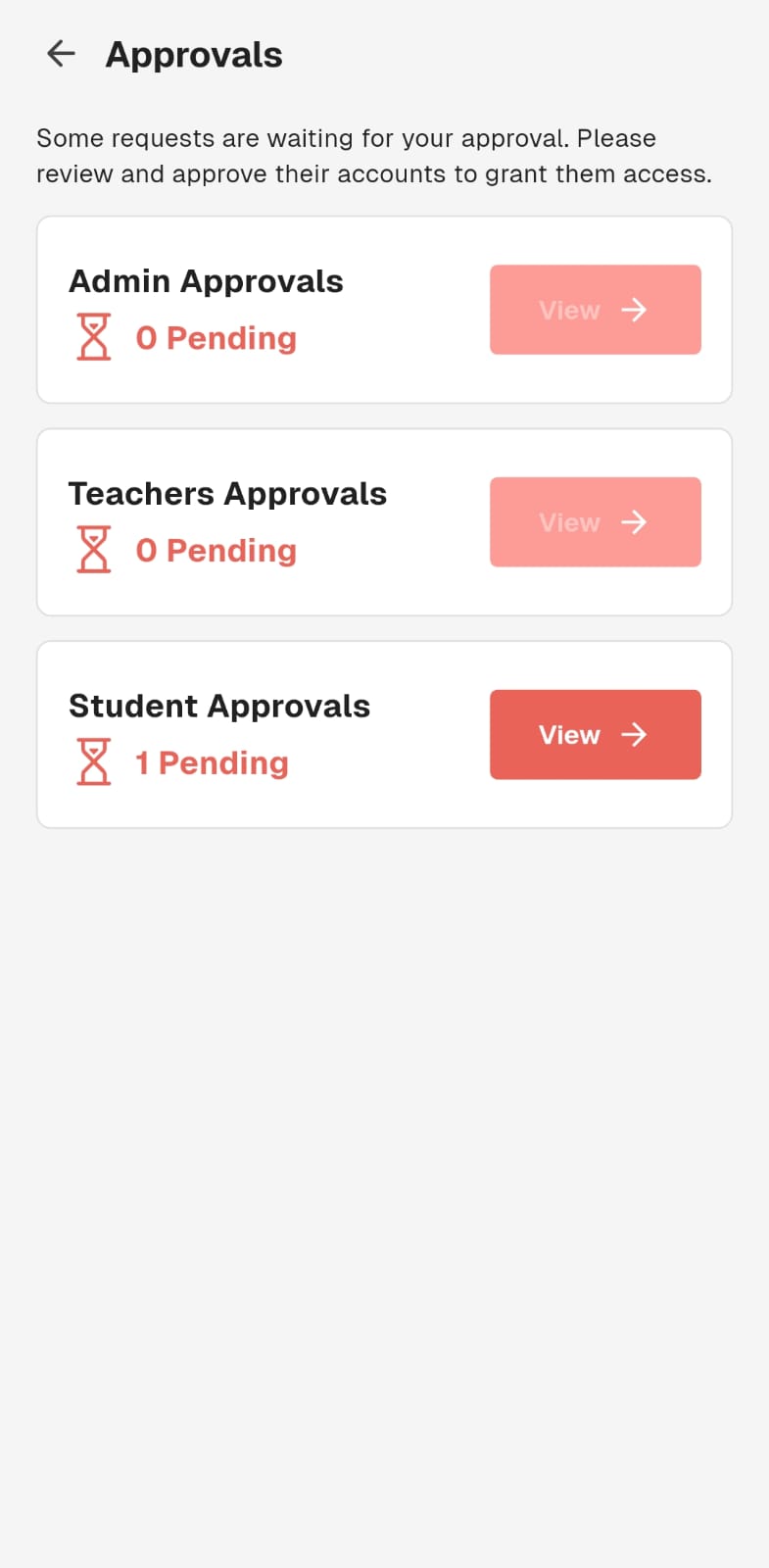
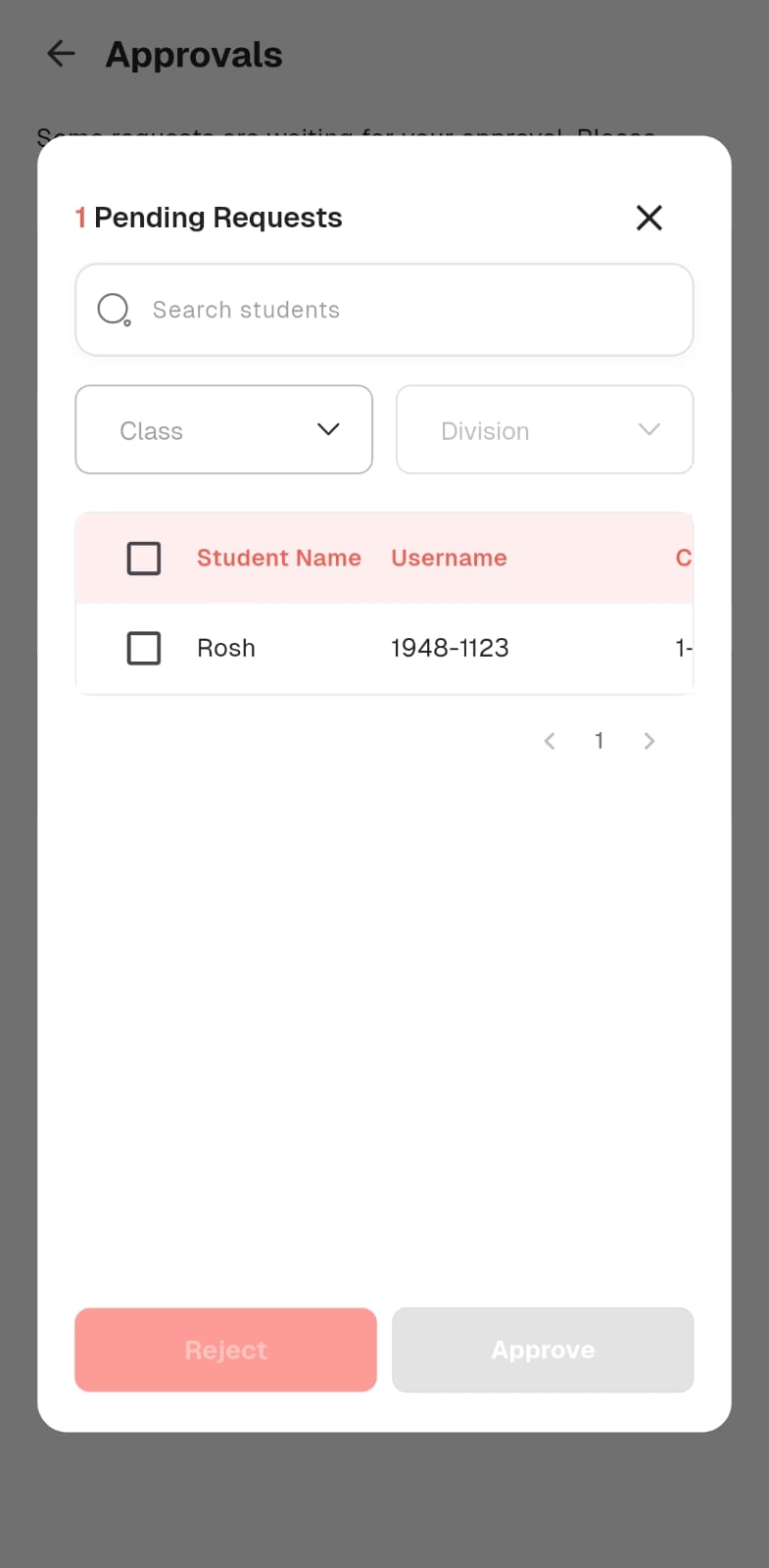
Approvals

co_presentTeacher admin_panel_settingsSchool Admin

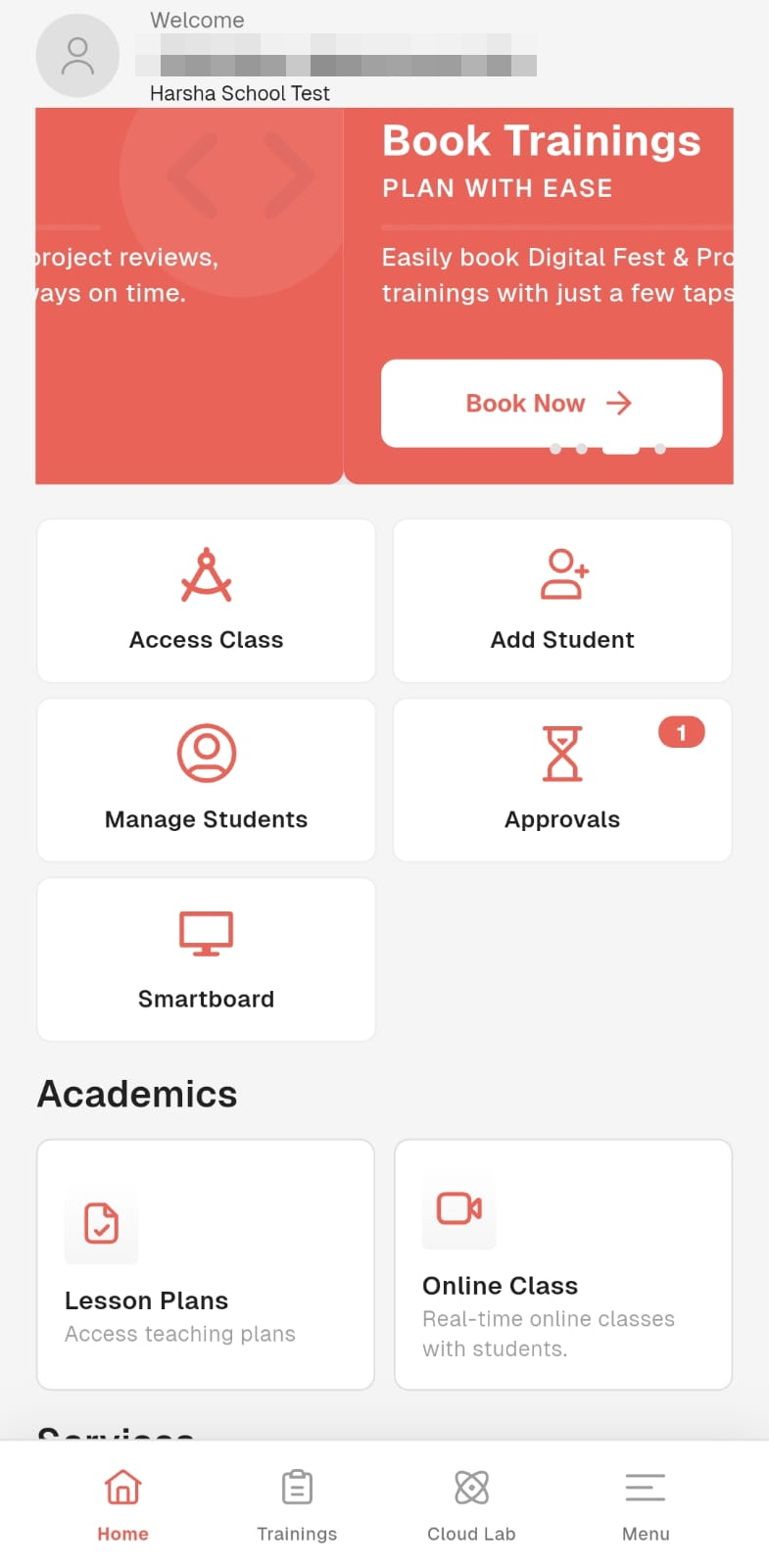
Approvals can be done by School Admins as well as Teachers directly from their mobile app.
lockapp.cybersquare.org play_circleWalkthrough
Cyber Square mobile app — Home screen with the Approvals tile
1
2

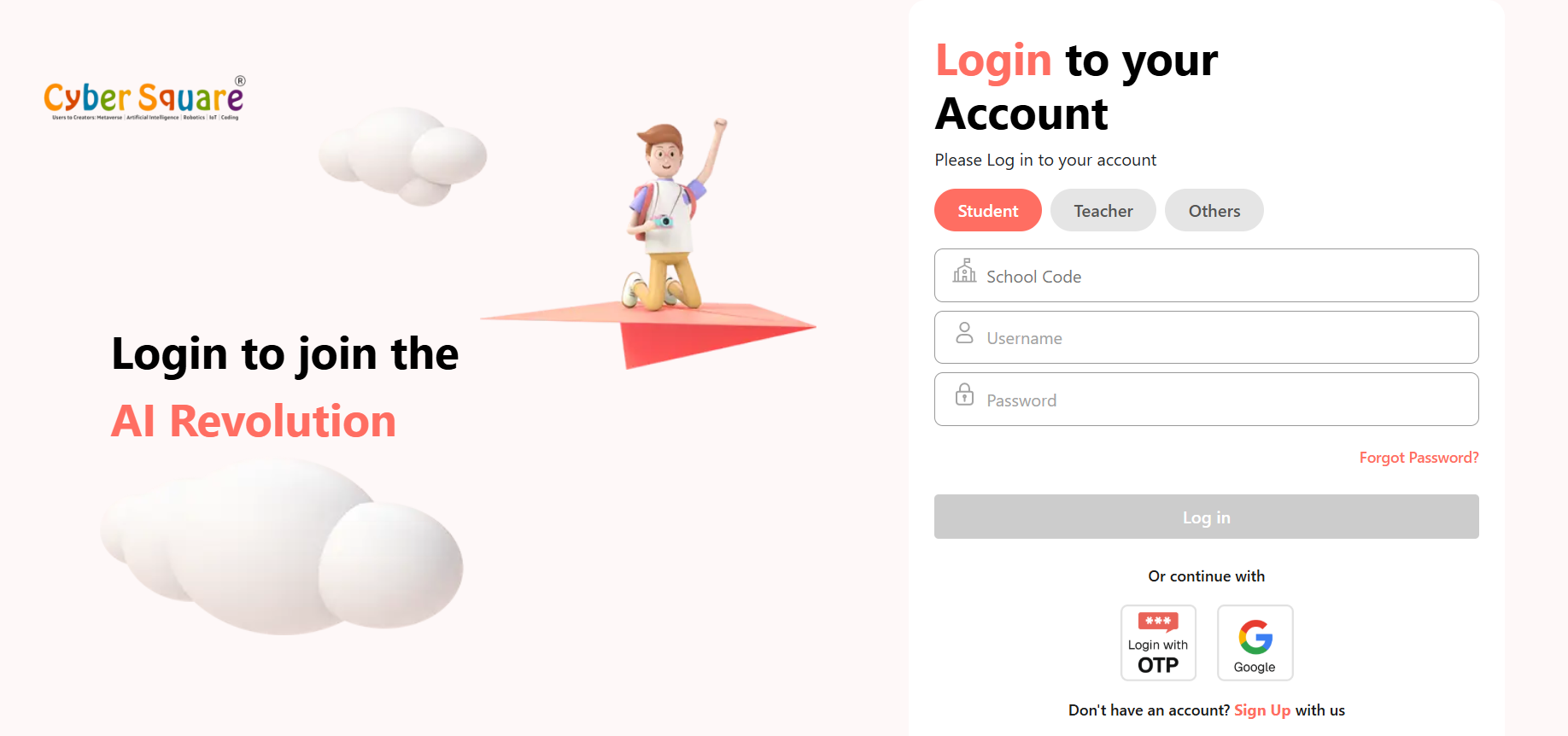
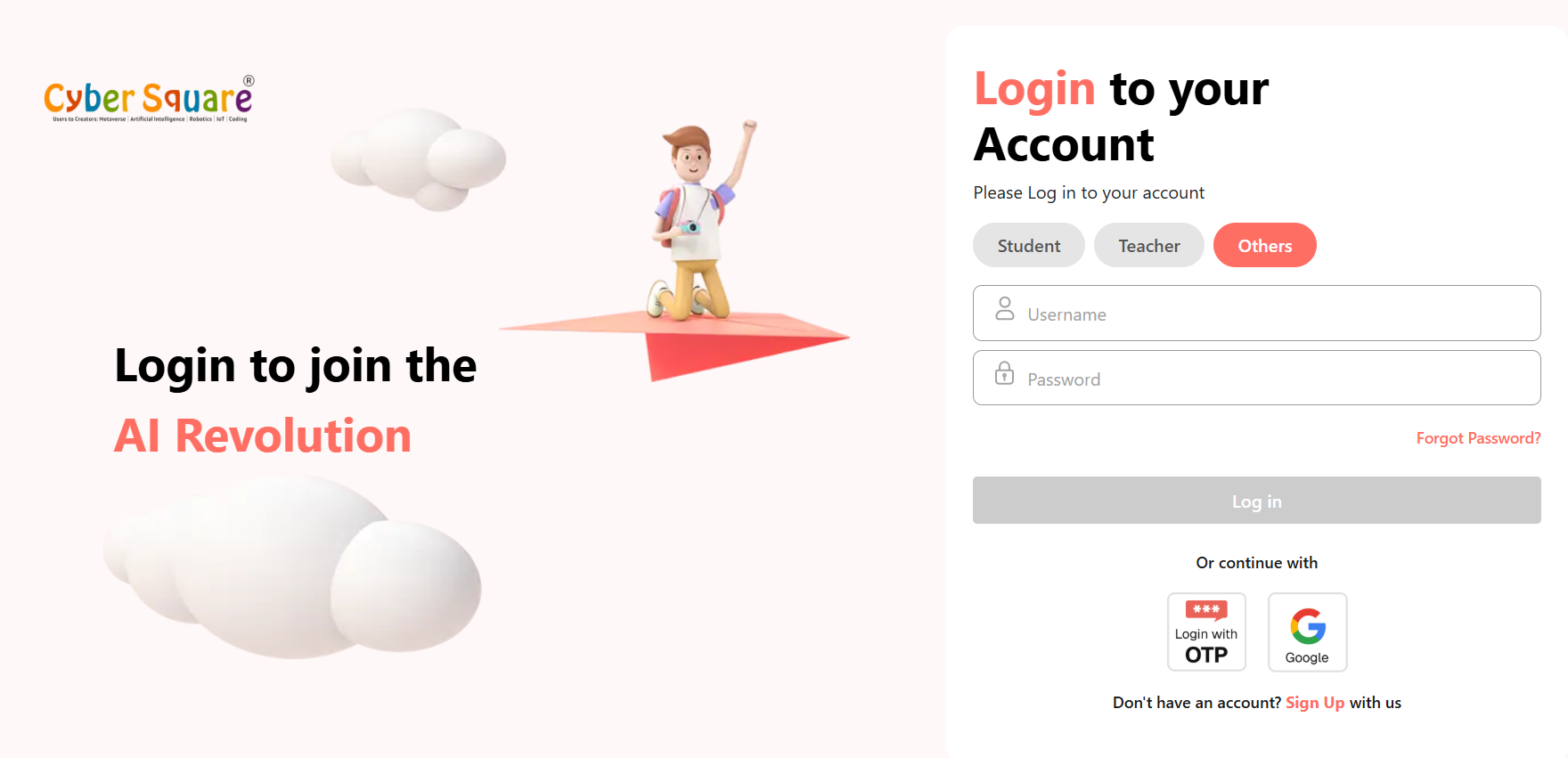
Login

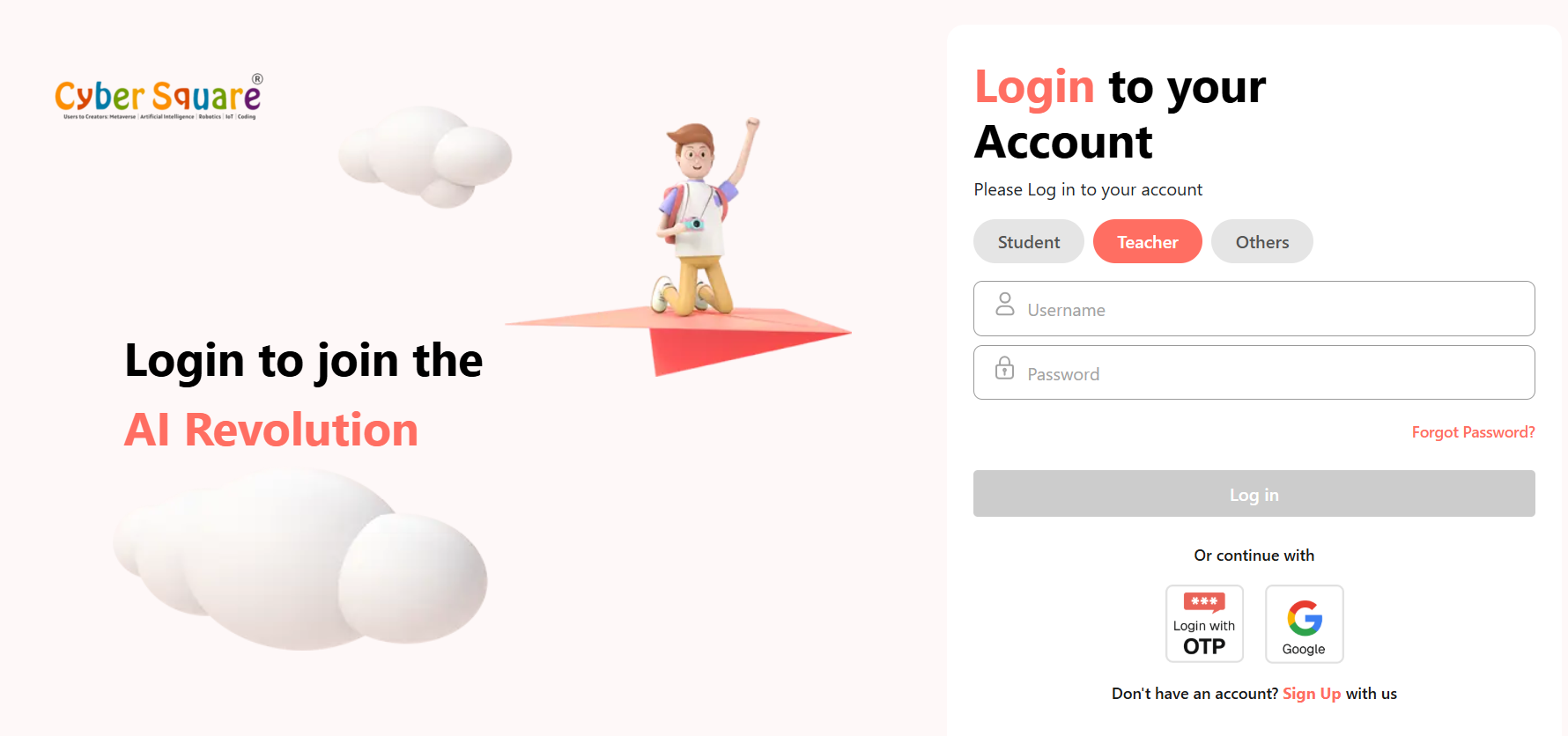
To sign in to your Cyber Square account, you can access Cyber Square through the website, platform, or mobile app.

  1. 1
    Cyber Square Website
    Visit cybersquare.org and click “Log In.”
  2. OR
  3. 2
    Cyber Square Platform
    Visit cs.cybersquare.org and use the “Log In” option.
  4. OR
  5. 3
    Cyber Square Mobile App
    Open the Cyber Square mobile app and select “Log In.”
lightbulb
Follow the steps below to sign in.
The walkthrough will guide you through the sign-in process based on your selected role.
warning
Forgot your password?
Use "Forgot password" on the sign-in screen to receive a reset link by email.
The code has already been shared with your school's administration — who is responsible for Cyber Square communication and coordination.

Your dashboard

co_presentTeacher admin_panel_settingsSchool Admin schoolStudent

The dashboard is your home base. It greets you, shows the numbers that matter and lists what's happening today.

What's on it

  1. 1
    Welcome banner
    A quick summary of your day — for teachers, how many live classes are scheduled.
  2. 2
    Stat cards
    At-a-glance figures: active students, courses running, average completion and badges awarded.
  3. 3
    Today's classes
    Each upcoming class with a Launch button to start it and a Share button to push materials to devices.
info
Role-aware
Admins see school-wide totals and recent activity; students see their next lesson, streak and pending work. The layout stays familiar across roles.

Courses & modules

co_presentTeacher schoolStudent

Courses hold the curriculum. Each course is broken into modules and lessons that you assign to a batch and track as students progress.

How courses are organised

menu_book
Course
A full subject for a grade — e.g. 'Grade 7 · Python Foundations'.
view_module
Module
A unit within a course, grouping related lessons and a checkpoint.
play_lesson
Lesson
A single teachable item: slides, a video, a CS Lab task or a quiz.
trending_up
Progress
Completion and scores roll up from lessons to the student's scorecard.

Assigning a course

  1. 1
    Open Courses and select the course for your grade.
  2. 2
    Choose the batch (division/section) you want to assign it to.
  3. 3
    Set a start date and an optional due date for each module.
  4. 4
    Students see the course on their dashboard the moment it's assigned.
lightbulb
Tip
Use the curriculum ladder — Scratch → HTML/CSS → JavaScript → Python → SQL — so each grade builds on the last. The platform suggests the next course automatically.

Live Class Room

co_presentTeacher

Live Class Room turns any lesson into a synchronised session. You present from one screen and it mirrors to the smartboard and every student device at once.

lockapp.cybersquare.org play_circleWalkthrough
Live Class Room
search Search
notifications
HN
Haris N
Teacher · GIIS
NOW PRESENTING
Loops & ranges in Python
Slide 4 of 18 · pushed to 26 student devices
LIVE
skip_previous
pause
skip_next
draw
present_to_allEnd class
ATTENDANCE · 26
Aanya R
Vihaan K
Diya S
Kabir M
Sara P
+ 21 more online
1
2
  1. 1
    Launch from today's classes
    Tap Launch on a scheduled class, or open Live Class Room and pick a lesson.
  2. 2
    Present
    Step through slides and content; students follow along on their own screens.
  3. 3
    Annotate & engage
    Draw on the slide and push quick checks to keep the room with you.
  4. 4
    End the class
    Wrap up — attendance and any in-class work are saved automatically.
warning
Before you go live
Make sure the classroom smartboard is signed in to your teacher account and on the same network as student devices.

Resources & sharing

co_presentTeacher

Resources is your library of slides, documents, videos and worksheets — and the home of Cyber Square's signature move: sharing straight to the classroom.

lockapp.cybersquare.org play_circleWalkthrough
</>
CyberSquare
dashboard Dashboard
cast_for_education Live Class Room
menu_book Courses
folder_open Resources
quiz Exams
science CS Lab
auto_awesome CS AI Tools
leaderboard Scorecard
celebration Digital Fest
Resources
search Search
notifications
HN
Haris N
Teacher · GIIS
All
Slides
Documents
Videos
Worksheets
slideshow
Loops in Python
Slides · 18
ios_shareShare
more_horiz
description
Variables worksheet
Document · 4 pages
ios_shareShare
more_horiz
smart_display
Intro to functions
Video · 7:20
ios_shareShare
more_horiz
slideshow
Conditionals deck
Slides · 12
ios_shareShare
more_horiz
description
Debugging checklist
Document · 2 pages
ios_shareShare
more_horiz
quiz
Practice set 3
Worksheet · 10 Q
ios_shareShare
more_horiz
Share to the classroom
close
slideshow
Loops in Python
Slides · 18
Send to
cast Smartboard check_circle
computer Web check_circle
tablet_mac Tablet
smartphone Mobile
Cancel
Share now
1
2

Filtering the library

Use the chips at the top — All, Slides, Documents, Videos, Worksheets — to narrow the grid. Each card shows its type and length, with a Share action right on the card.

lightbulb
Smartboard-first
Sharing to the Smartboard is the fastest way to start a lesson without launching a full live class — perfect for a quick demo or recap.

Exams & Lab Exam

co_presentTeacher schoolStudent

Exams cover both written quizzes and hands-on Lab Exams where students write and run real code. Schedule them, and results flow straight to scorecards.

quiz
Quiz / written exam
Multiple-choice and short-answer questions, auto-graded the moment a student submits.
terminal
Lab Exam
Students solve coding problems inside CS Lab; output is checked against expected results.
schedule
Scheduling
Set a window, duration and batch. Students see it on their dashboard when it opens.
grading
Results
Scores and item-level analysis publish to the scorecard automatically.
  1. 1
    Create the exam
    Pick a question bank or build your own; for a Lab Exam, set the coding task and expected output.
  2. 2
    Assign & schedule
    Choose the batch, open/close time and duration.
  3. 3
    Students sit it
    They take the exam on any device; coding happens in the cloud lab.
  4. 4
    Review
    Auto-graded scores appear instantly; you can adjust marks before publishing.

Scorecards & reports

co_presentTeacher admin_panel_settingsSchool Admin schoolStudent

Scorecards turn everything students do — lessons, exams, lab work — into clear progress and reports for teachers, admins and families.

What it tracks

  1. 1
    Per-student progress
    Completion, exam scores, badges and a class ranking.
  2. 2
    Class & batch view
    Spot who's ahead and who needs support at a glance.
  3. 3
    Exportable reports
    Generate term reports for school records and parents.
info
Note
Students see their own scorecard with badges and streaks; admins see roll-ups across grades and divisions for the whole school.

AI Cloud Lab – Powered by Cloud

CS Lab is a coding environment that runs entirely in the browser to practise programming, build projects and complete practical activities — without any installation hectic.

cloud_done
Zero Installation
Works on any school device with a browser — even low-spec lab machines.
devices
Practice Anywhere
Code from school, home or on the go — pick up right where you left off.
bolt
Run Instantly
No setup; code runs in the cloud and returns output in seconds.
cloud
Built on AWS
Cyber Square's AWS Public Sector partnership powers reliable, secure execution at classroom scale.
cloud_sync
How it works
Write your code, run it in the cloud, and instantly view the output or error messages beside the editor.
edit
Write
Write your code directly in the editor.
save
Save
Save your code so you can continue working on it later.
play_arrow
Run
Run your code and execute it in the cloud.
visibility
View Results
View the results or error messages directly beside the editor.
lockapp.cybersquare.org play_circleWalkthrough
</>
CyberSquare
dashboard Dashboard
cast_for_education Live Class Room
menu_book Courses
folder_open Resources
quiz Exams
science CS Lab
auto_awesome CS AI Tools
leaderboard Scorecard
celebration Digital Fest
CS Lab
search Search
notifications
HN
Haris N
Teacher · GIIS
descriptiongreetings.py
play_arrowRun
1 def greet(name):
2 return f"Hello, {name}!"
3
4 for student in class_list:
5 print(greet(student))
terminalOUTPUT
$ python greetings.py
Hello, Aanya!
Hello, Vihaan!
Hello, Diya!
› Process finished · 0.04s
1
2

Practice with AI Cloud Lab

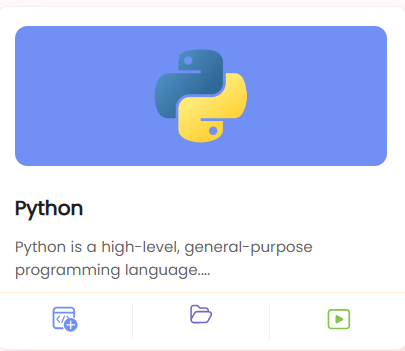
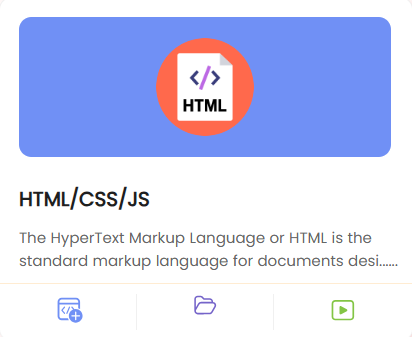
AI Cloud Lab gives teachers a wide range of tools to practise. Teachers can work with coding, AI, robotics, coding games, digital tools, typing activities, drawing tools, and Google Apps — all in one place.
Python
Python
HTML/CSS/JS
HTML/CSS/JS
Database – SQL
Database – SQL
Scratch
Scratch
Scratch Jr
Scratch Jr
MIT App Inventor
MIT App Inventor
MakeCode Micro:bit
MakeCode Micro:bit
Arduino IDE
Arduino IDE
Design Circuits
Design Circuits
Google Docs
Google Docs
Google Slides
Google Slides
Google Sheets
Google Sheets
Google Forms
Google Forms
AI for Oceans
AI for Oceans
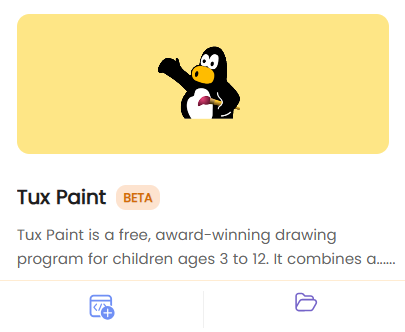
Tux Paint
Tux Paint
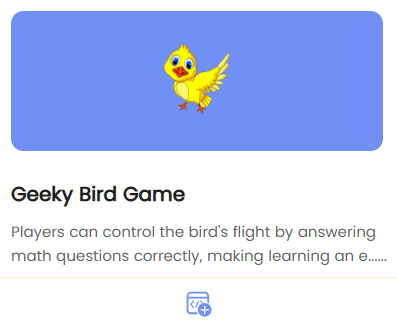
Geeky Bird Game
Geeky Bird Game
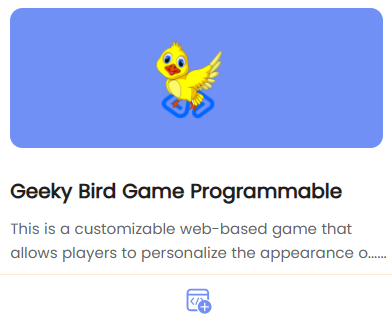
Geeky Bird Game Programmable
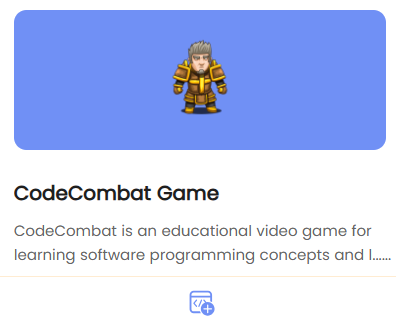
CodeCombat Game
CodeCombat Game
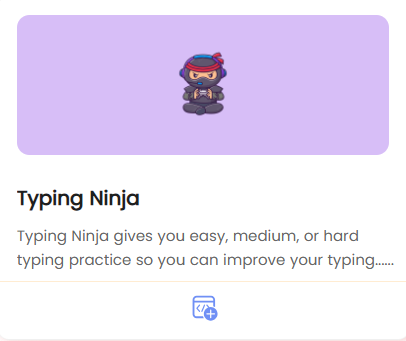
Typing Ninja
Typing Ninja
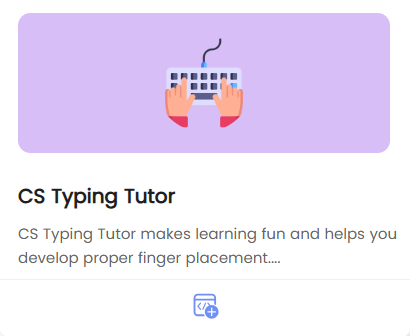
CS Typing Tutor
CS Typing Tutor
info
Note: The icons shown on each IDE indicate:
Creating a new project,
Opening files or projects,
Watching a related video.

Create & Share Lab Questions

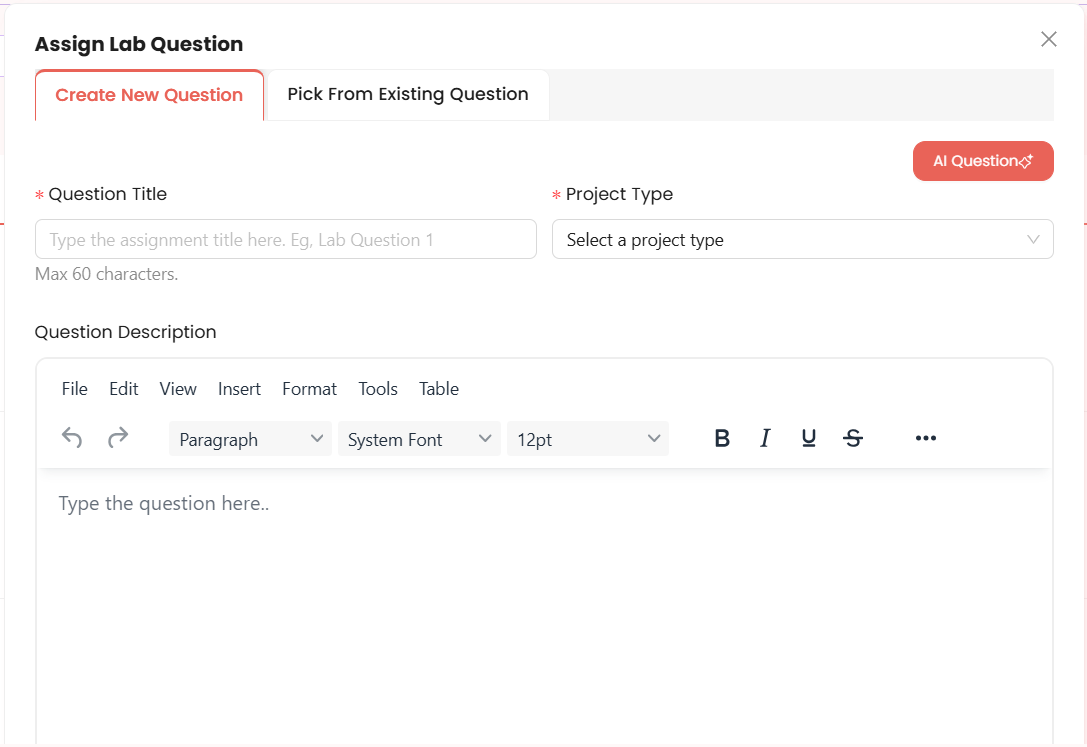
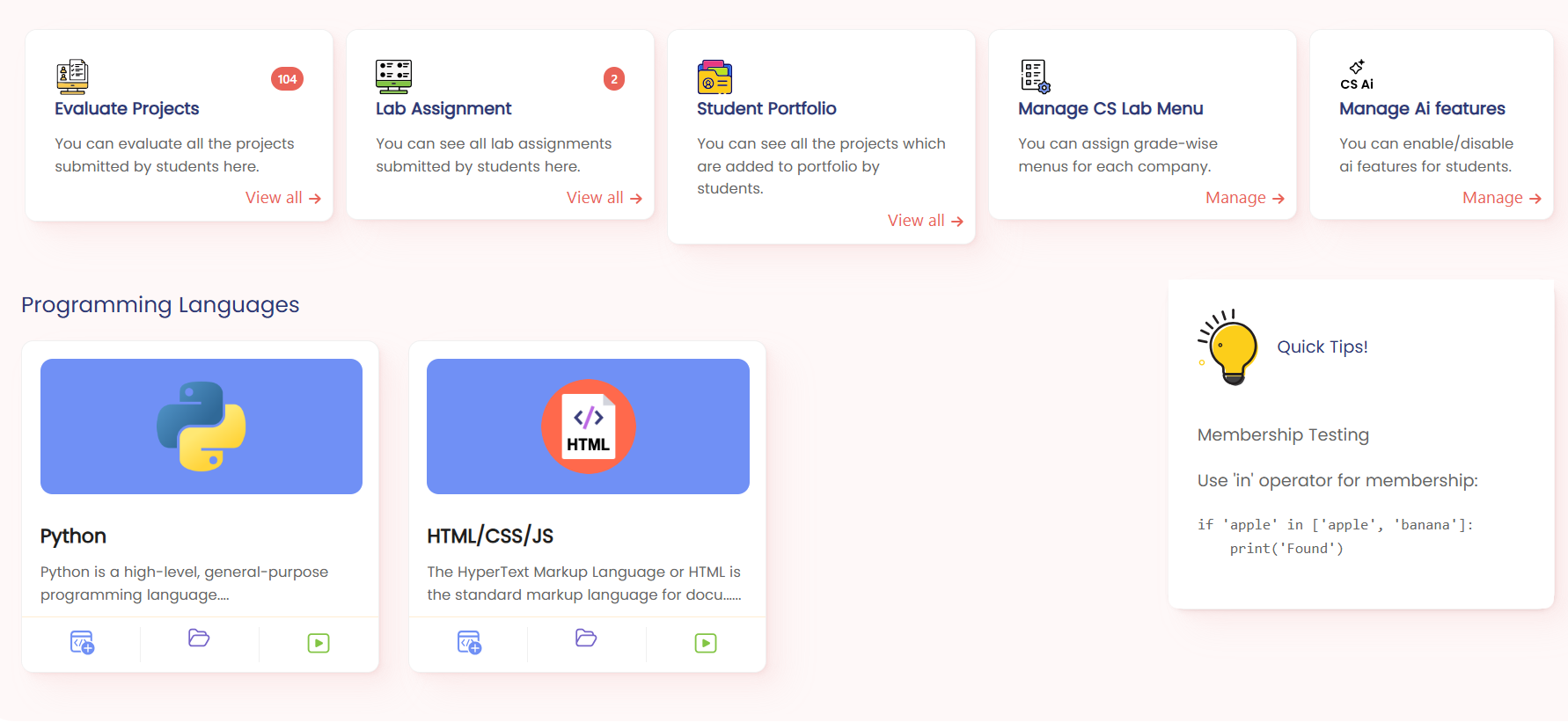
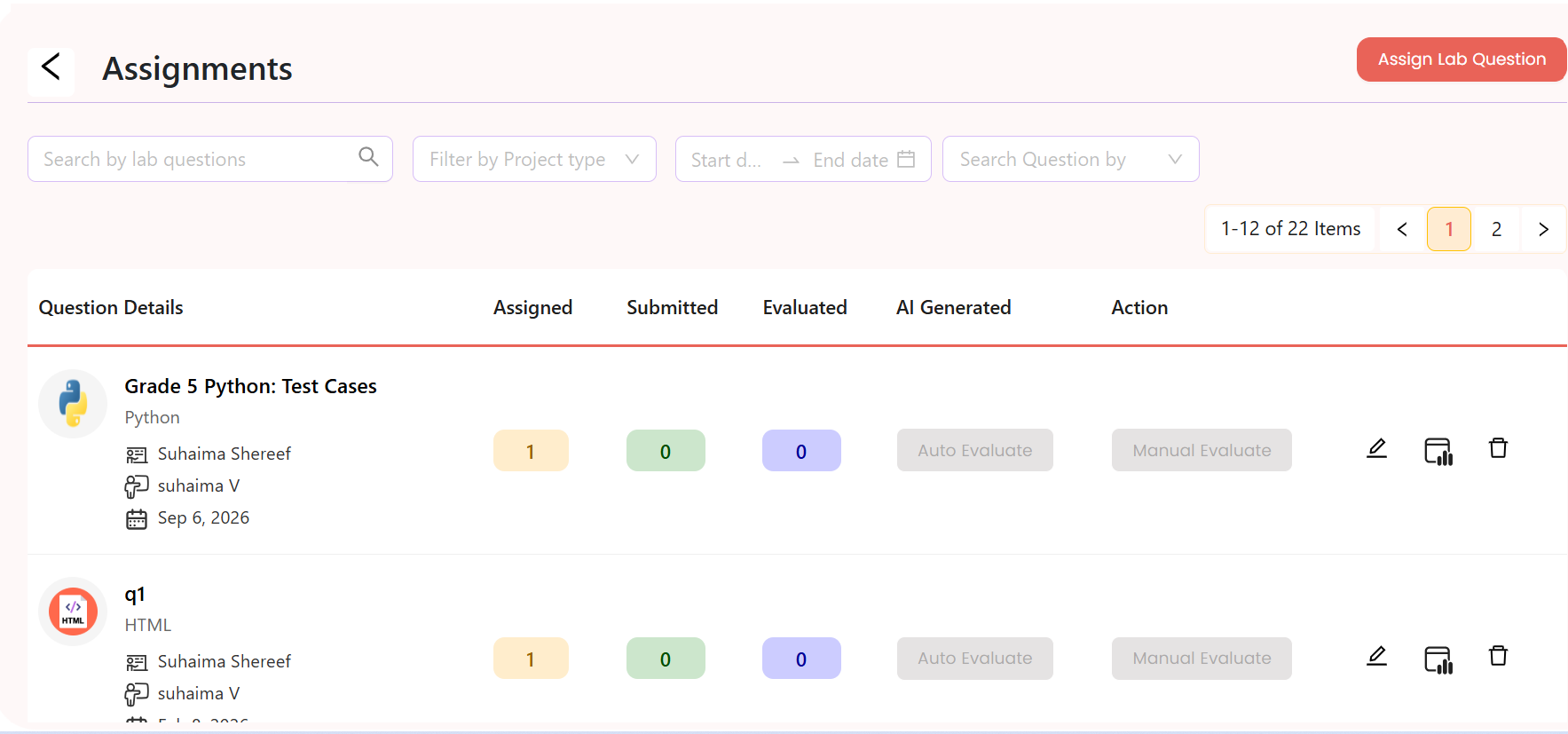
Teachers can use AI to quickly create coding and practical questions, customize them for their students, and share them directly with the class. This helps students think through problems and develop their own solutions. Teachers can also create and share additional practice questions, giving students more opportunities to practise and strengthen their coding skills.
lockapp.cybersquare.org play_circleWalkthrough
Cyber Square teacher dashboard — Lab Assignment card
1
2

AI Tools Overview

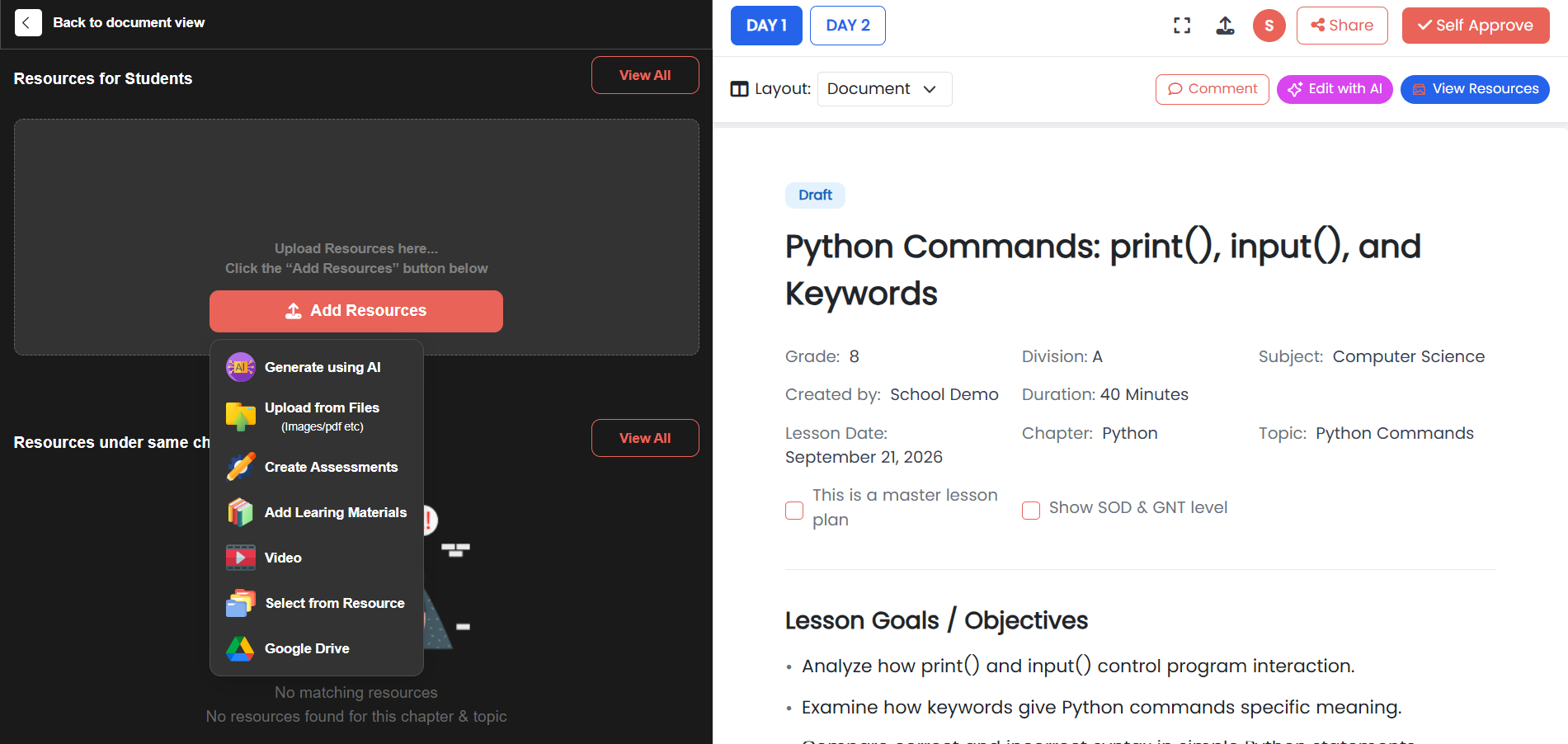
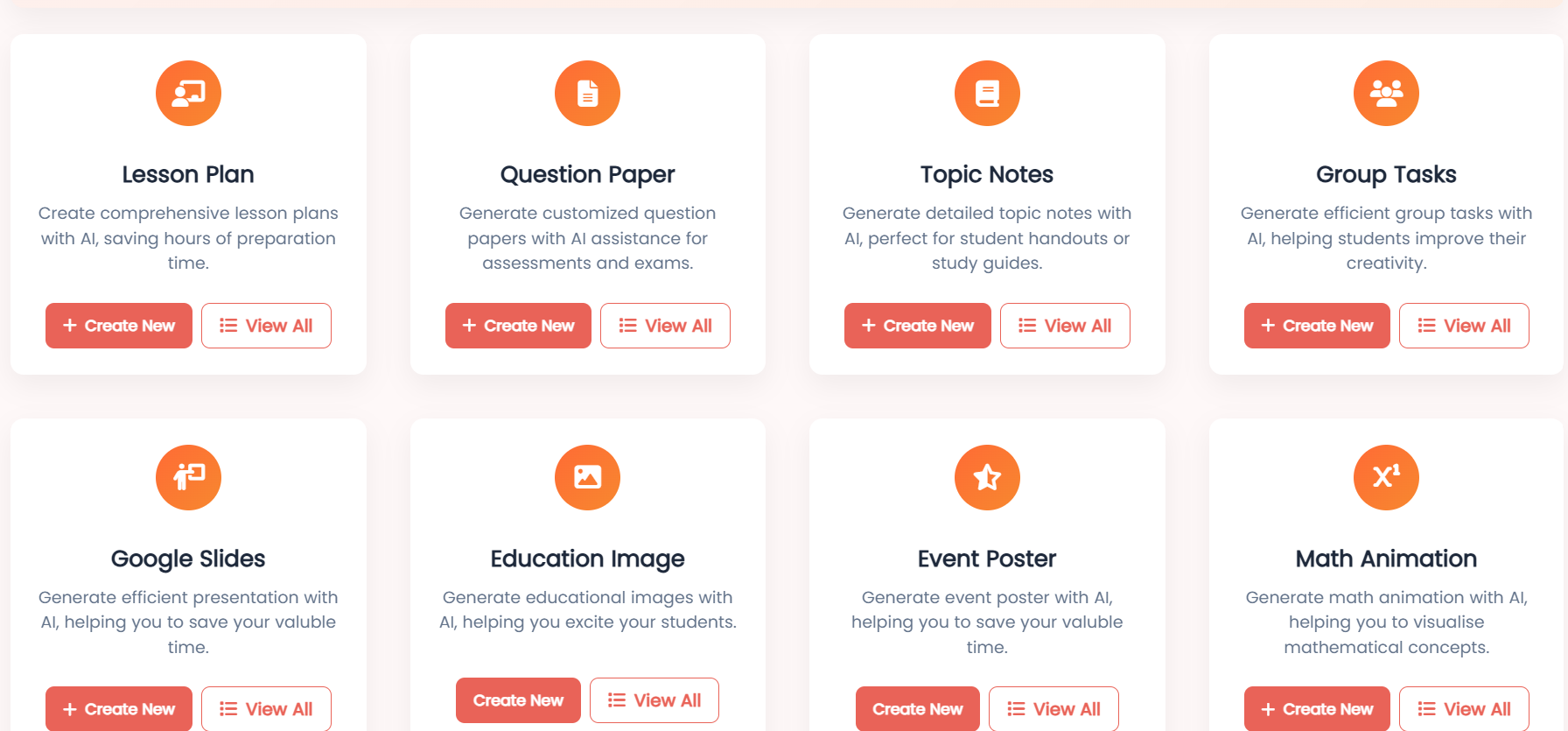
Cyber Square AI Tools help teachers create teaching and learning resources quickly with the support of AI. Teachers can generate and customize lesson plans, question papers, topic notes, group tasks, presentations, educational images, and event posters — saving preparation time and making classroom resources easier to create.
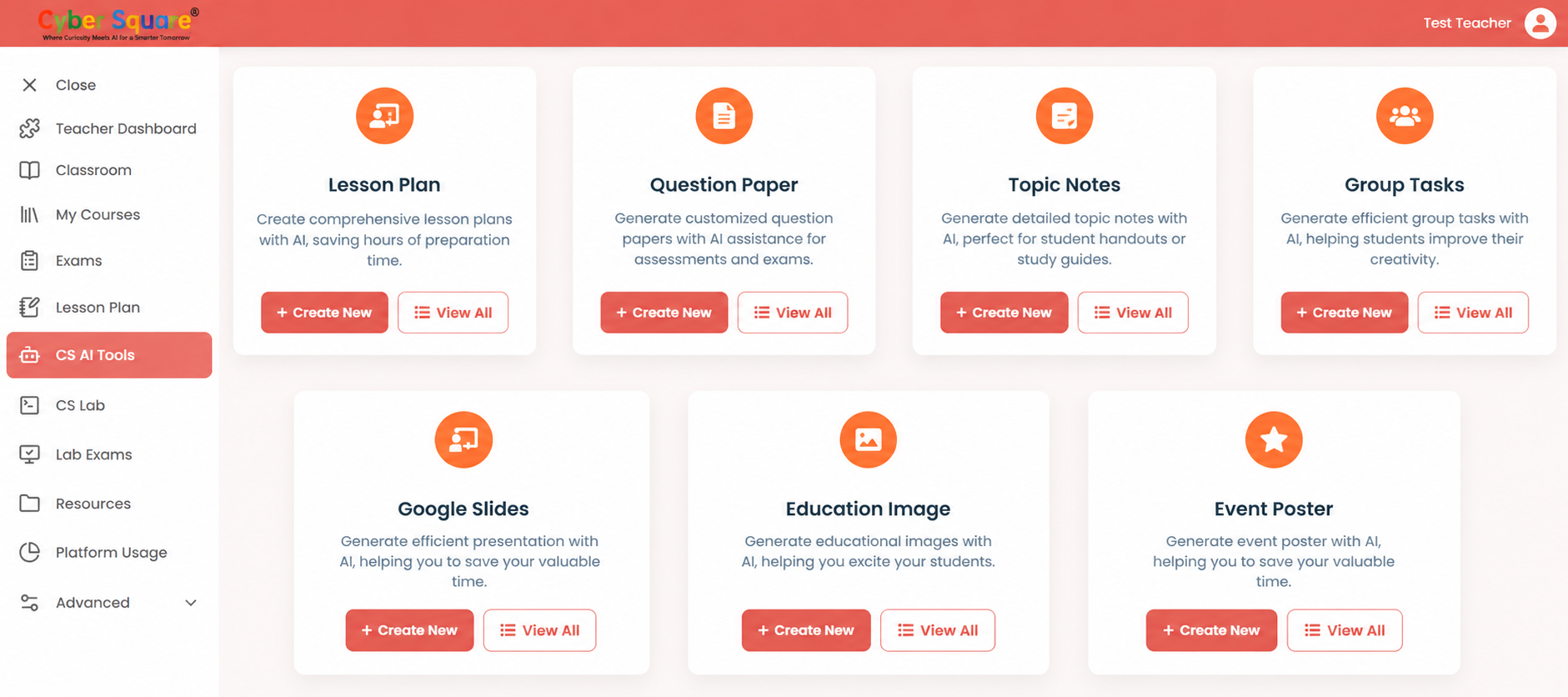
Cyber Square CS AI Tools dashboard, showing Lesson Plan, Question Paper, Topic Notes, Group Tasks, Google Slides, Education Image and Event Poster

With AI assistance, teachers can start with a generated resource, review it, customize it to suit their students, and use it in their classroom.

Explore each AI tool below to learn what it does and how to use it.

Lesson Plan

Lesson Plan helps teachers create structured, curriculum-aligned lesson plans with the support of AI. Teachers can provide their class, subject, topic, duration, and other requirements, and AI can generate a complete lesson plan in less than 3 minutes. Instead of creating a lesson plan from scratch, teachers can use the AI-generated plan as a starting point, then review, edit, customize, and share it with others to match their teaching needs.
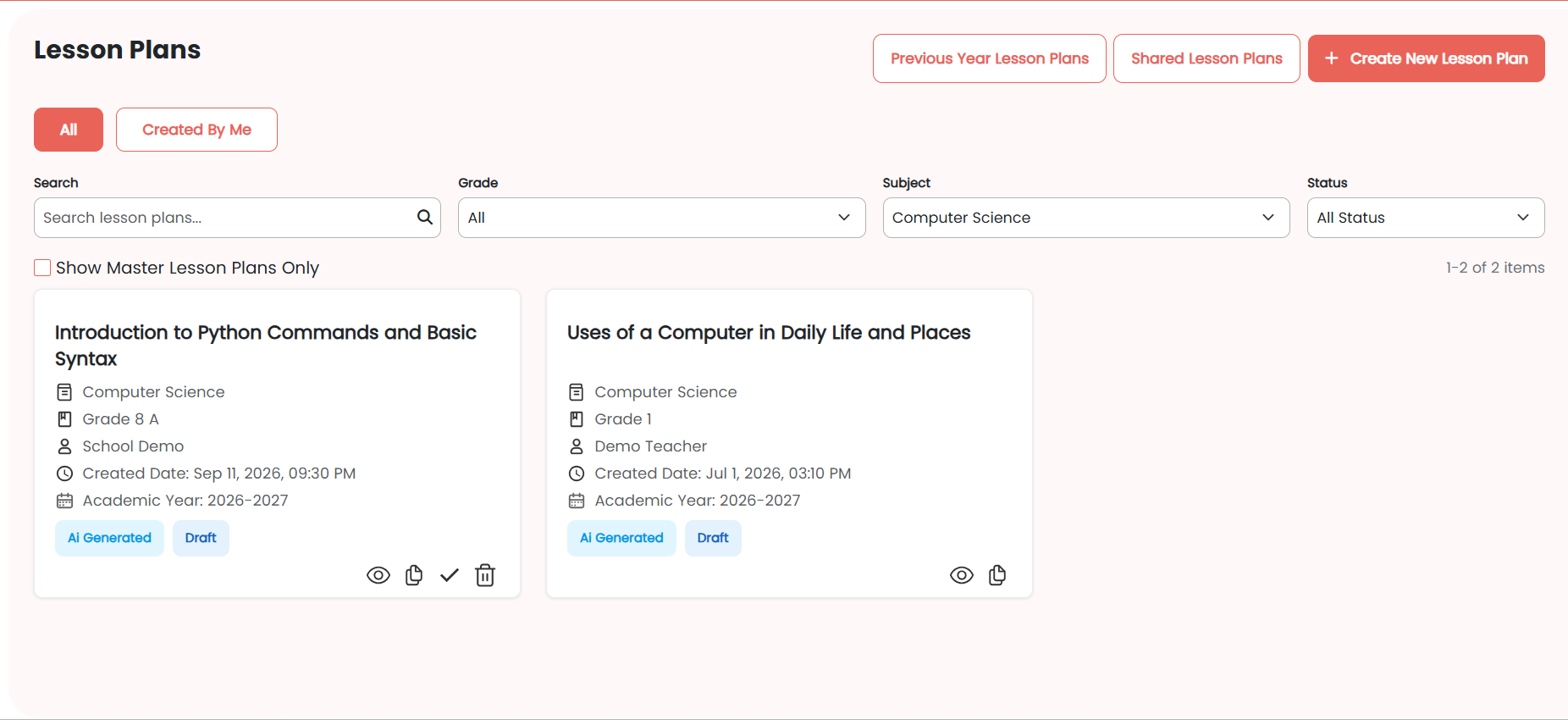
lockapp.cybersquare.org play_circleWalkthrough
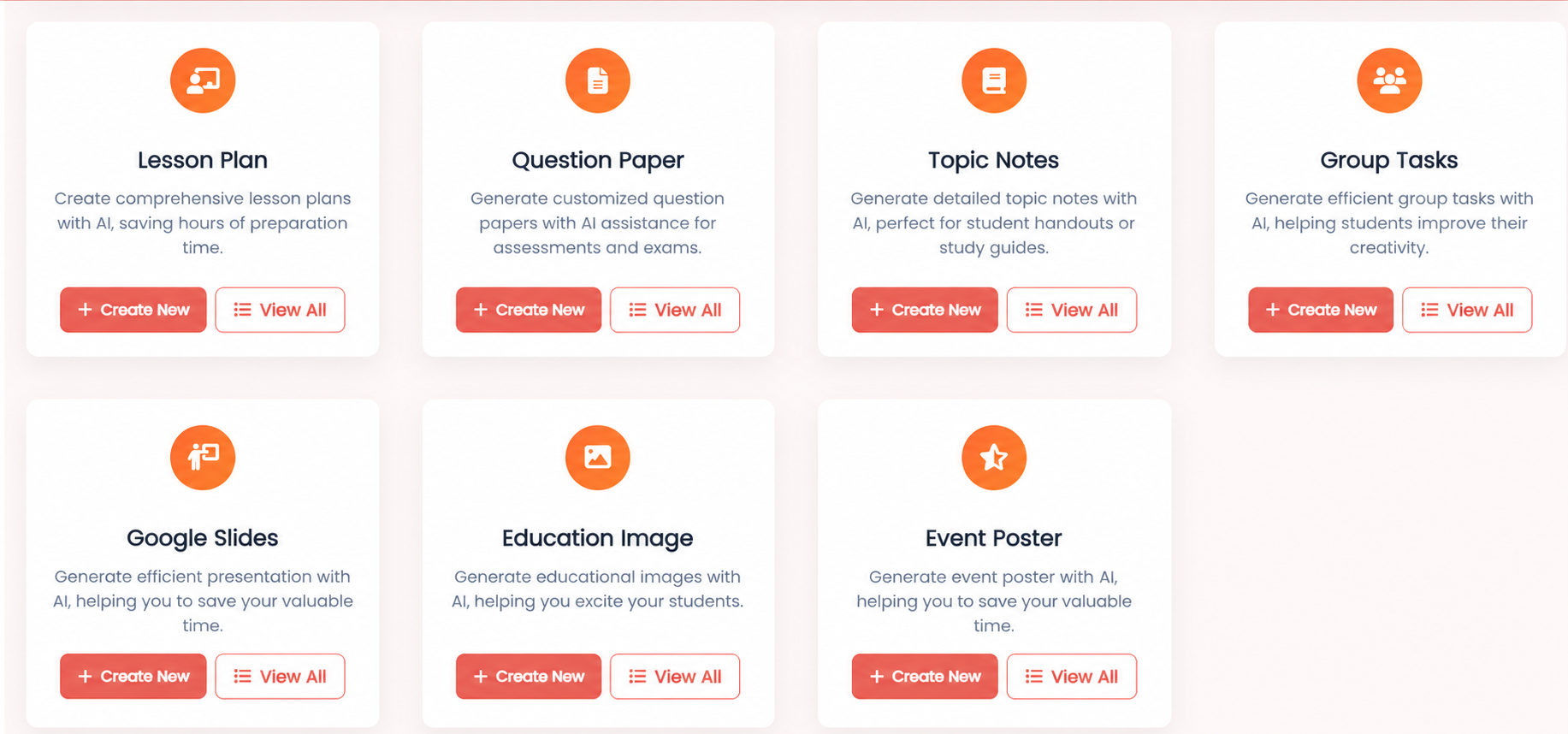
Cyber Square CS AI Tools dashboard — Lesson Plan card with Create New and View All options
1
2

Create a Lesson Plan

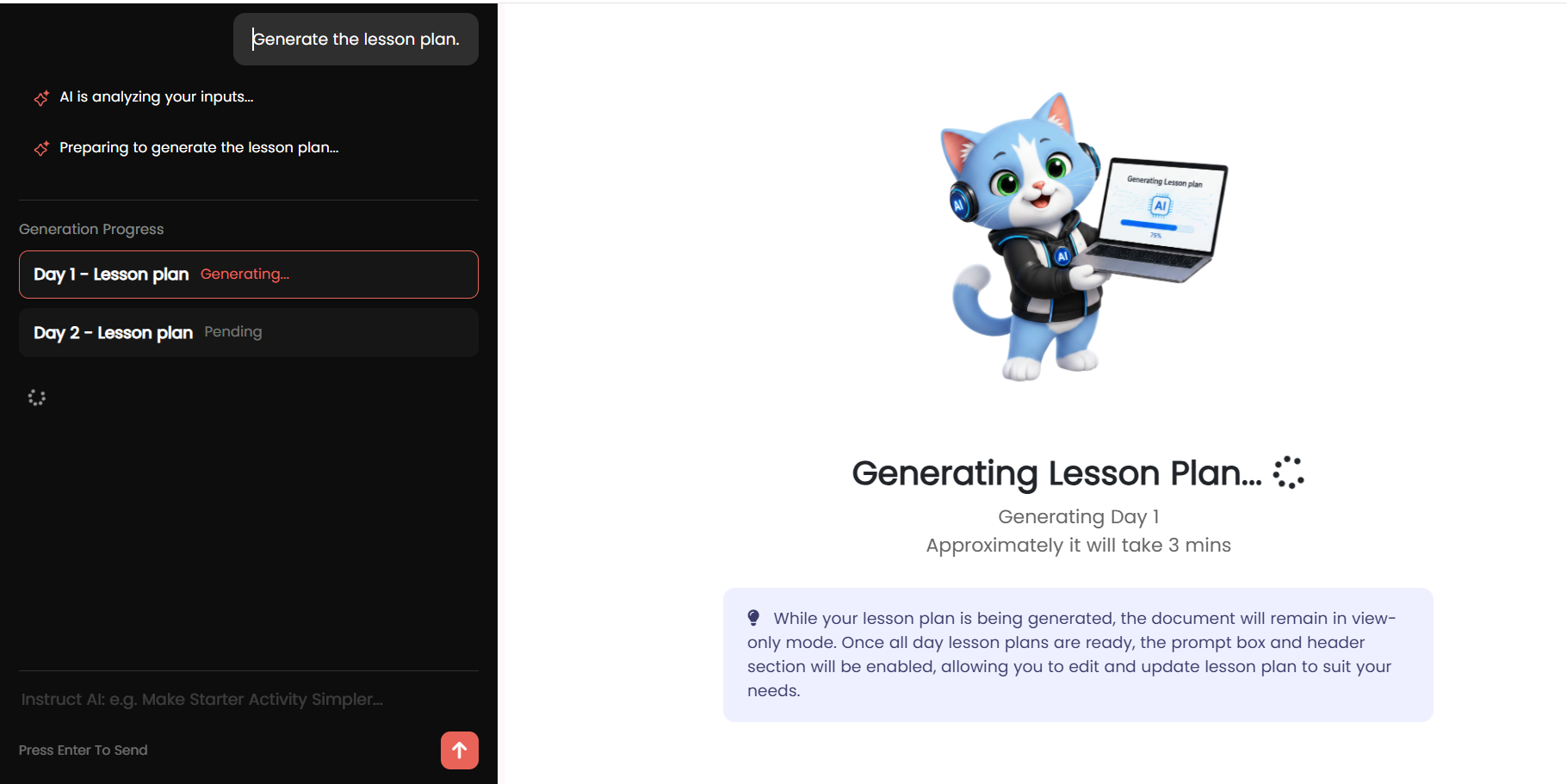
Once you click Create New, you can enter the details of your lesson and use AI to generate a structured lesson plan based on your requirements.
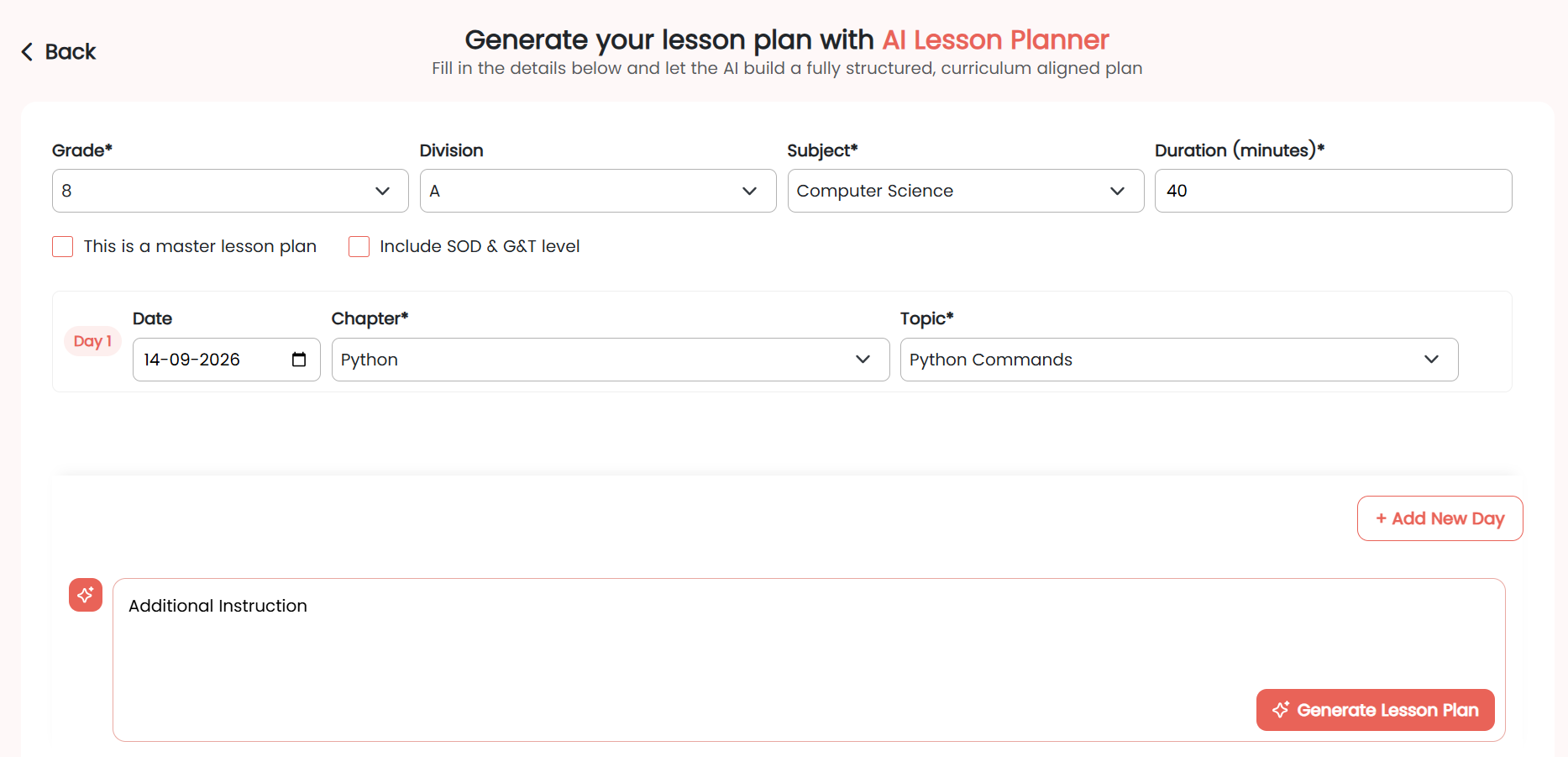
lockapp.cybersquare.org play_circleWalkthrough
Cyber Square AI Lesson Planner — Create Lesson Plan form
1
2

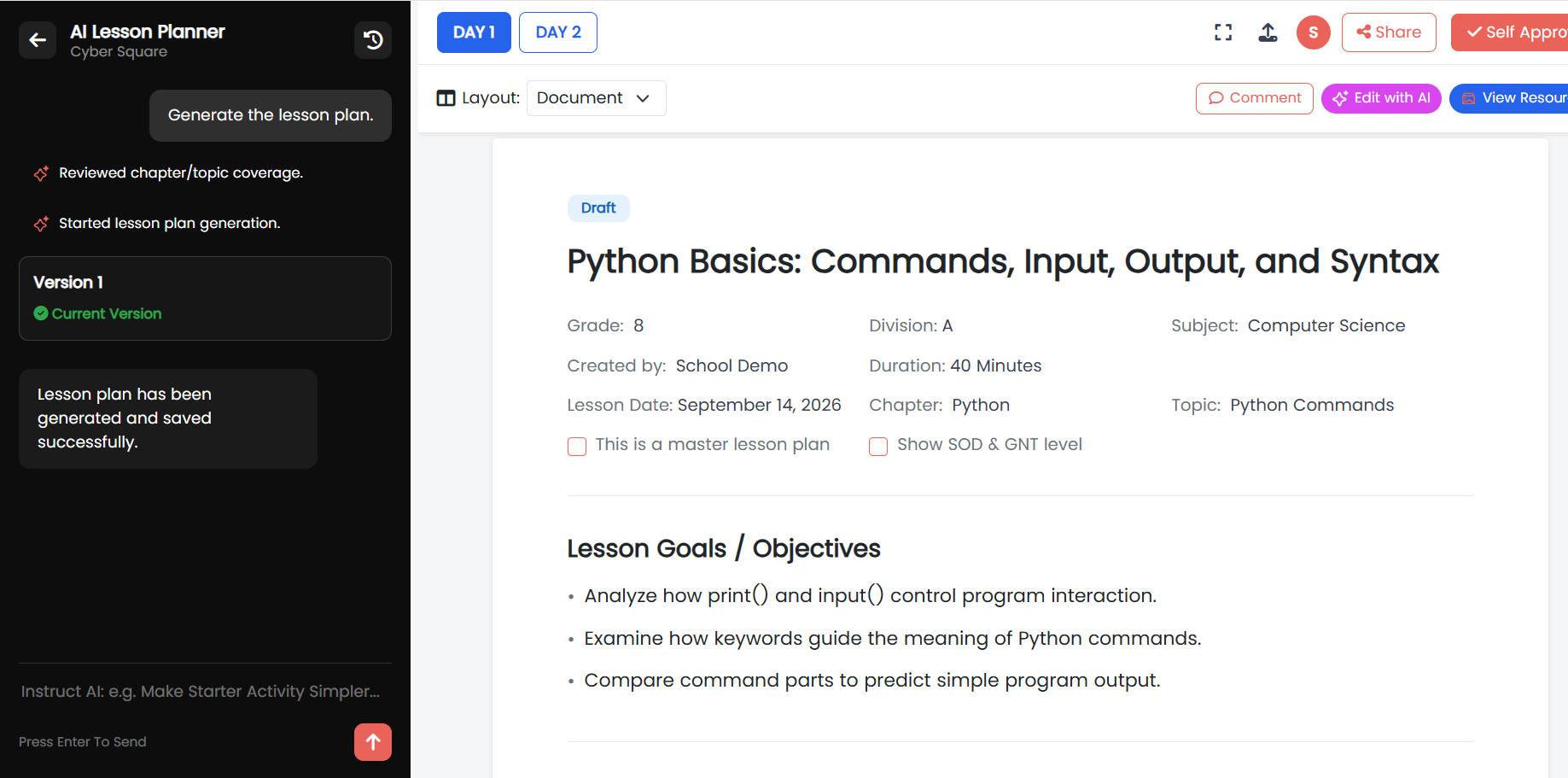
Review, Customize & Manage Your Lesson Plan

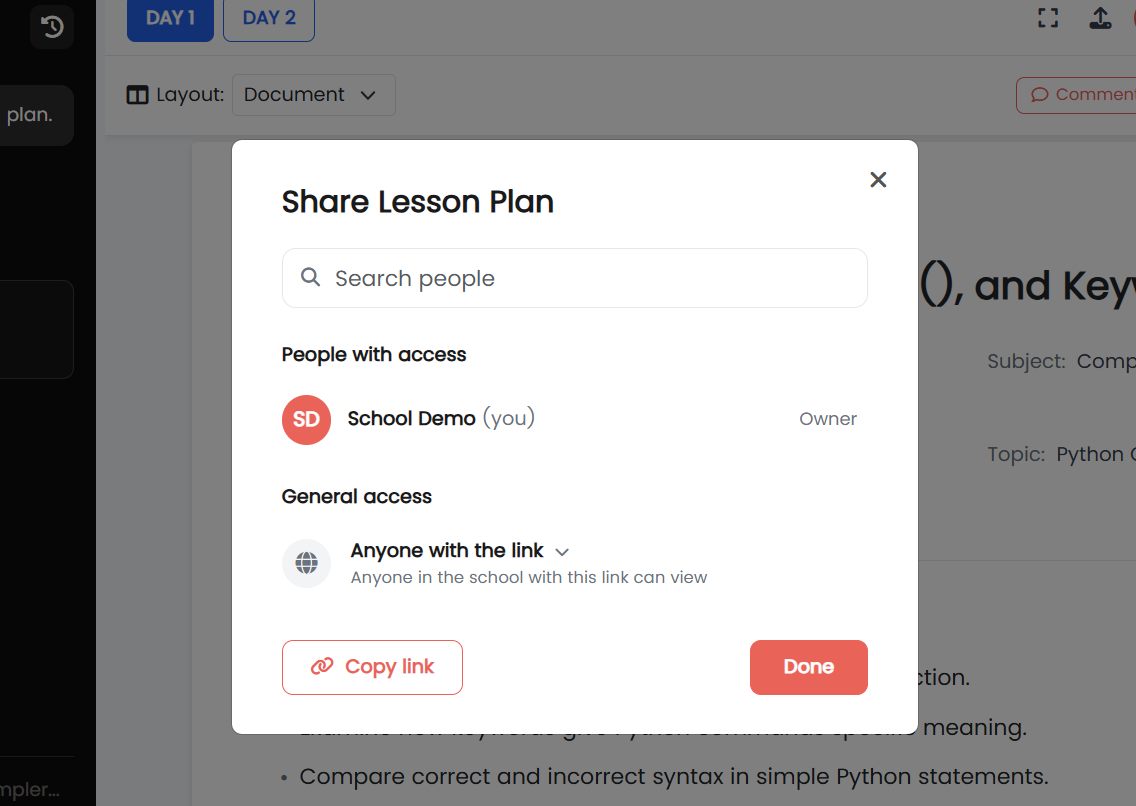
Once your lesson plan is generated, you can review the content, make changes with AI or directly in the document, add resources, share it with colleagues, and manage the lesson plan before using it in your classroom.
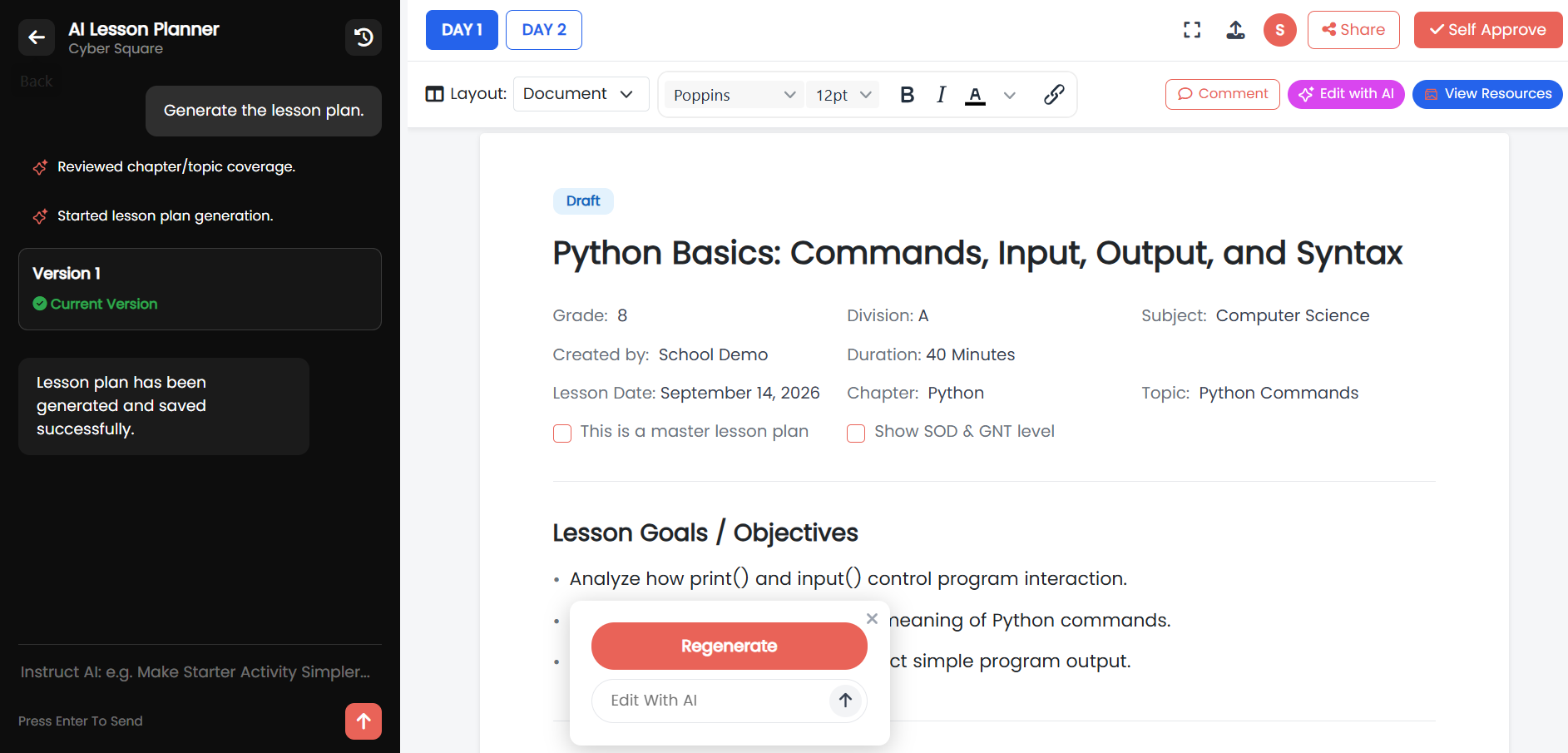
lockapp.cybersquare.org play_circleWalkthrough
Cyber Square AI Lesson Planner — generated lesson plan document with AI chat, regenerate, and management controls
1
2

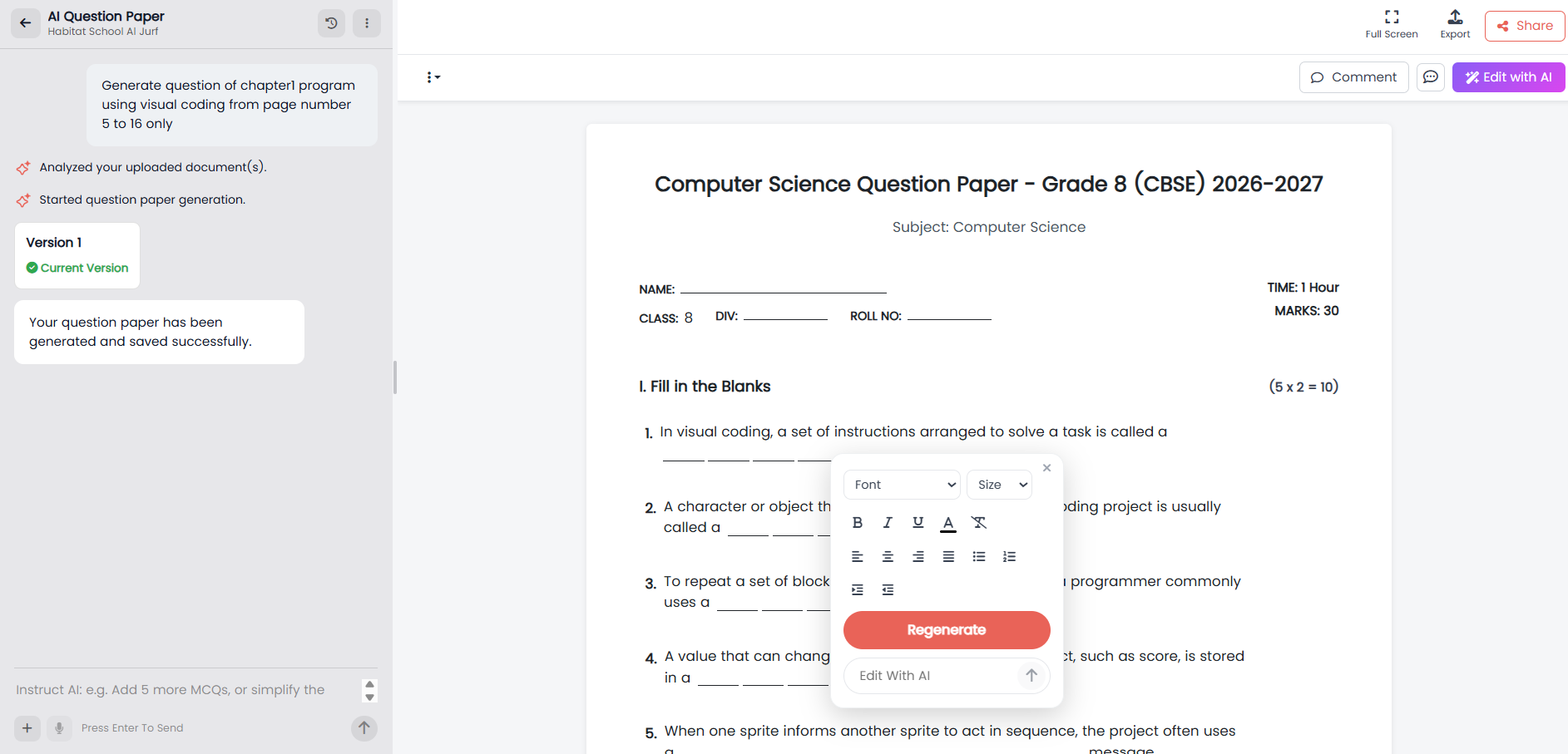
Question Paper

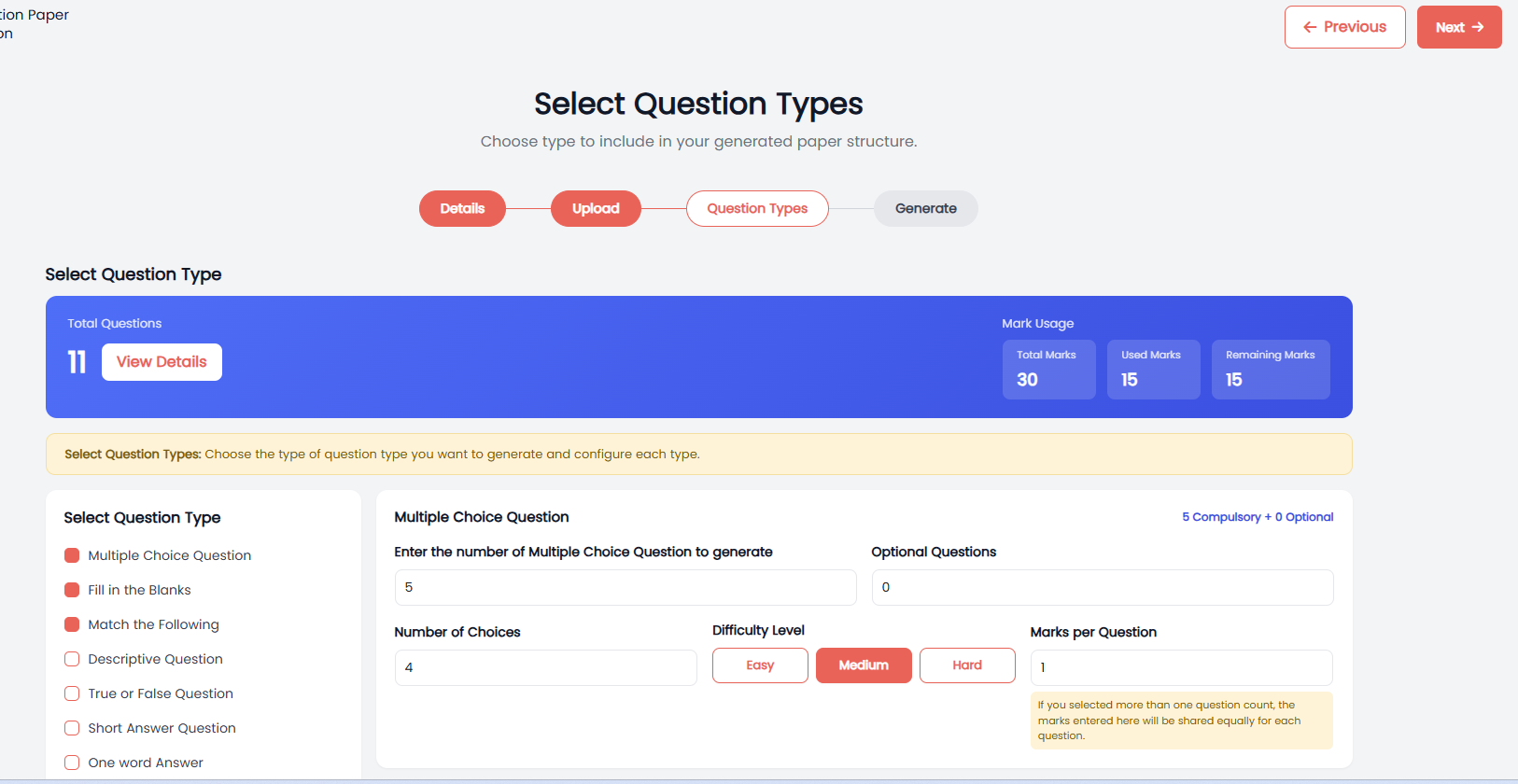
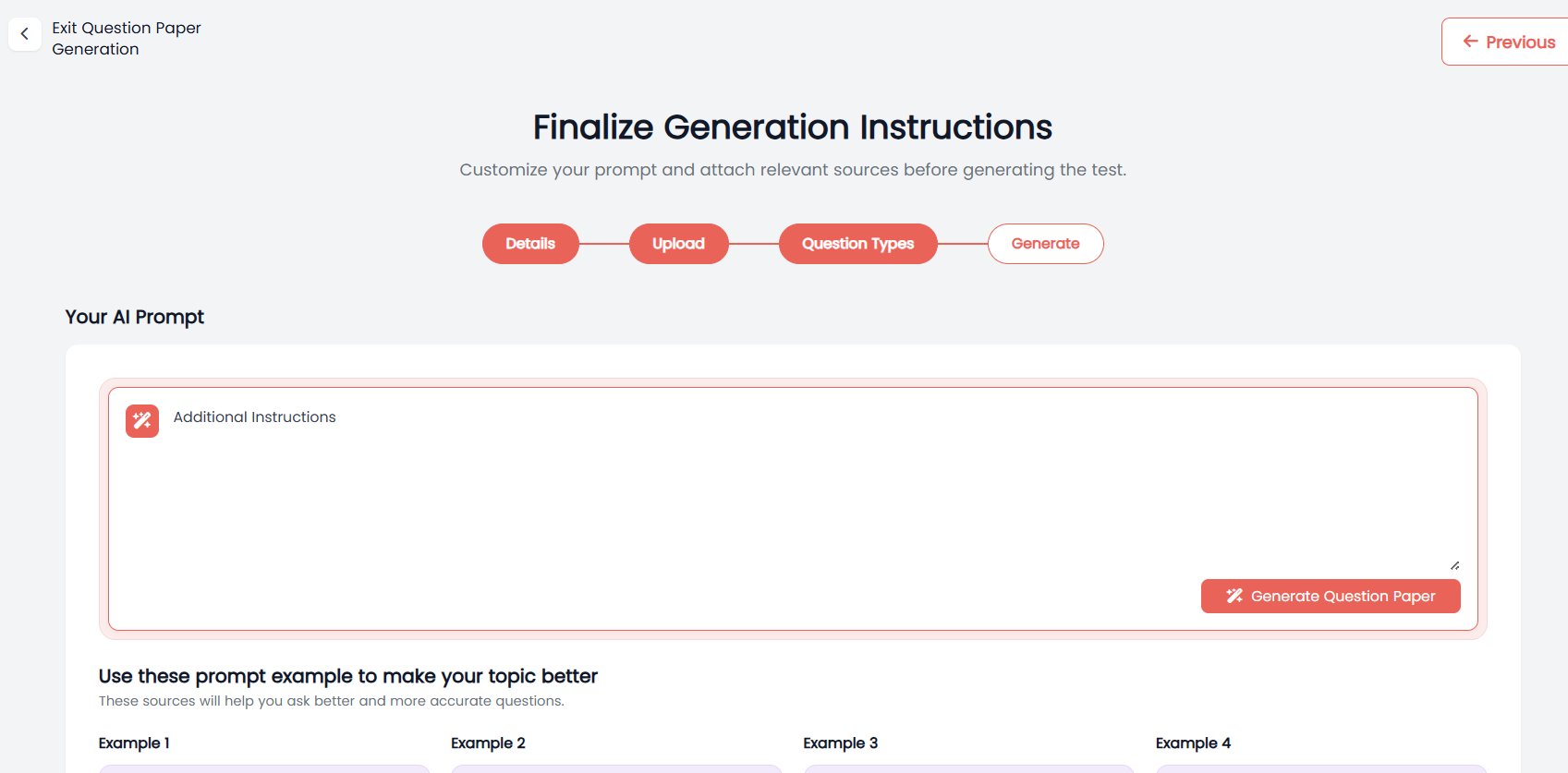
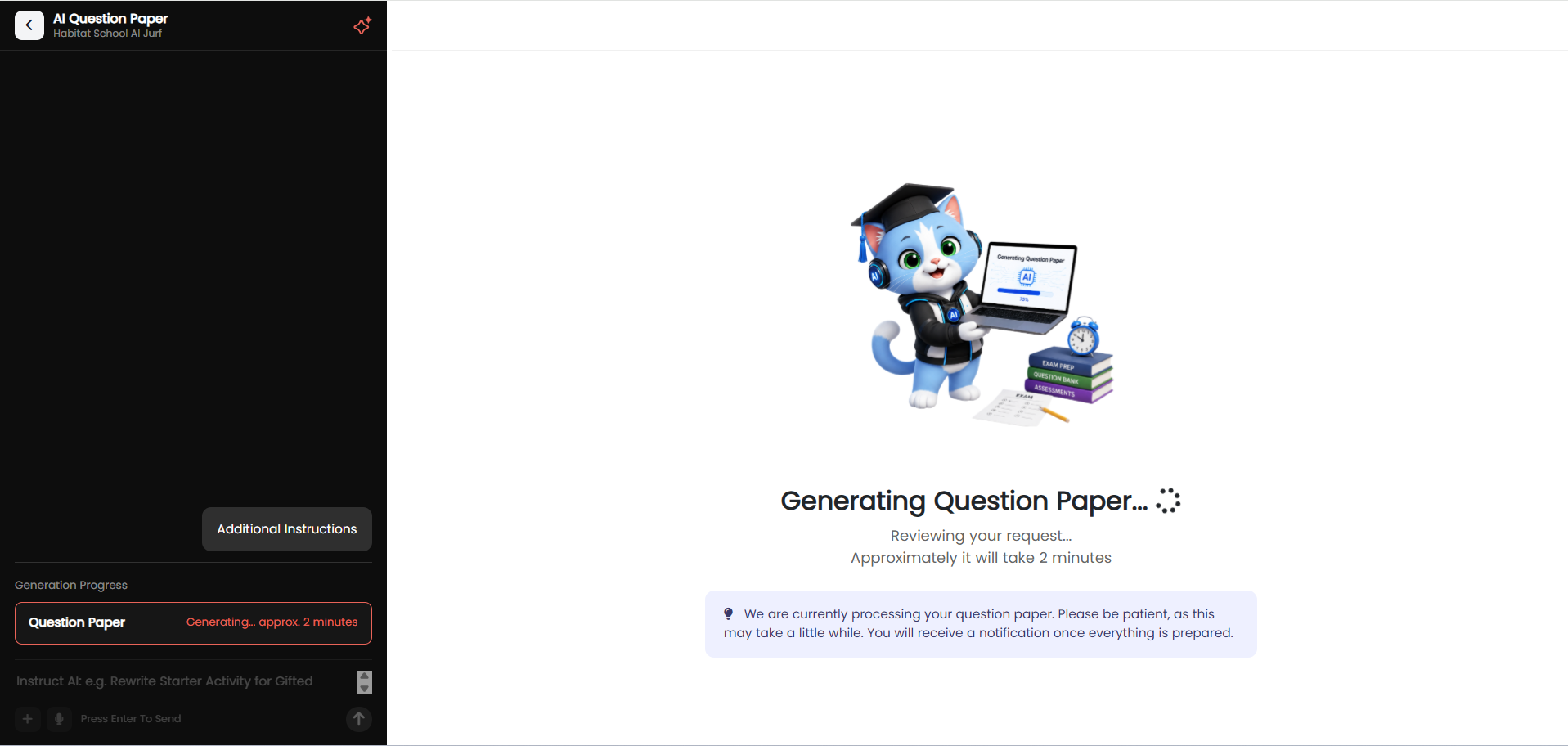
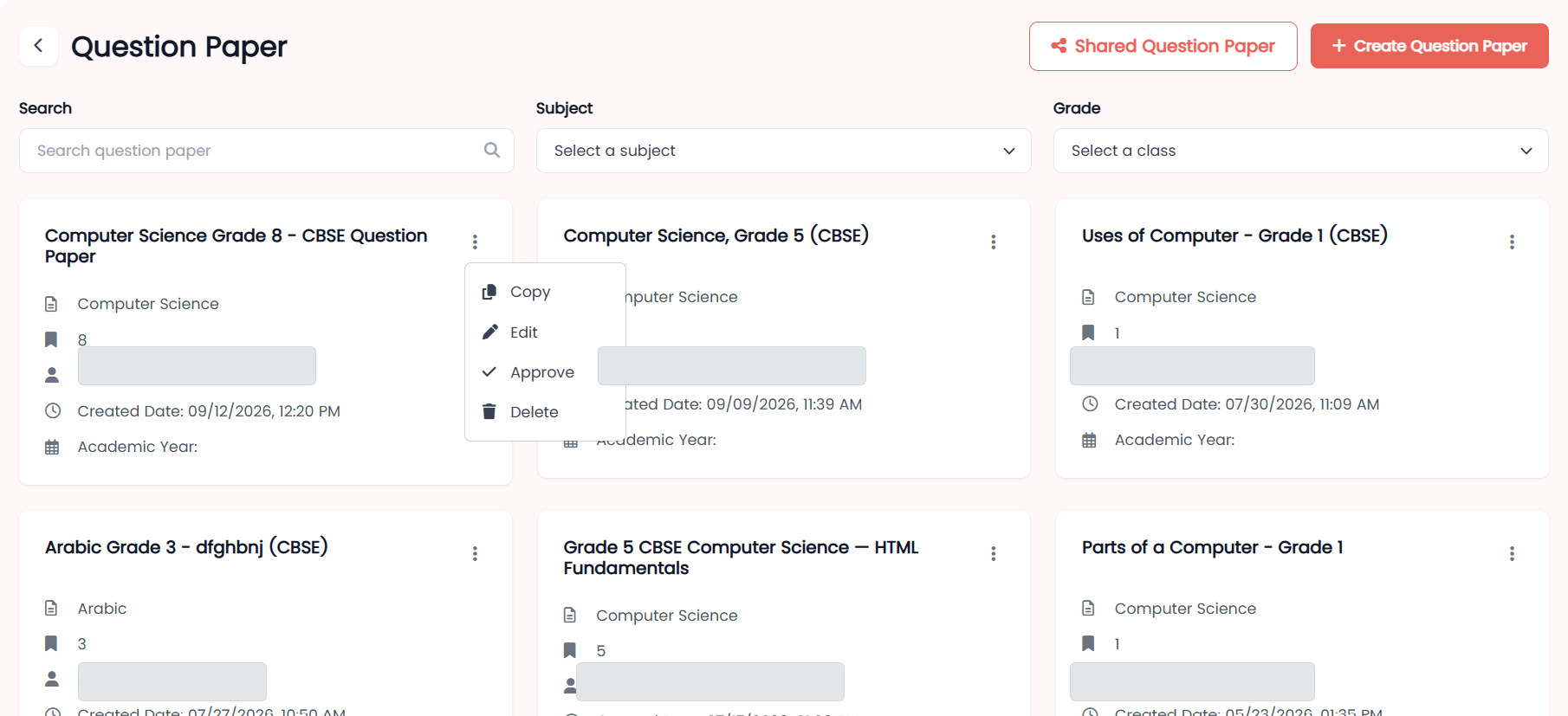
Question Paper helps teachers create customized question papers with the support of AI. Teachers can prepare assessments based on their subject, grade, requirements, and selected content, making it easier to create question papers for classroom use.
lockapp.cybersquare.org play_circleWalkthrough
Cyber Square CS AI Tools dashboard — Question Paper card with Create New and View All options
1
2

Create a Question Paper

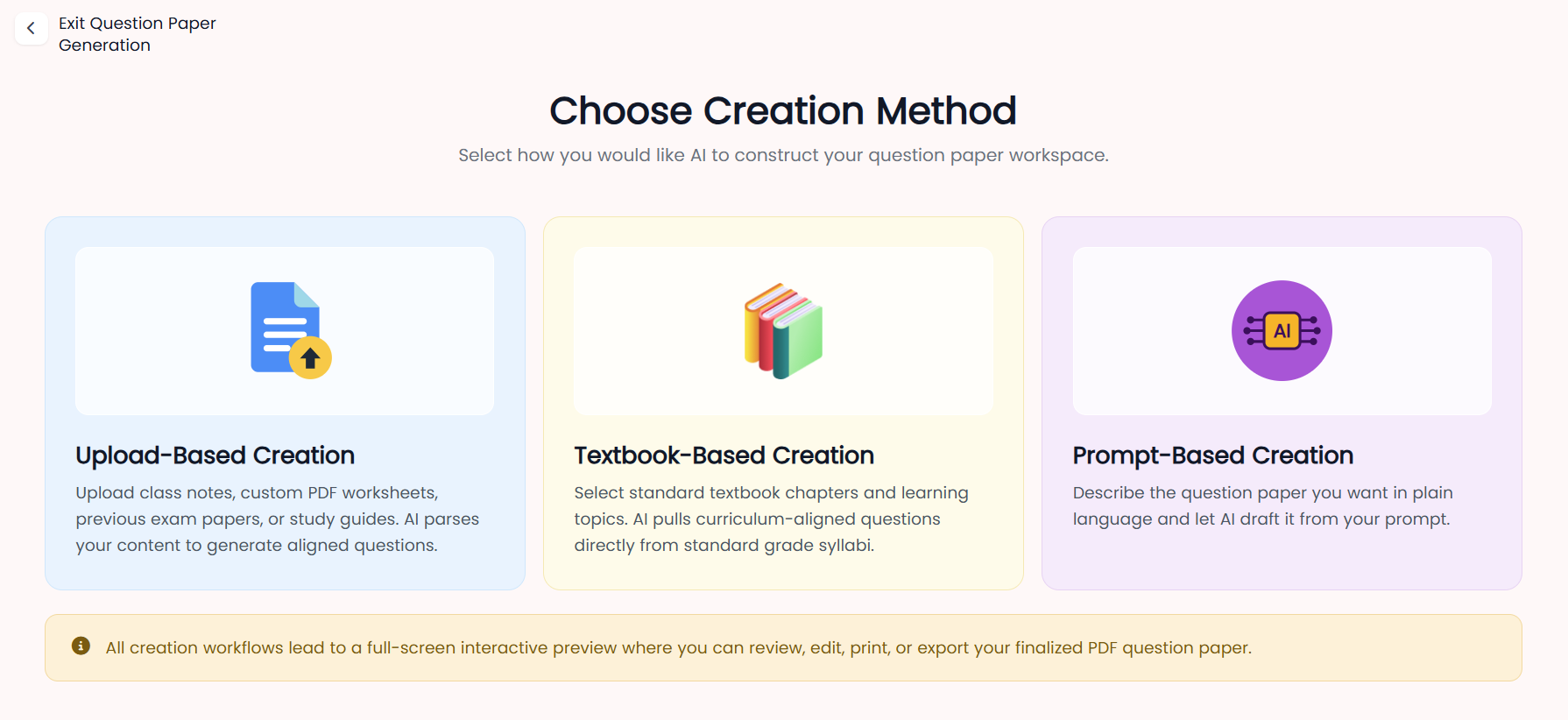
Teachers can create question papers in three different ways using AI. Choose the method that best matches the content and requirements of your assessment.
upload_file
Upload-Based Creation
Upload class notes, custom PDF worksheets, previous exam papers, or study guides. AI analyzes the uploaded content and generates questions aligned with it.
menu_book
Textbook-Based Creation
Select standard textbook chapters and learning topics. AI generates curriculum-aligned questions based on the selected grade syllabus.
auto_awesome
Prompt-Based Creation
Describe the question paper you want in plain language and let AI create it based on your prompt.
Cyber Square Question Paper — Choose Creation Method screen, showing Upload-Based, Textbook-Based, and Prompt-Based creation options
info
Note
All three creation methods lead to a full-screen interactive preview where you can review, edit, print, or export your finalized PDF question paper.

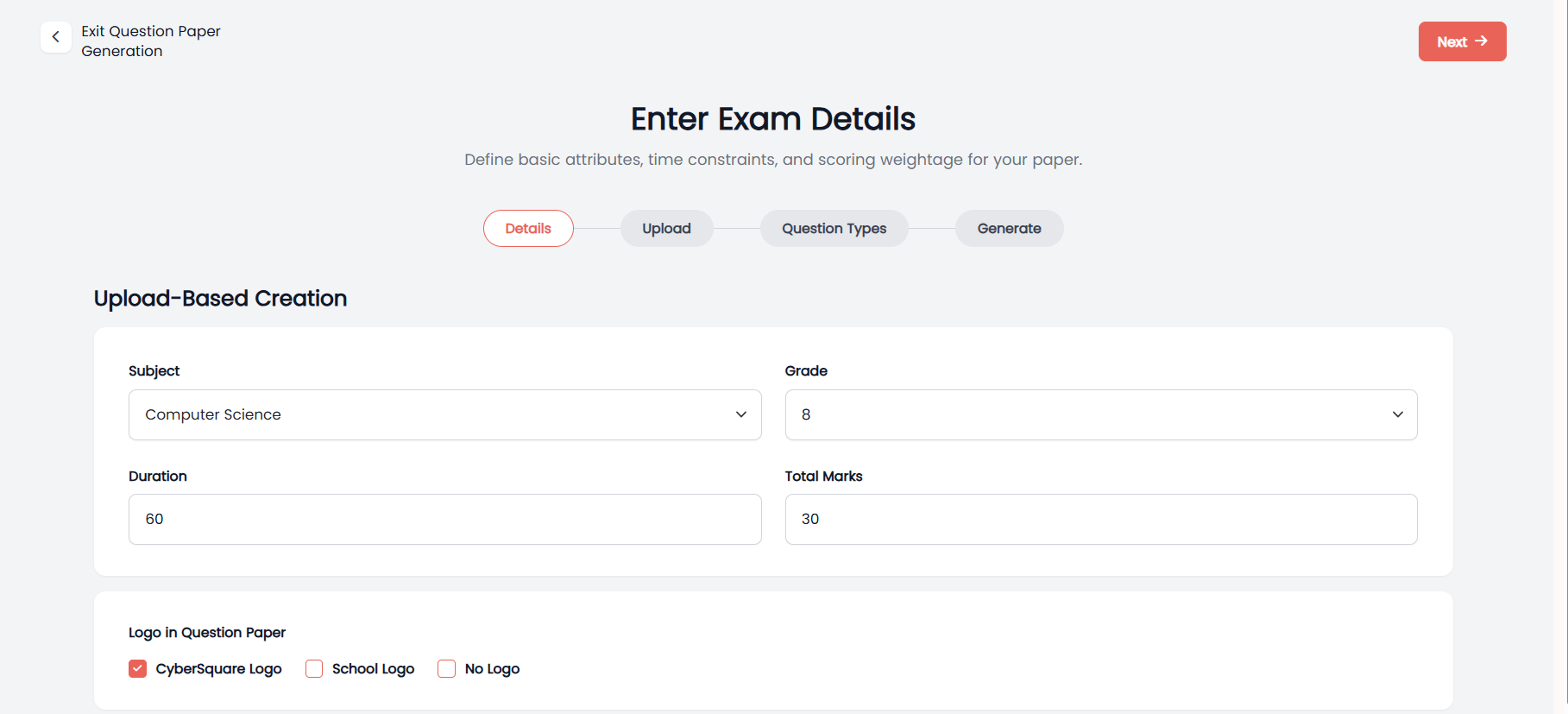
Upload-Based Creation

Upload class notes, custom PDF worksheets, previous exam papers, or study guides. AI analyzes the uploaded content and generates questions aligned with it.

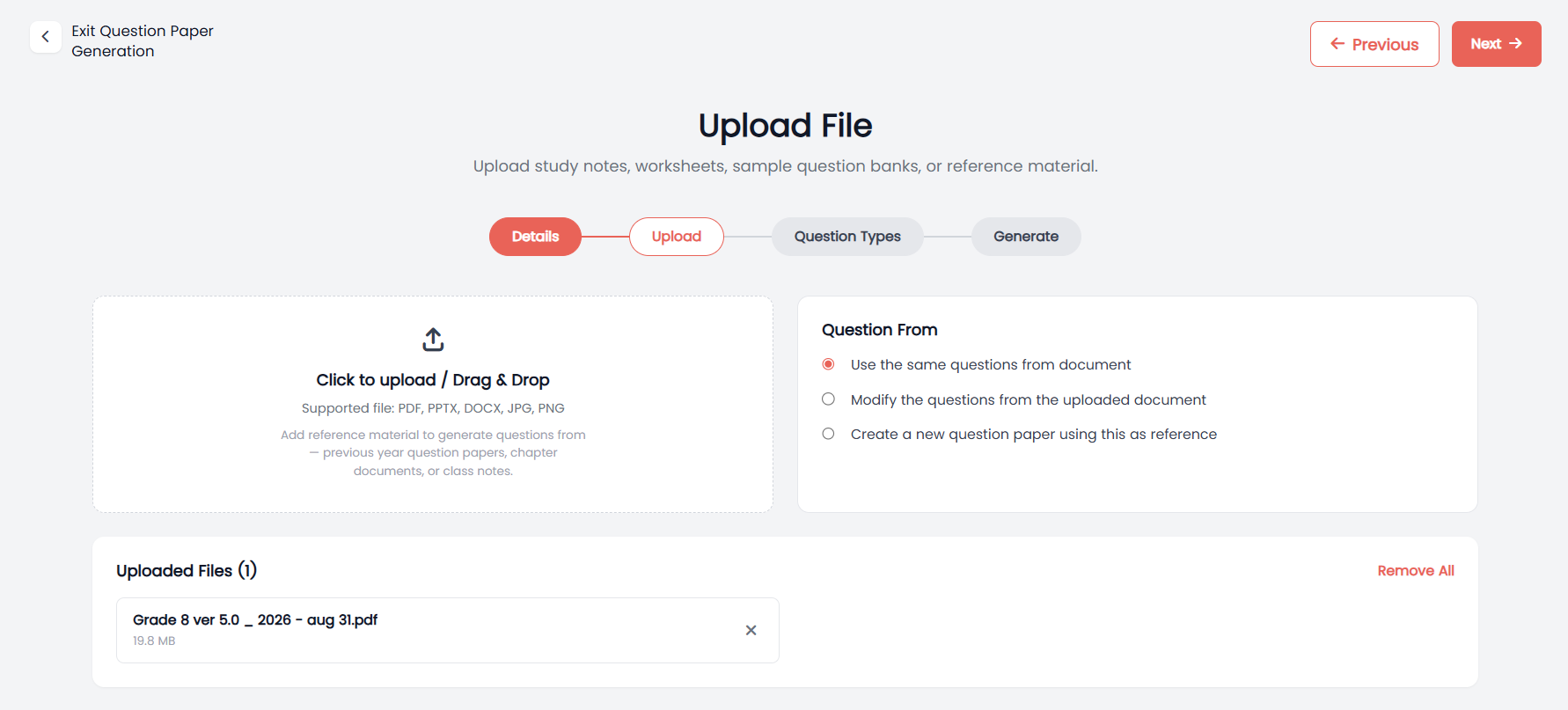
lockapp.cybersquare.org play_circleWalkthrough
Cyber Square Question Paper — Upload-Based Creation, Enter Exam Details screen with Subject, Grade, Duration, and Total Marks
1
2

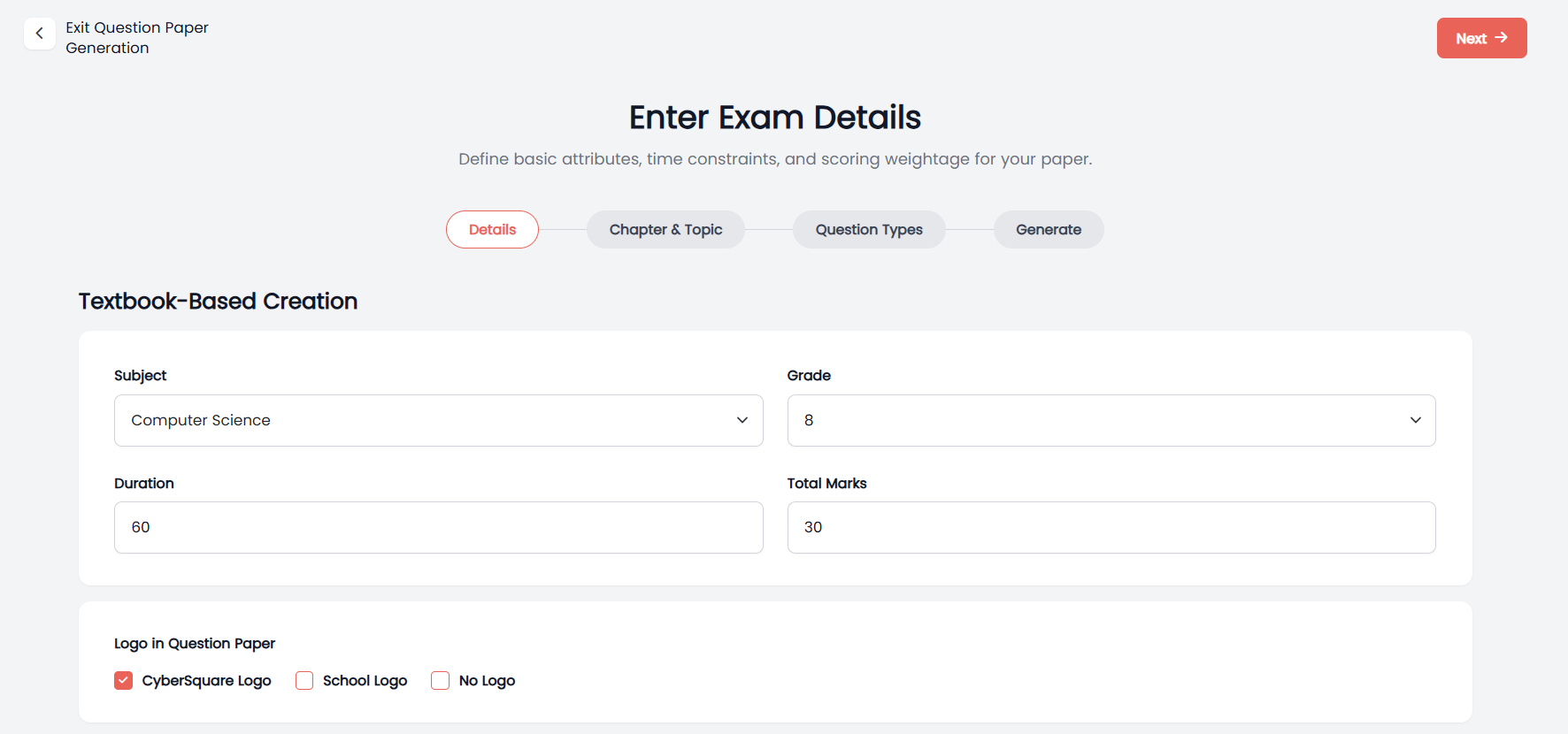
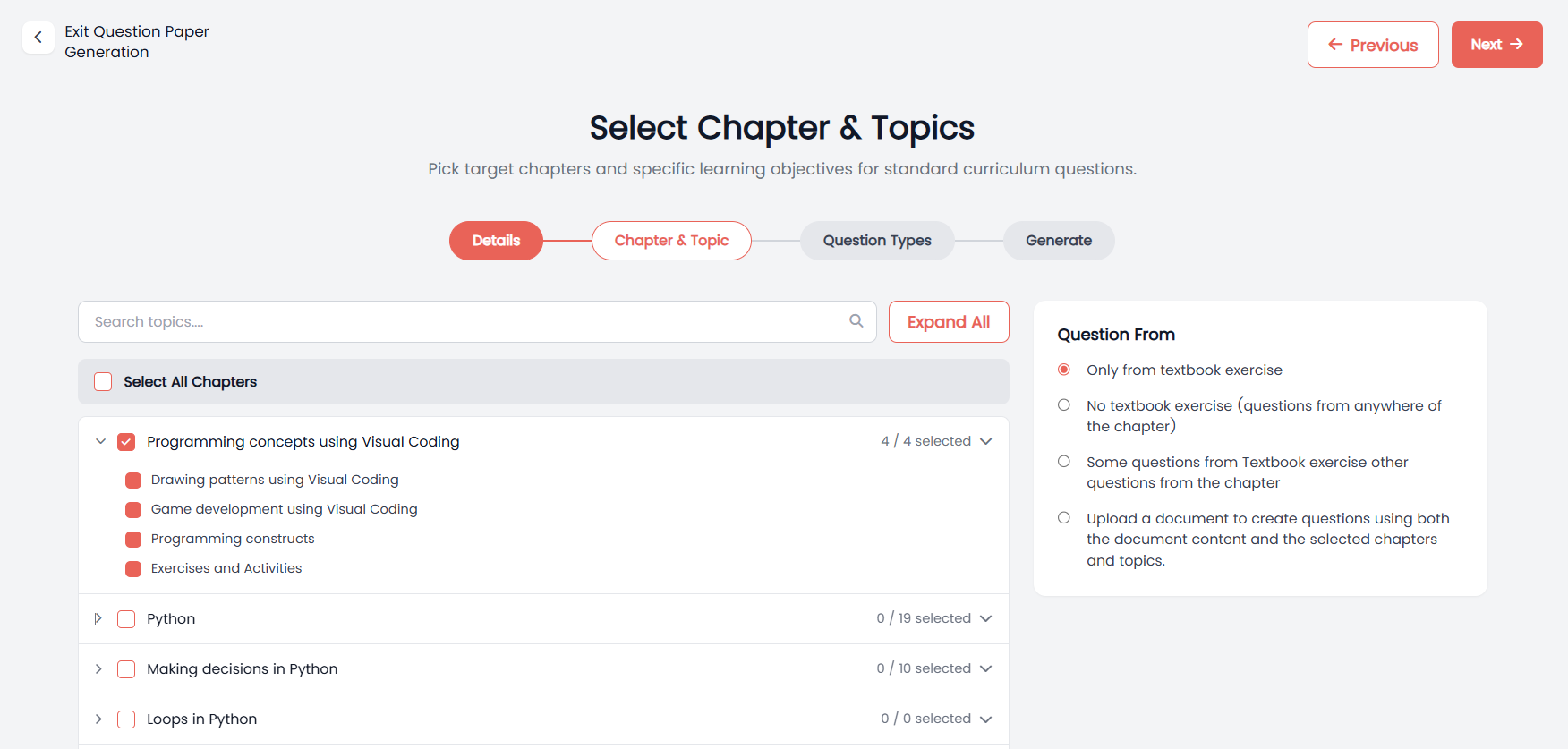
Textbook-Based Creation

Teachers can create question papers directly from curriculum-aligned textbook chapters and topics by selecting the required content and configuring the question paper.
lockapp.cybersquare.org play_circleWalkthrough
Cyber Square Question Paper — Textbook-Based Creation, Enter Exam Details screen with Subject, Grade, Duration, and Total Marks
1
2

Topic Notes

Topic Notes helps teachers create clear, structured learning notes with the support of AI. Teachers can select the grade, subject, chapter, and topic, add additional instructions, and generate topic-specific notes quickly. The generated notes can then be reviewed, edited, and exported for classroom use.
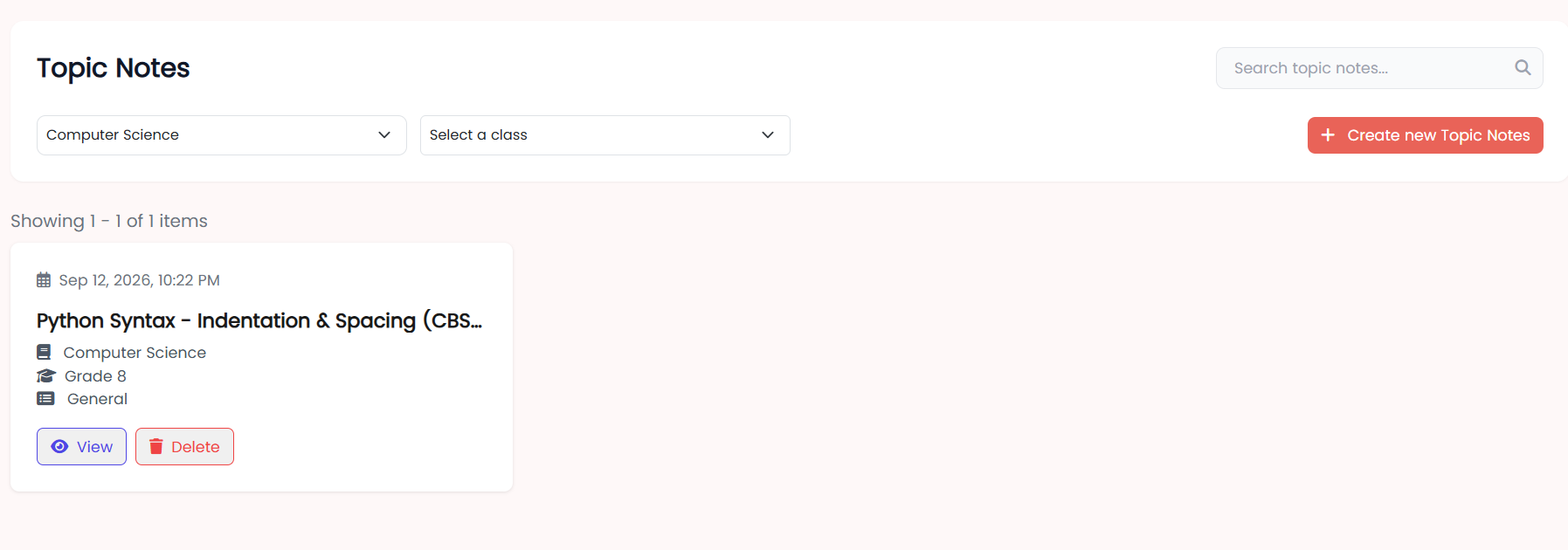
lockapp.cybersquare.org play_circleWalkthrough
Cyber Square CS AI Tools dashboard — Topic Notes card with Create New and View All options
1
2

Create & Manage Topic Notes

Teachers can create topic notes by selecting the required grade, subject, chapter, and topic, adding any additional instructions, and generating notes with AI. Once generated, the notes can be reviewed, edited, and exported as a PDF.
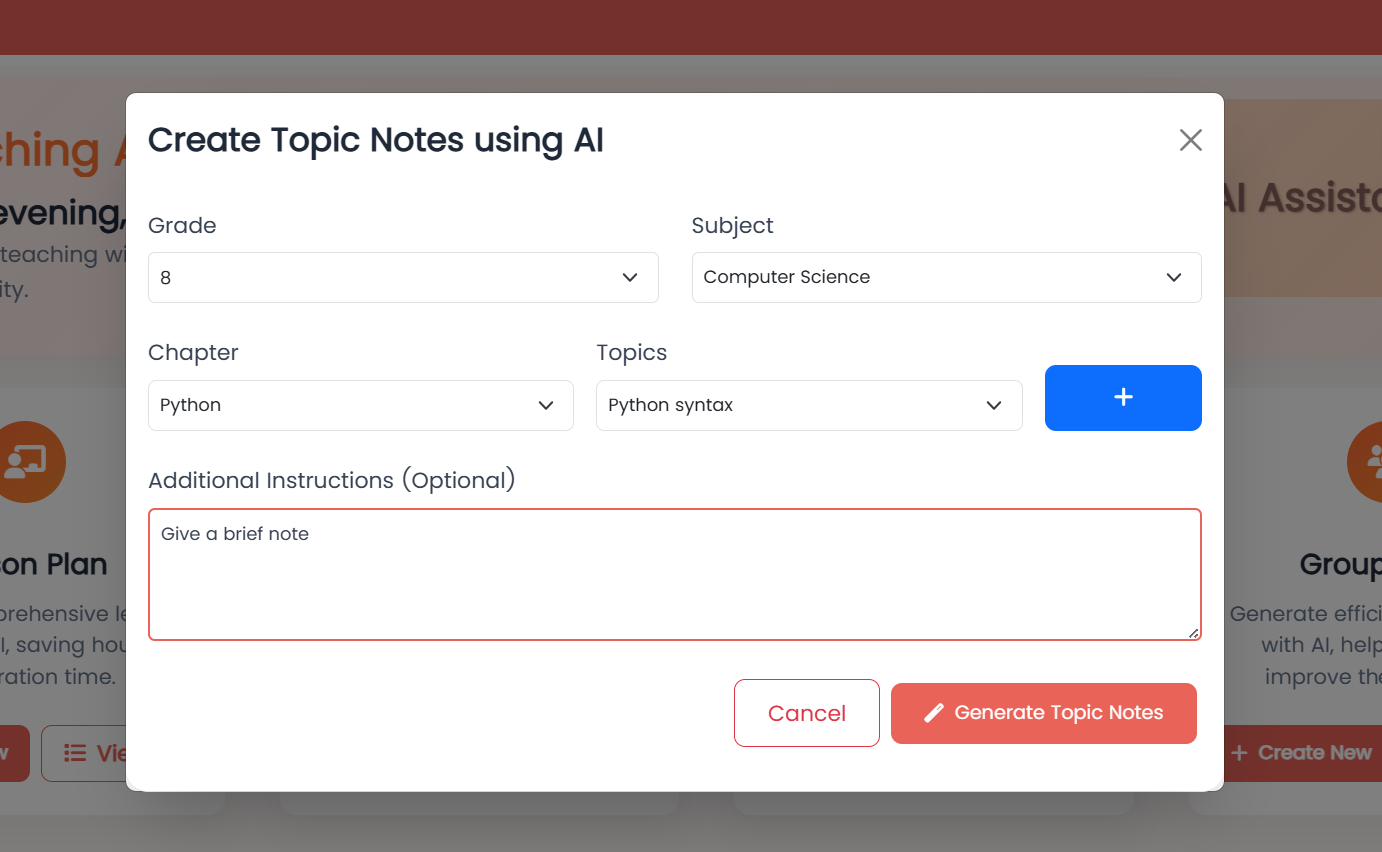
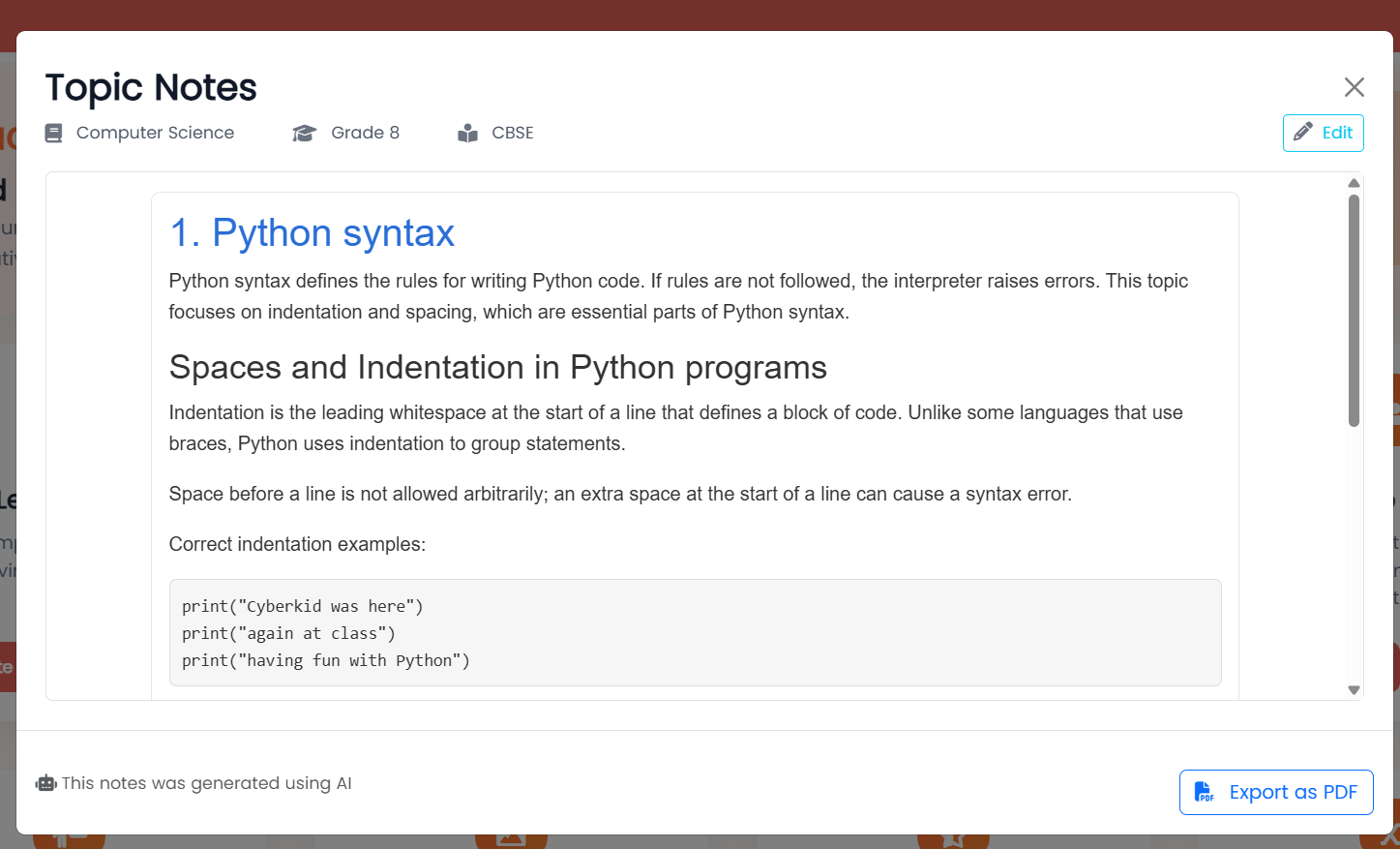
lockapp.cybersquare.org play_circleWalkthrough
Cyber Square Topic Notes — Create Topic Notes using AI dialog with Grade, Subject, Chapter, Topics and Additional Instructions
1
2

Group Tasks

Group Tasks helps teachers create structured, AI-generated group activities for students. Teachers can select the grade, subject, number of students, duration, chapter, and topic, add additional instructions, and generate a group task that students can complete collaboratively.
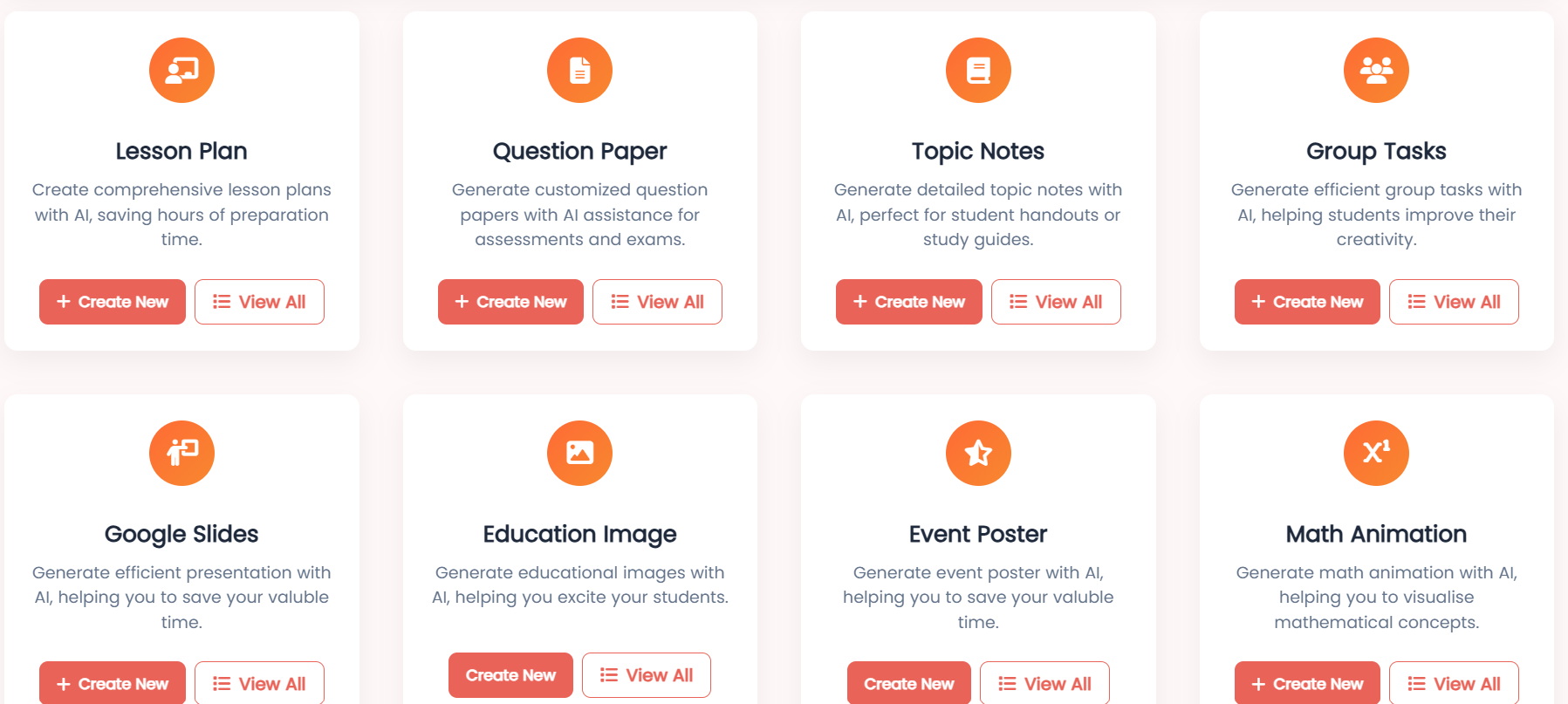
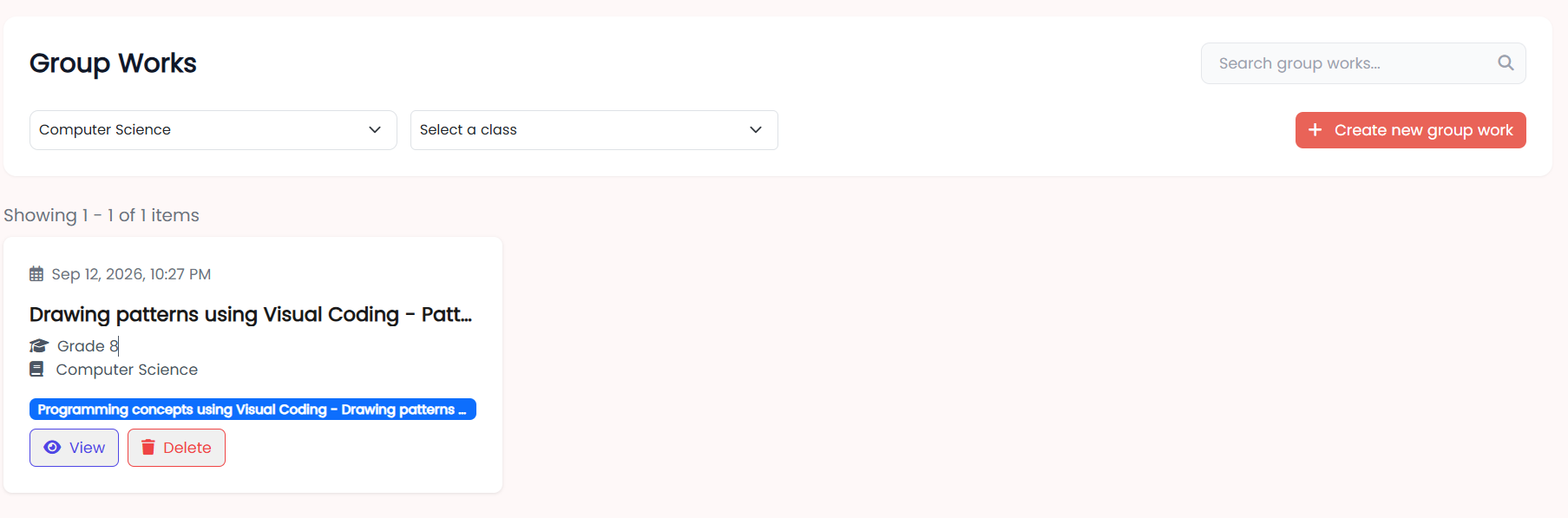
lockapp.cybersquare.org play_circleWalkthrough
Cyber Square CS AI Tools dashboard — Group Tasks card with Create New and View All options
1
2

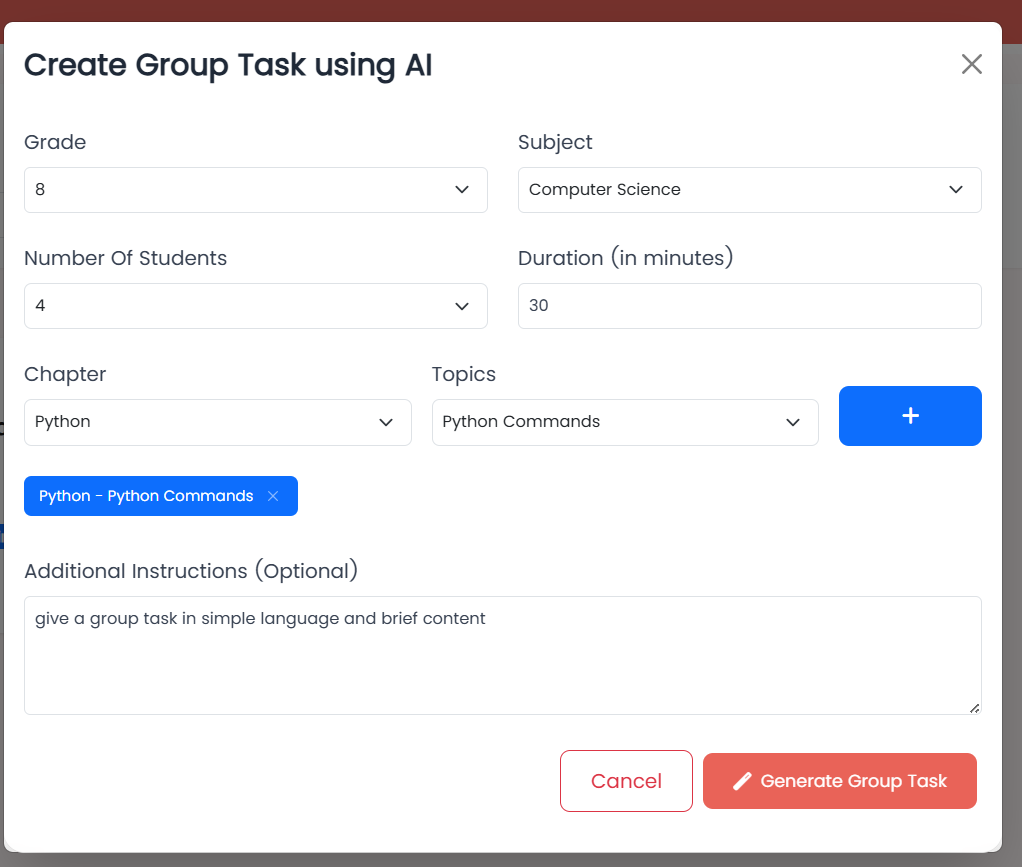
Create & Manage Group Tasks

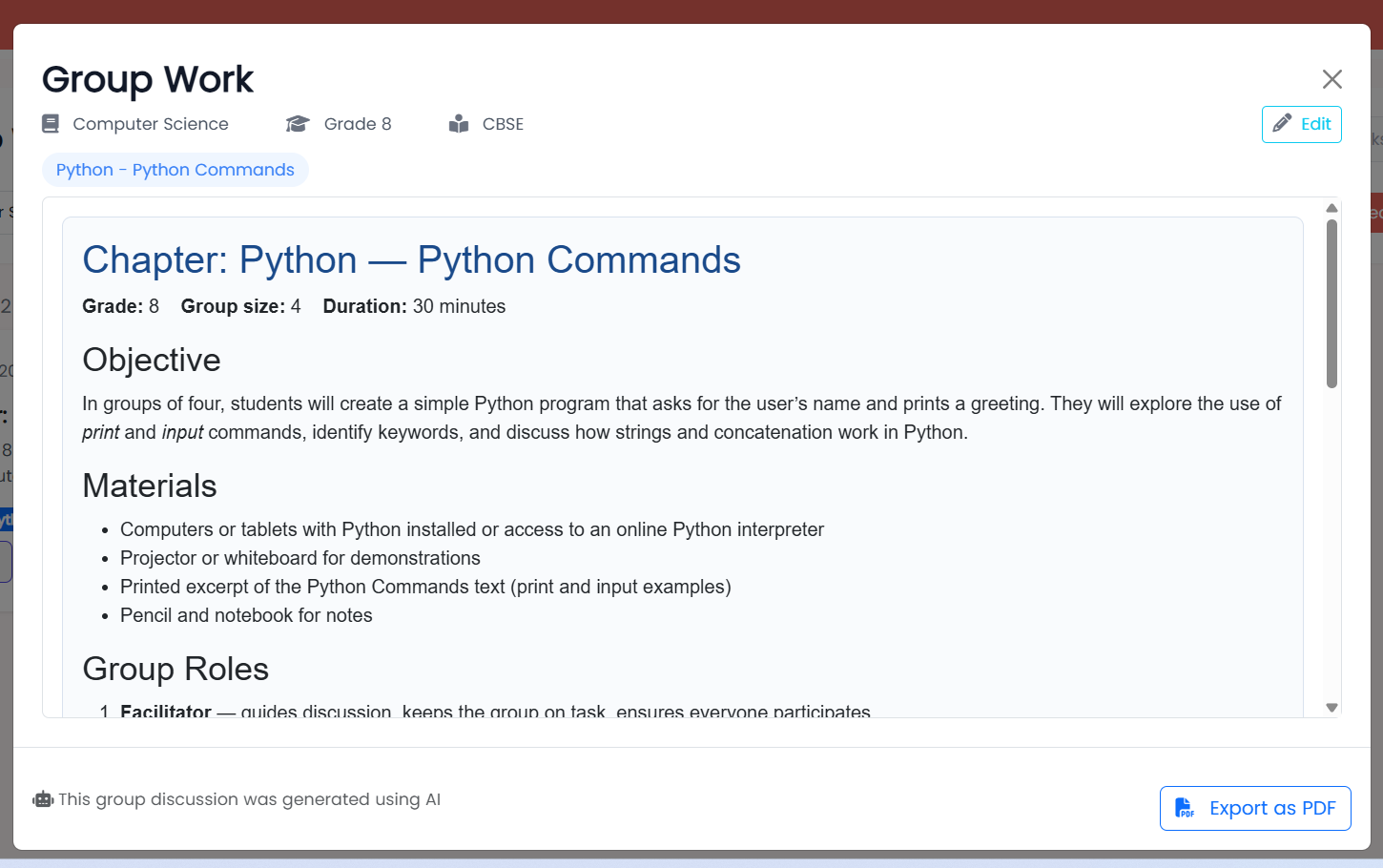
Teachers can create group tasks by selecting the required grade, subject, number of students, duration, chapter, and topic. Additional instructions can also be added to guide the AI in creating a suitable group activity. Once generated, the group task can be reviewed, edited, and exported as a PDF.
lockapp.cybersquare.org play_circleWalkthrough
Cyber Square Group Tasks — Create Group Task using AI dialog with Grade, Subject, Number of Students, Duration, Chapter, Topics and Additional Instructions
1
2

Google Slides

Education Image

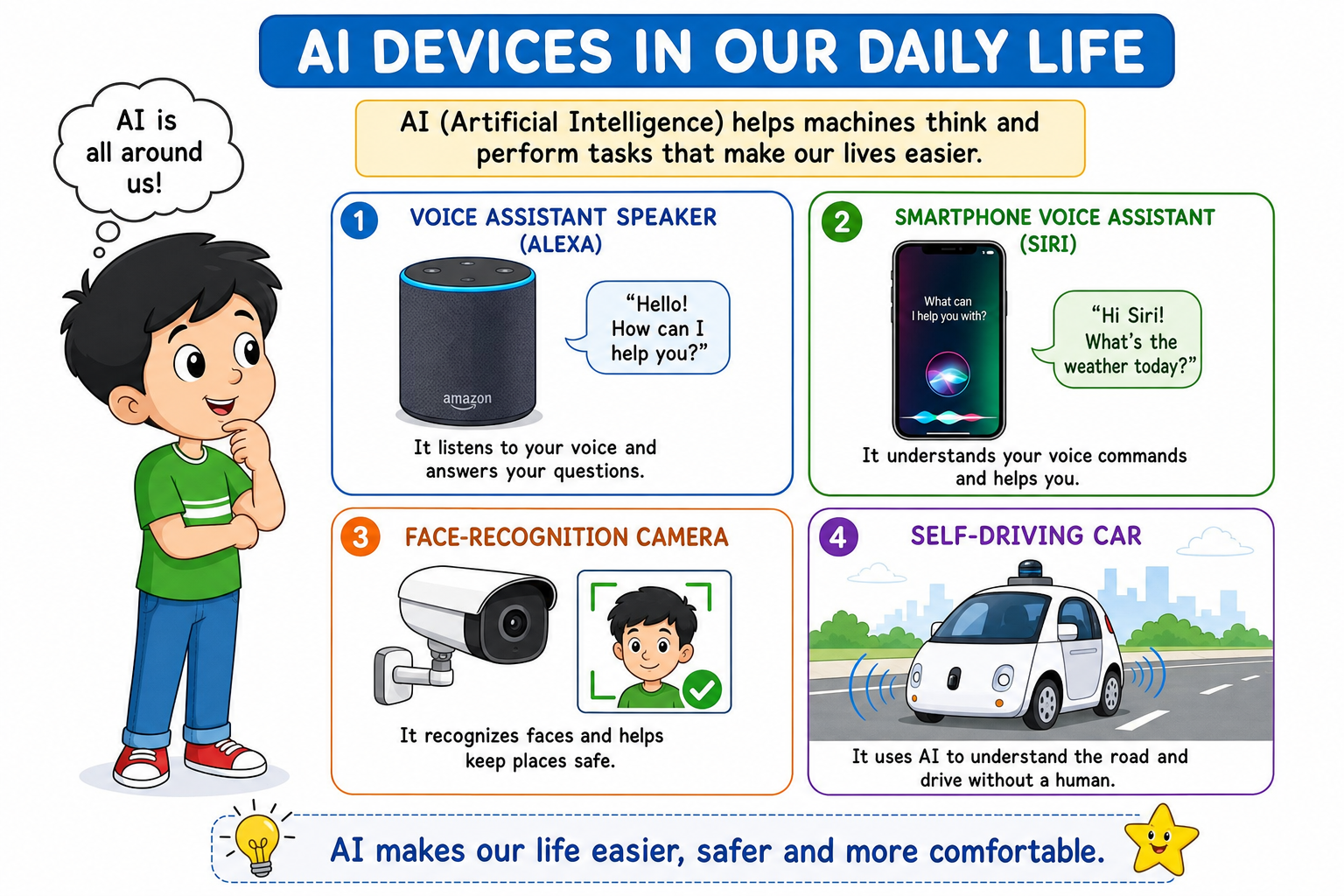
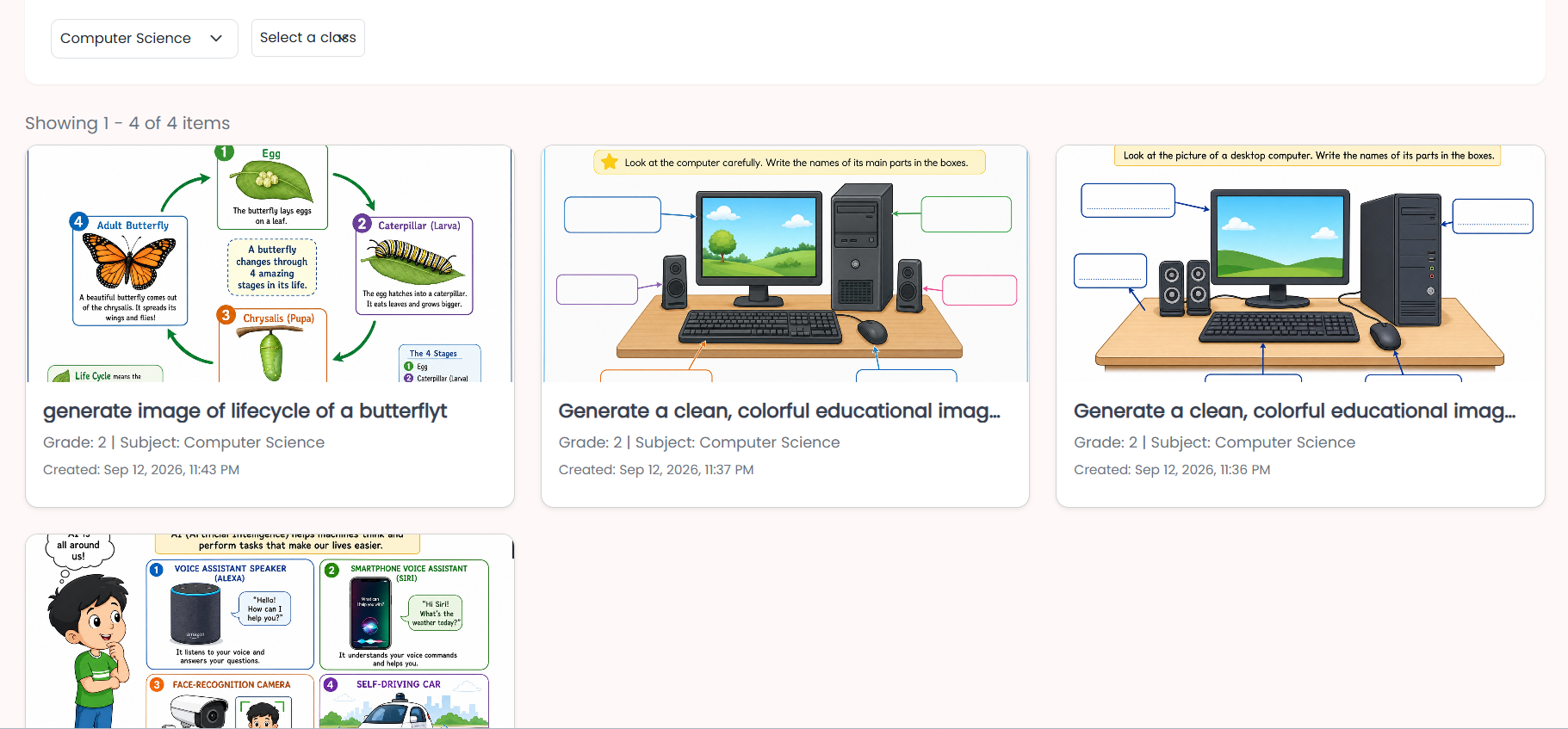
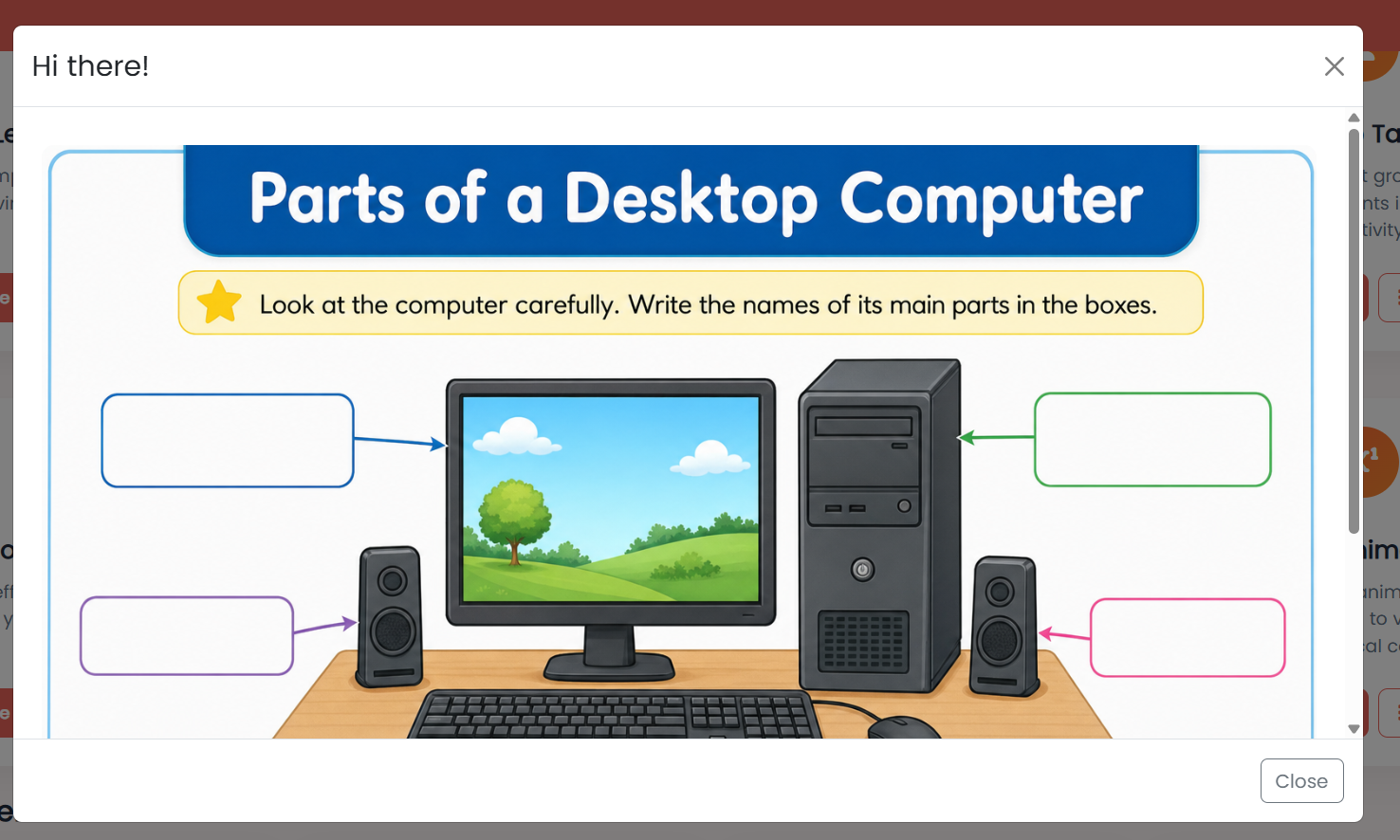
Education Image helps teachers create educational visuals with the support of AI. Teachers can describe a concept, topic, activity, or classroom idea, and AI generates a suitable image that can be used in lessons, worksheets, presentations, and study materials.
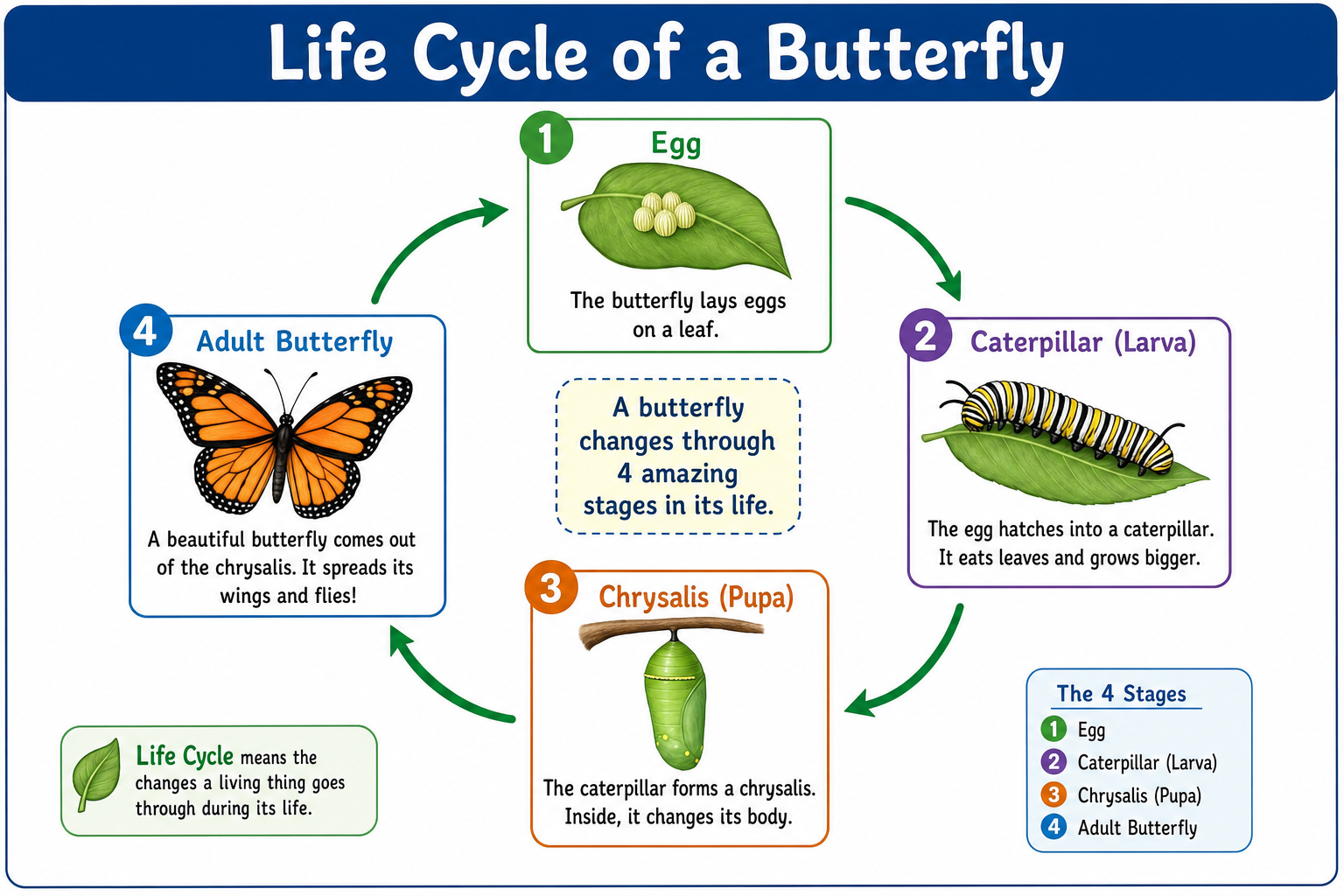
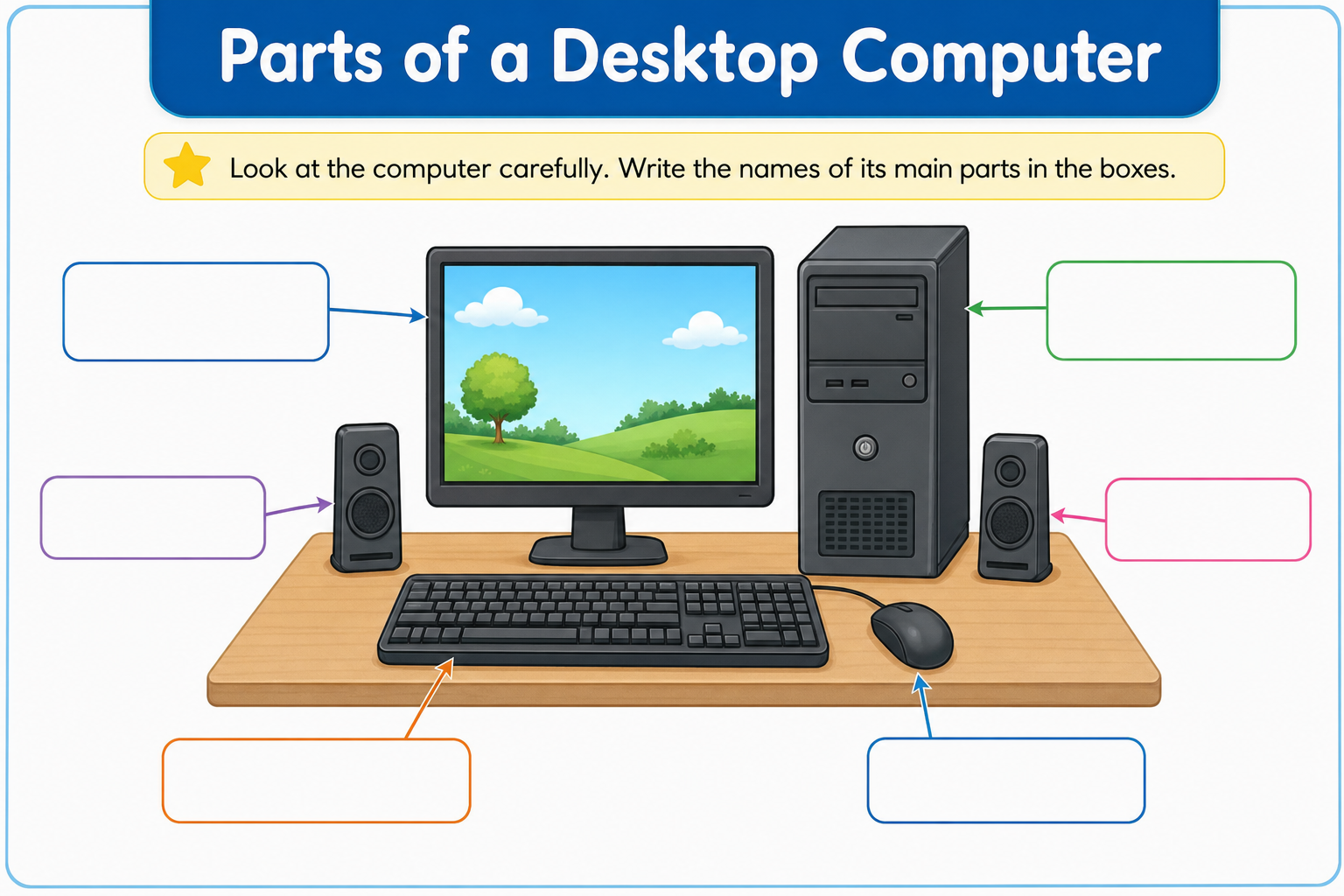
Example AI-generated educational image 1
Example AI-generated educational image 2
Example AI-generated educational image 3
lockapp.cybersquare.org play_circleWalkthrough
Cyber Square CS AI Tools dashboard — Topic Notes card with Create New and View All options
1
2

Create & Manage Education Image

Teachers describe the concept, topic, activity, or classroom idea they need an image for, and AI generates a suitable educational visual. Once generated, the image can be reviewed and saved to the computer for use in lessons, worksheets, or presentations.
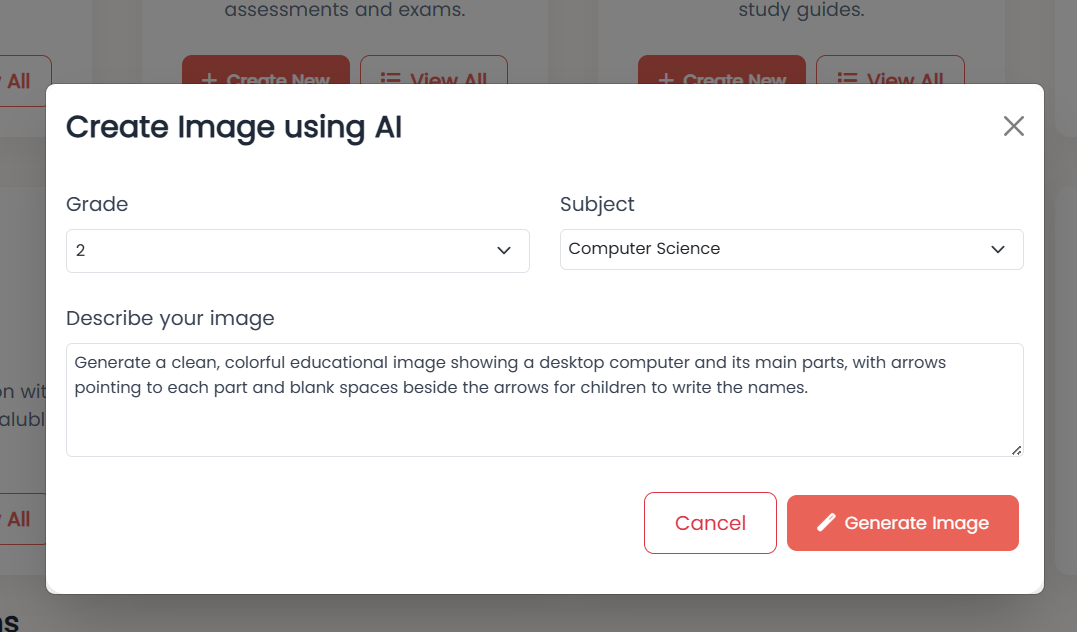
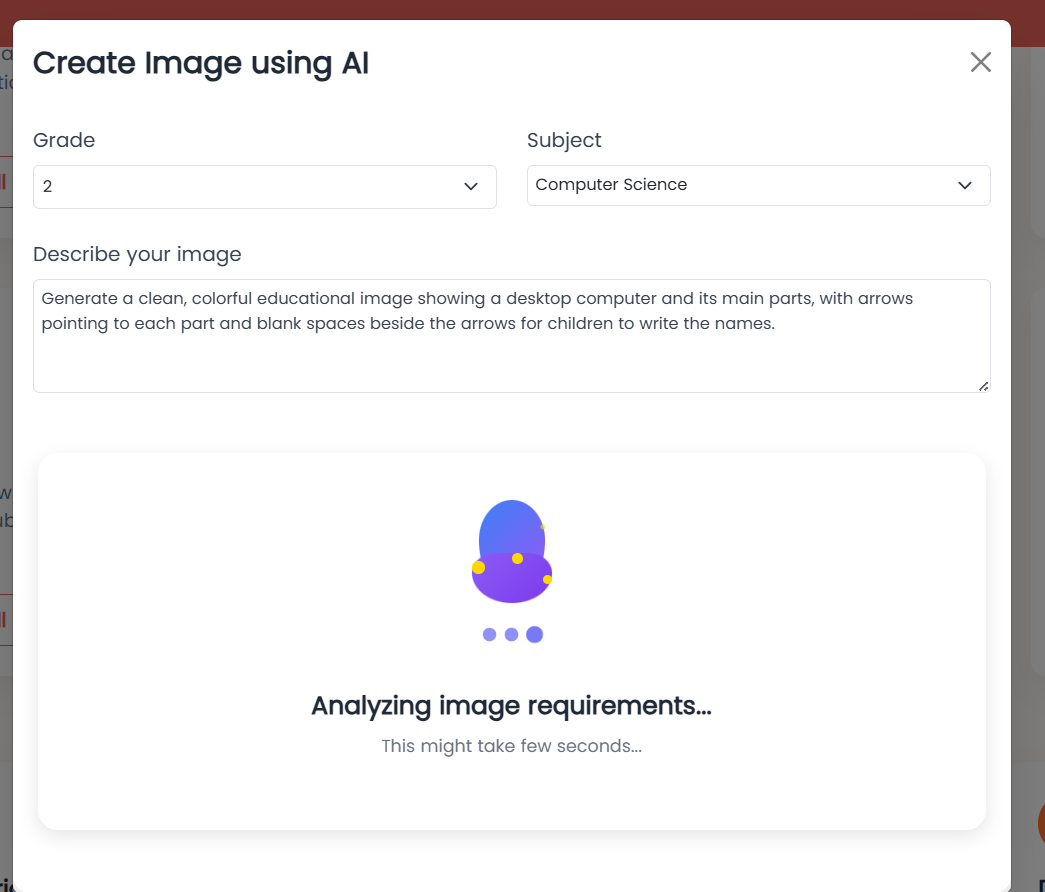
lockapp.cybersquare.org play_circleWalkthrough
Cyber Square Education Image — Create Image using AI dialog with Grade, Subject, and Describe your image fields
1
2

Event Poster

Event Poster helps teachers create attractive event posters with the support of AI. Teachers can provide the event details and describe how they want the poster to look, and AI generates a ready-to-use poster for school events and activities.
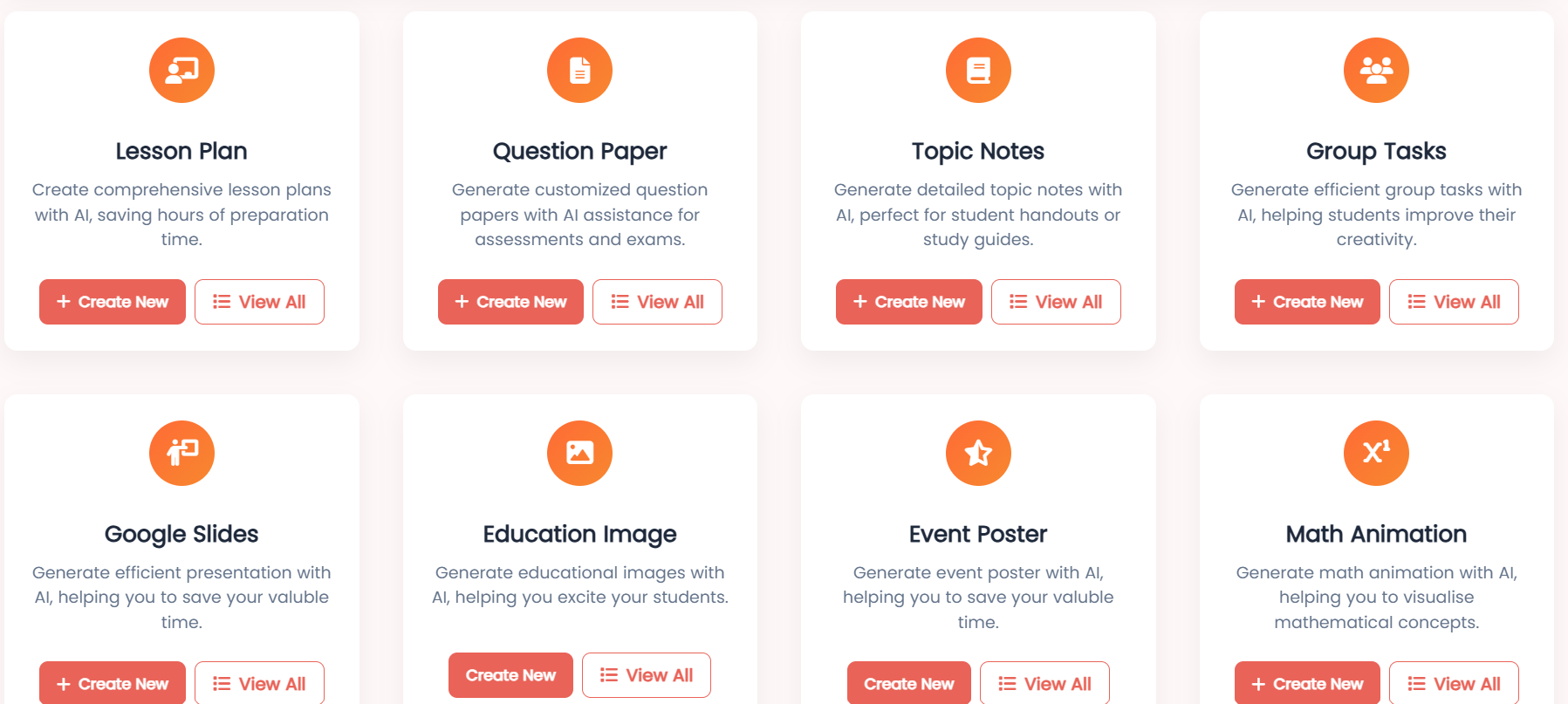
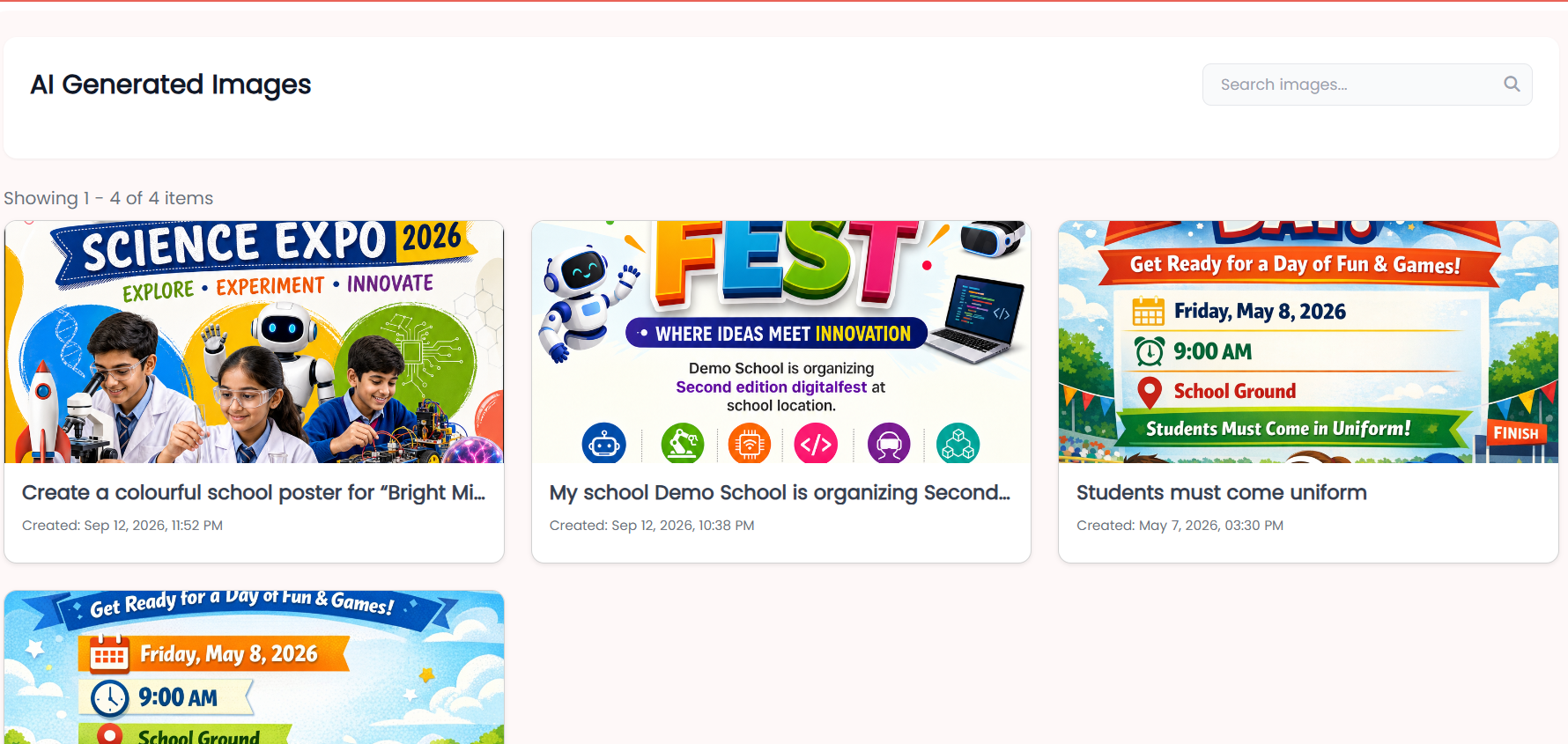
lockapp.cybersquare.org play_circleWalkthrough
Cyber Square CS AI Tools dashboard — Event Poster card with Create New and View All options
1
2

Create & Manage Event Posters

Teachers can create an event poster by providing the event theme, date, time, venue, and a detailed description. They can also choose whether to add a logo and specify its position. AI then generates a poster based on the information provided.
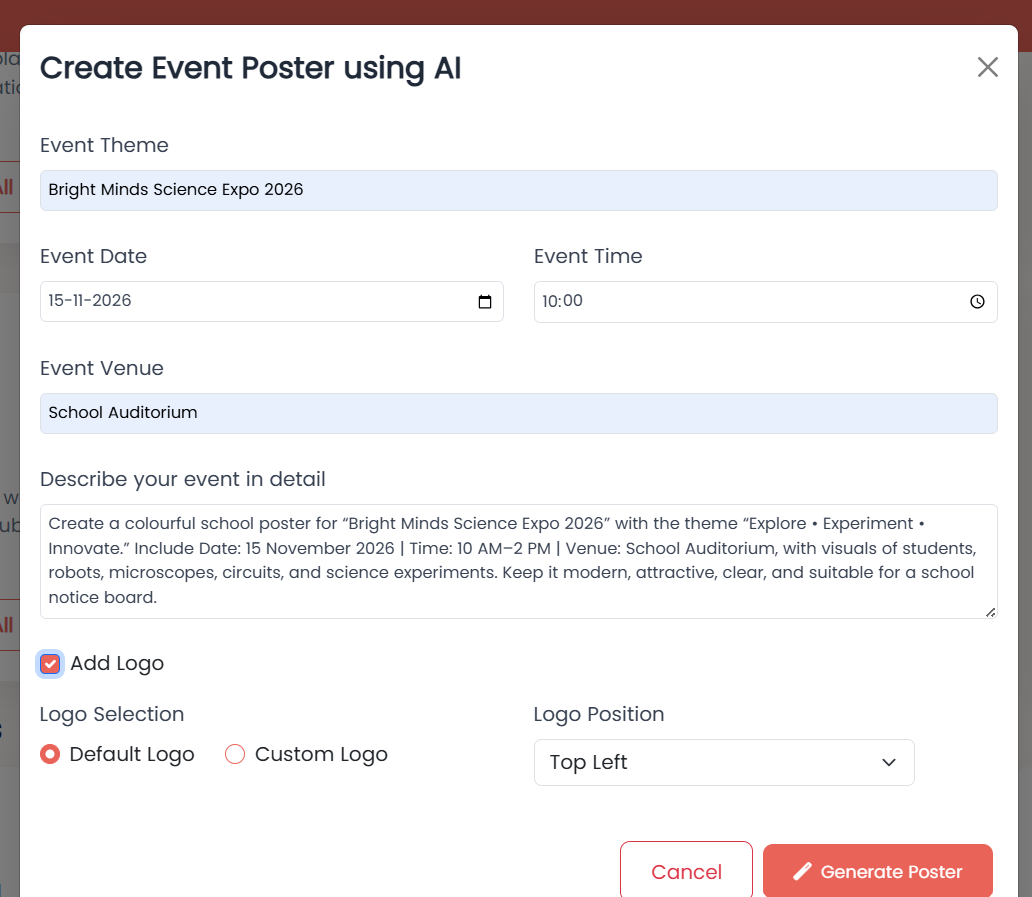
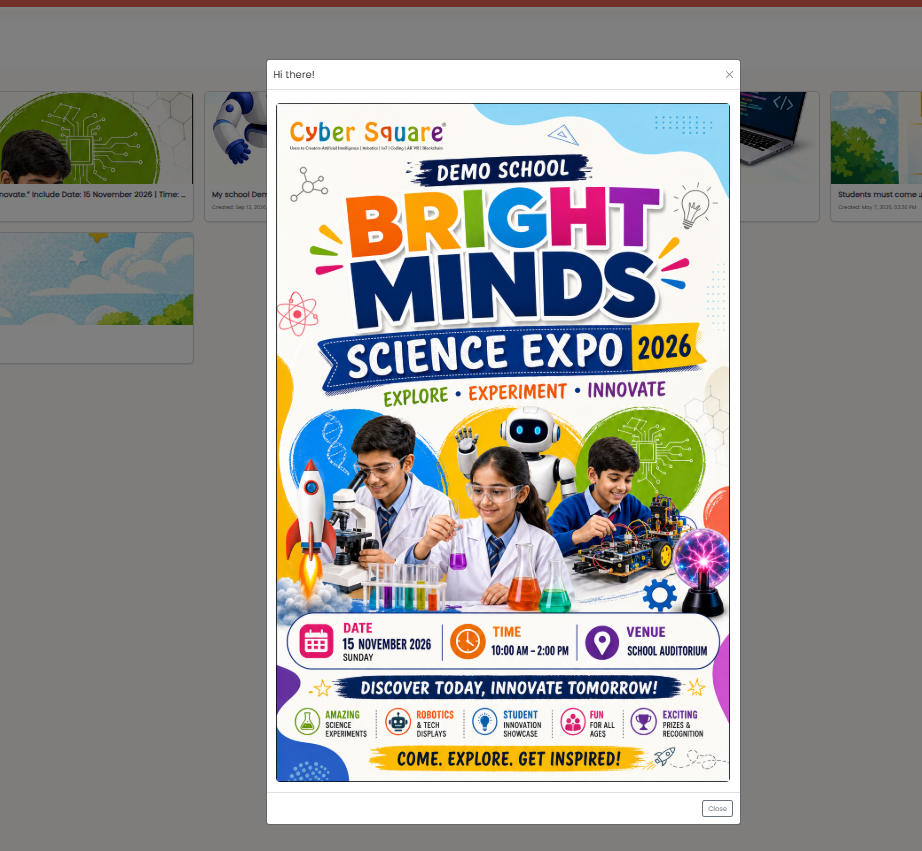
lockapp.cybersquare.org play_circleWalkthrough
Cyber Square Event Poster — Create Event Poster using AI dialog with Event Theme, Date, Time, Venue, description, and logo options
1
2

Digital Fest competitions

co_presentTeacher admin_panel_settingsSchool Admin schoolStudent

Digital Fest is Cyber Square's student competition — the events behind two world records. Register your school, enter students and showcase their work.

emoji_events
Compete
Coding, AI and robotics challenges across grade bands.
workspace_premium
World records
Home of a Guinness World Record (2022) and a Wonder Book of Records (2023).
how_to_reg
Register
Admins enrol the school; teachers nominate students and batches.
slideshow
Showcase
Students submit projects that are presented and judged online.
  1. 1
    School registers
    An admin opens Digital Fest and enrols the school for the season.
  2. 2
    Teachers nominate
    Add participating students and the challenge category.
  3. 3
    Students submit
    Projects are built in CS Lab and submitted for judging.

Setting up your school

admin_panel_settingsSchool Admin

Admins, start here. Setting up a school creates your school code, your structure and the accounts everyone signs in with.

  1. 1
    Create the school
    Choose 'Create a new school on Cyber Square' at sign-up and enter your school's details.
  2. 2
    Get your school code
    Cyber Square generates a unique code — this is what teachers and students use to join.
  3. 3
    Set up your program
    Pick the grades and courses your school runs from the curriculum ladder.
  4. 4
    Invite teachers
    Add teachers so they can start preparing classes right away.
info
Already on Cyber Square?
If your school exists, choose 'Join an existing school' and enter the code instead of creating a new one.

Streams, divisions & batches

admin_panel_settingsSchool Admin

Mirror your real school in the platform with a simple hierarchy: grades, divisions and batches. Get this right and assigning courses becomes effortless.

stairs
Stream / Grade
The year group — e.g. Grade 7 — that a curriculum course maps to.
splitscreen
Division / Section
Classes within a grade, like 7-A and 7-B.
groups
Batch
The actual set of students a teacher takes for a course.
lightbulb
Tip
Set up divisions to match your timetable. When you assign a course to a batch, every student in it gets access instantly.

Managing teachers & students

admin_panel_settingsSchool Admin

Add, organise and support every teacher and student from one place — one at a time, or hundreds at once.

  1. 1
    Add teachers
    Invite by email and assign the grades or divisions they teach.
  2. 2
    Enrol students
    Add individually, or bulk-upload a CSV to create a whole grade in minutes.
  3. 3
    Place into batches
    Assign students to divisions/batches so courses reach the right people.
  4. 4
    Manage accounts
    Reset passwords, move students between batches and deactivate leavers.
warning
Bulk upload tips
Use the provided CSV template, keep one student per row, and double-check grade and division columns before importing.
Yes — a student can belong to several batches, for example a main class plus a robotics club, and will see courses from each.
Deactivate the account to remove access while preserving their records and scorecard history for school reporting.

Joining your class

schoolStudent

New student? Joining takes a school code and a minute. Here's exactly what to do the first time you sign in.

  1. 1
    Open the app
    On any device, go to the Cyber Square app and choose the Student role.
  2. 2
    Enter your school code
    Type the code your teacher or school gave you.
  3. 3
    Sign in
    Use the username and password set for you, then create your own password if asked.
  4. 4
    Find your class
    Your assigned courses appear on your dashboard automatically.
info
Note
If you don't have a code or your login doesn't work, ask your teacher — they can resend your details from the admin tools.

Learning & submitting

schoolStudent

Once you're in, learning is a loop: watch the lesson, practise in CS Lab, then show what you know in exams — earning badges and keeping your streak as you go.

play_circle
Watch lessons
Follow along live, or open lessons from your courses any time.
science
Practise in CS Lab
Write and run real code in your browser — no setup needed.
task_alt
Take exams
Sit quizzes and Lab Exams; see your score the moment you submit.
military_tech
Earn badges
Build streaks and climb your class scorecard as you complete work.
lightbulb
Keep your streak
Doing a little every day builds your streak and badges — and makes exam week far easier.

Contact & support

co_presentTeacher admin_panel_settingsSchool Admin schoolStudent

Cyber Square supports 1,000+ schools, and a real team is behind every one. Here's how to get help fast.

support_agent
Your trainer
Every school has a Cyber Square trainer for onboarding and day-to-day help.
mail
Email
Write to support@cybersquare.org for account, billing or technical questions.
chat
WhatsApp
Quick questions? Reach the team on the support number shared with your school.
help_center
In-app help
Look for the help icon in the app to open this manual in context.
info
Tell us what's wrong
When reporting an issue, include your role, school code and the device you're on — it helps the team resolve things faster.

Frequently asked questions

co_presentTeacher admin_panel_settingsSchool Admin schoolStudent

Quick answers to the questions schools ask most.

The platform is cloud-based and needs an internet connection, including for CS Lab. For low-bandwidth classrooms, share resources to the smartboard and have students follow on it.
Web browsers, tablets, mobile phones and classroom smartboards / Android-TV. The same account works across all of them.
Use 'Forgot password' on sign-in for an email reset. Admins can also reset any teacher or student password from the user management tools.
Yes. Student records and scorecards are tied to your school and visible only to that school's authorised staff. Deactivating a leaver preserves records without leaving access open.
Where your school enables it, parents get a view of their child's progress and scorecard. Ask your admin to turn this on.
WhatsApp Chat